

Click any AI tool above to instantly get a summary of this article. Perfect for quick insights when you're short on time.
Figma has become one of the most recognizable names in digital design. Product designers use it to create interfaces, developers inspect layouts and components, marketers build campaign visuals, and product managers collaborate on early concepts. Its browser-based workflow, multiplayer editing, prototyping features, design systems, and extensive plugin ecosystem have made it a standard tool for many teams.
However, popularity doesn’t mean it is the best fit for every project.
A Figma alternative can make more sense when your work has outgrown a general-purpose design canvas or demands a more specialized workflow. A marketing team creating reports and infographics may not need a full product-design environment. A startup building a marketing website may prefer a platform that combines design, CMS management, hosting, and publishing. A UX team testing complex interactions may need more advanced behavioral prototyping. A founder or product manager may want to turn a rough idea into a wireframe without learning a professional design application.
Figma itself remains a major force in the design industry. Its 2025 revenue reached about $1.056 billion, up from $749 million in 2024. At the same time, the way teams create visual work is changing quickly. In Figma’s 2026 AI research, 41% of respondents said AI now meaningfully changes how their teams work together, compared with only 7% two years earlier.
That shift creates room for tools focused on infographics, code-backed prototypes, AI wireframes, websites, diagrams, presentations, collaborative ideation, and fast marketing content. The best choice depends on what you create, who needs to participate, and how much control your team requires.
This guide compares ten strong Figma alternatives for 2026. Each option includes its main strengths, limitations, ideal users, highlighted features, advantages, disadvantages, and available pricing information.
What Makes a Good Figma Alternative?
A good Figma alternative doesn’t need to reproduce every Figma feature. In many cases, copying Figma would defeat the purpose of switching. The better question is:
Which tool helps your team complete its most important design work with less friction?
The answer depends on your workflow, team structure, technical requirements, budget, and final deliverables.
Start With the Work You Actually Need to Complete
Before comparing software, identify the work your team performs most often.
Consider a marketing department that turns reports, survey findings, campaign data, and research into visual content. If the team uses Figma for every infographic, it may spend too much time manually arranging text, charts, icons, and sections. A dedicated visual storytelling platform could help the team move from source material to a finished asset more efficiently.
Now consider a product team. Its main requirements may include:
- User flows
- Wireframes
- Design systems
- Interactive prototypes
- Developer handoff
- Responsive layouts
- Component libraries
- Usability testing
For that team, a specialized UX or prototyping platform may be more valuable than a general visual-design tool.
The same principle applies to developers, product managers, UX researchers, educators, founders, and content teams. Figma reported that roughly two-thirds of its monthly active users in the final three months of 2025 were non-designers. That figure shows how far visual product work has expanded beyond traditional design departments.
A good alternative should therefore perform your most important jobs better, faster, or more economically. It does not need to be the most powerful tool in every category.
Look Beyond the Design Canvas
Pricing is another reason teams explore alternatives. Figma’s Professional Full seat currently costs $16 per month, while Organization and Enterprise Full seats cost $55 and $90 per month, respectively. Different seat types, collaboration permissions, product access, and AI-credit allowances can make the final cost more complicated than the headline price suggests.
Some teams also want capabilities that are not central to Figma’s core workflow, such as:
- Stronger offline access
- Specialized infographic creation
- AI-generated wireframes
- Code-backed components
- Website publishing
- Built-in hosting
- Advanced behavioral prototypes
- Presentation creation
- Diagramming and mind mapping
- Easier tools for non-designers
- Faster social-media content production
Your best option should match your workflow, platform requirements, collaboration model, export needs, and budget. Feature quantity matters less than feature relevance.
A tool with hundreds of features may still be a poor choice if your team needs only five. Conversely, a focused platform with fewer features may deliver more value if those features directly support your daily work.
Must-know tip: Dylan Field, Figma’s co-founder and CEO, summarized the AI shift with the statement, “AI has lowered the floor; it has not raised the ceiling.” The best tool should reduce repetitive work while preserving your ability to make thoughtful creative decisions.
Should You Switch From Figma or Stay With It?
Switching is not automatically the right decision. Figma remains a strong choice for many product-design teams, especially those that depend on shared libraries, collaborative editing, prototyping, developer handoff, and a large ecosystem of plugins and integrations.
However, switching can be the better decision when another platform aligns more closely with the work you perform every day.
The goal is not to prove that Figma is weak. The goal is to determine whether specialization can remove features, costs, and steps your team rarely needs.
Switch When Specialization Saves Time
If your main output is infographics, reports, social visuals, presentations, or data stories, you may benefit more from a content-to-visual platform than from a product-design application.
If you primarily create sophisticated interactive prototypes, ProtoPie offers logic, variables, formulas, sensors, and cross-device interactions built specifically around behavioral prototyping. That can be more efficient than trying to simulate complex behavior in a tool designed primarily for interface layouts.
Likewise, Framer makes more sense when your goal is to design and publish a working marketing website. You can move from visual creation into CMS management, hosting, SEO, localization, analytics, and publishing without treating the design as merely a handoff artifact.
The benefit is focus. You reduce the gap between what you design and what you need to deliver.
Switch When Your Team Has Different Skill Levels
Modern product work is increasingly cross-functional. Figma’s 2026 research found that the share of developers participating in design rose from 44% to 60%, while designers participating in development increased from 21% to 41%.
That change creates a practical challenge. Not everyone who contributes to a visual project is a professional designer. Product managers, developers, marketers, researchers, founders, and executives may all need to review or create visual work.
Tools such as Uizard, Miro, Whimsical, and Infographicmakerai reduce the amount of specialist knowledge required for specific visual tasks. AI generation, editable templates, visual components, and guided layouts can help a product manager or marketer contribute without pretending to be a professional interface designer.
This matters because collaboration only works when people can participate meaningfully. A simpler tool can sometimes create more useful teamwork than a more powerful one.
Switch When Cost Follows Features You Do Not Use
Paying for broad capability is sensible when your team uses it. It becomes wasteful when your team relies on only a narrow part of the product.
Figma combines multiple products and seat types across its plans, while alternatives often price around narrower jobs such as:
- Wireframing
- Visual publishing
- Website creation
- Interactive prototyping
- Presentation design
- Infographic creation
- Collaborative planning
Calculate the annual cost for your actual number of editors before moving. Then compare migration, training, export, integration, and lost ecosystem-access costs against the potential savings.
Must-know tip: Do not switch because another application has a longer feature list. Switch when it shortens a repeated workflow that costs your team time every week.
8 Best Figma Alternative Tools Changing Visual Work in 2026
The ten products below solve very different problems. Some come close to Figma for particular UI workflows, while others deliberately specialize in infographics, websites, wireframes, whiteboards, presentations, or high-fidelity prototypes.
That distinction matters. The smartest Figma alternative is not necessarily the tool that looks most like Figma. It is the tool that removes friction from your most work.
1. Infographicmakerai
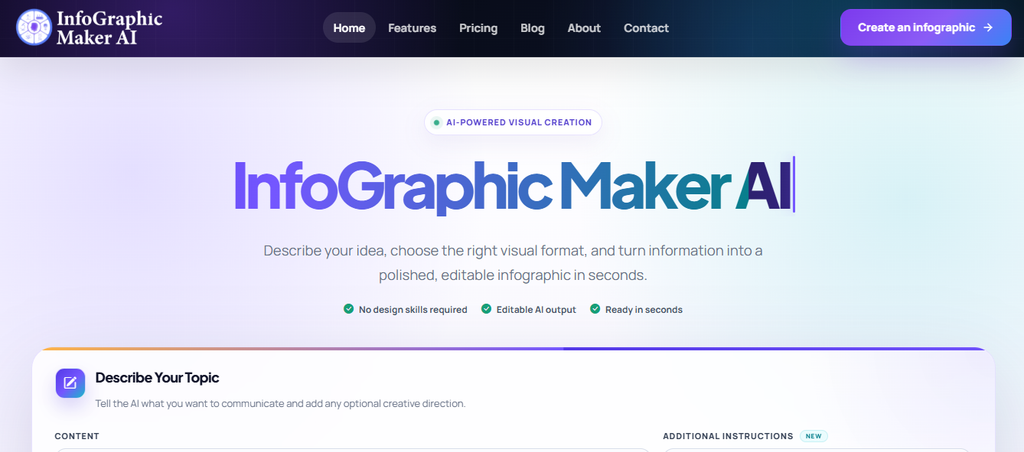
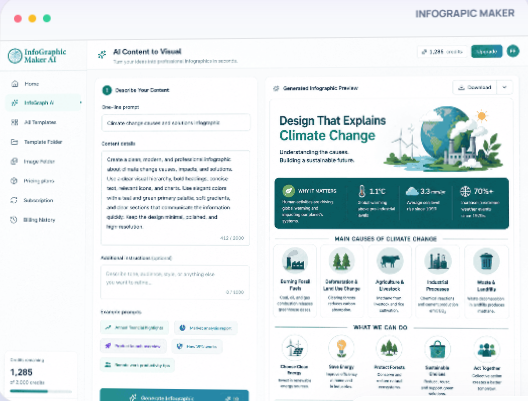
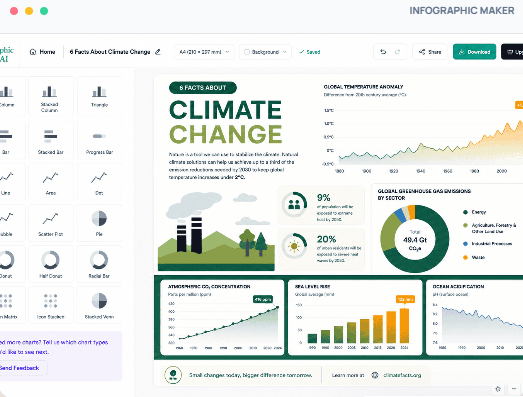
Infographicmakerai takes a different route from traditional interface-design software. Instead of beginning with a blank canvas, you can start with a prompt, notes, long-form content, a report, or data and turn that information into an editable visual structure.
This approach is useful when the hardest part of a project is not drawing the design but deciding how the information should flow. A long report may contain several themes, statistics, comparisons, timelines, and conclusions. Turning that material into a clear visual story can take hours when done manually.
Infographicmakerai helps organize the content into a visual hierarchy. It can create a starting point that includes sections, headings, data blocks, charts, comparisons, timelines, and process diagrams. You can then edit, rearrange, regenerate, or refine individual sections.
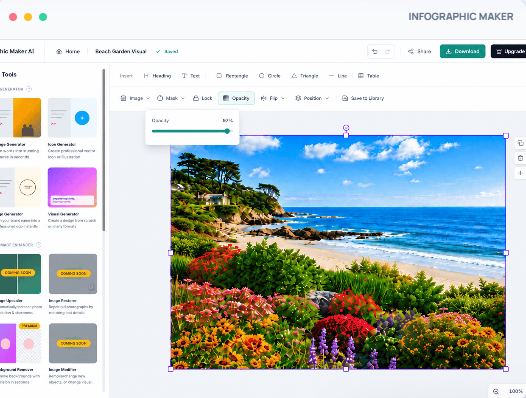
The smart editor adds alignment, responsive spacing, global typography and color changes, charts, data blocks, timelines, comparisons, and process diagrams. This gives users more control after AI creates the initial structure.
For recurring brand work, brand kits, team collaboration, multilingual creation, one-click resizing, version history, and PNG, JPG, PDF, and SVG exports broaden its usefulness beyond one-off infographic generation.
Infographicmakerai is especially relevant for:
- Marketing teams
- Content marketers
- Data storytellers
- Educators
- Consultants
- Researchers
- Report creators
- Social-media teams
- Agencies
- Businesses that publish branded visual content
Its main advantage over a general-purpose interface tool is focus. If your work involves transforming information into visual communication, the platform can reduce the distance between source content and finished design.
Infographicmakerai Highlighted Features
- AI content-to-visual creation: Turns prompts, reports, notes, and other source material into structured editable visual drafts.
- Smart editor: Helps maintain alignment, spacing, typography, and proportions while you customize the design.
- Charts and data: Creates bar, line, pie, donut, comparison, timeline, and KPI-style visualizations.
- Brand consistency: Saves logos, colors, typography, and reusable brand elements for repeated use.
- Content repurposing: Resizes completed designs for presentations, reports, social media, and web use.
- Flexible export: Supports high-quality PNG, JPG, PDF, and SVG output.
- Editable AI output: Allows users to adjust generated sections instead of accepting a fixed image.
- Collaboration support: Helps teams review, revise, and maintain visual content together.
- Multilingual workflows: Supports creating visual content for different audiences and languages.
Infographicmakerai Pros
- Turns substantial source material into a visual starting point.
- Keeps AI-generated output fully editable.
- Combines infographic generation with data visualization.
- Supports reusable brand systems.
- Includes collaborative feedback workflows.
- Offers multiple export formats.
- Reduces repetitive manual layout work.
- Helps non-designers create more structured visual content.
- Works well for reports, educational materials, and campaign assets.
- Makes it easier to repurpose one design for multiple channels.
Infographicmakerai Cons
- Heavy AI usage is governed by monthly credit allowances.
- Its information-visualization focus may be broader than necessary if you only need detailed application-interface design.
- Users still need to review AI-generated content for accuracy and clarity.
Infographicmakerai Pricing Plans
Infographicsmaker offers different pricing plans and credits to suit different users. They include:
- Free Plan – $0, perfect if you want to try out AI-powered design.
- Starter Plan – $19 per month and suitable for individual and small projects
- Business Plan – $49 per month and suitable for professionals and growing teams.
- Enterprise – $99 for teams and agencies at scale
2. Visme
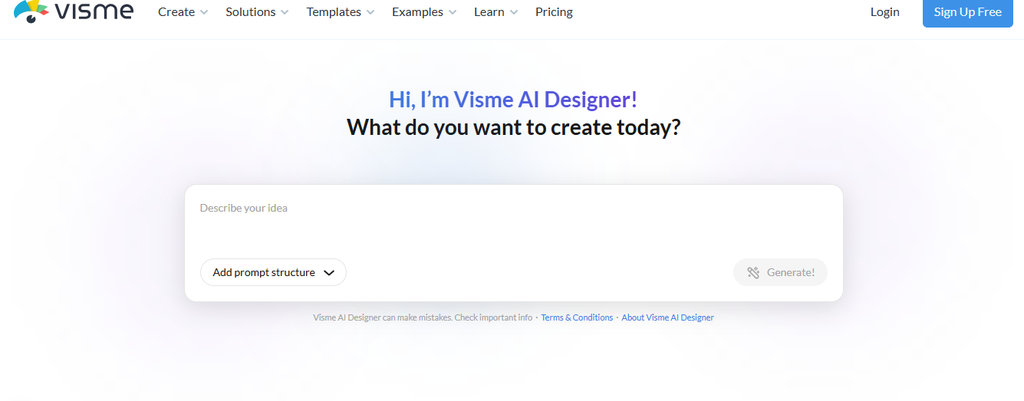
Visme is strong when you need presentations, infographics, reports, charts, and branded business graphics rather than deep application-interface design.
It offers substantial visual versatility and is designed for users who need to communicate information visually without building every asset from scratch.
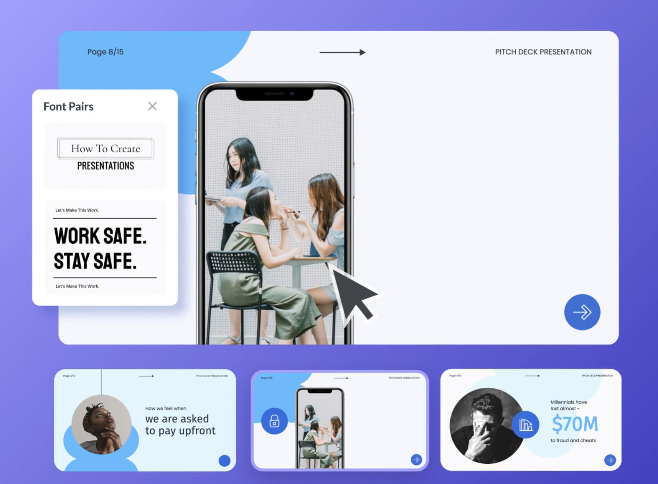
Visme can support internal reports, sales presentations, training materials, marketing campaigns, social graphics, interactive content, and visual documents. It is particularly useful for teams that need a broad range of business visuals but do not want to maintain a complex product-design system.
Its data widgets and charts make it useful for business communication. Users can present statistics, comparisons, processes, and performance indicators in a more accessible format.
However, teams seeking advanced UI components and sophisticated application prototyping will find it less direct than a purpose-built UX platform. Visme is better suited to communication design than to building a detailed interface system for a complex digital product.
Visme Highlighted Features
- Charts and data widgets.
- Infographic and presentation templates.
- Brand Kit.
- Interactive and animated content.
- Multiple business export formats.
- Stock images, icons, illustrations, and design assets.
- Presentation and report creation.
- Visual content for marketing and internal communication.
Visme Pros
- Strong infographic capability.
- Useful presentation tools.
- Extensive visual assets.
- Business-friendly brand controls.
- Supports interactive content.
- Suitable for non-designers.
- Helpful for reports and data storytelling.
- Offers templates for many business use cases.
- Can support both static and animated content.
Visme Cons
- Advanced capabilities require paid plans.
- Not a full UI-design replacement.
- Lower plans have storage restrictions.
- Team pricing can increase with seats.
- Complex product interfaces may be difficult to manage.
- Some advanced export and brand features are restricted to higher tiers.
Visme Pricing Plans
- Basic: $0.
- Starter: $12.25 per person/month, billed at $147 yearly.
- Pro: $24.75 per person/month, billed at $297 yearly.
- Enterprise: Custom pricing for ten or more users.
3. Framer

Framer is compelling when your Figma designs eventually become websites.
Many teams use one tool to design a website and another to build, host, and publish it. That separation can create extra handoff work. Framer reduces the gap by combining visual website design with publishing capabilities.
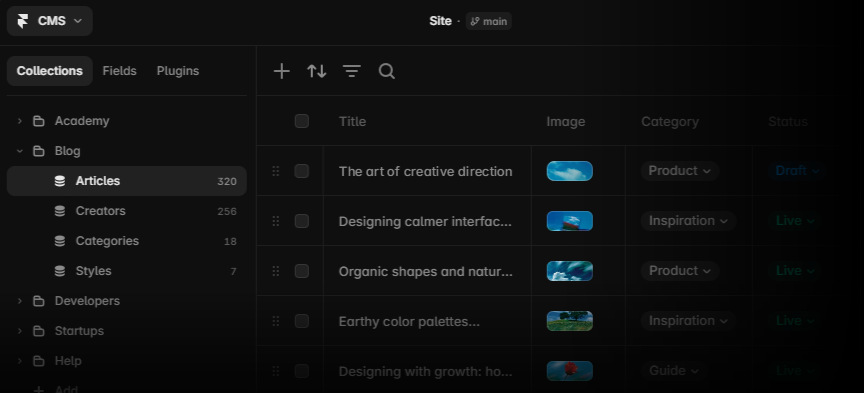
You can visually design responsive pages and move directly into publishing, hosting, CMS content, analytics, SEO, localization, and custom domains. This makes Framer particularly attractive to marketing teams, agencies, startups, freelancers, and businesses that need to launch websites quickly.
Framer is also useful for teams that want to experiment with responsive layouts without manually translating every design into code. The visual workflow can help designers and marketers work together while still producing a live website.
The trade-off is specialization. Framer is increasingly a website-building and publishing environment, so teams designing complex native applications may still need a separate product-design workflow.
Framer Highlighted Features
- Responsive visual website design.
- Integrated CMS.
- Hosting and custom domains.
- Built-in SEO tools.
- AI-powered localization and site workflows.
- Website publishing.
- Responsive layout controls.
- Content management features.
- Analytics and marketing-oriented tools.
Framer Pros
- Design-to-live-site workflow.
- Strong publishing capabilities.
- Built-in hosting.
- Useful CMS functionality.
- Modern AI-assisted workflow.
- Good fit for marketing teams.
- Reduces design-to-development handoff.
- Supports responsive website creation.
- Helps teams launch without assembling multiple tools.
Framer Cons
- Less suitable for broad native-app design.
- Additional editors cost extra.
- Some advanced functions are add-ons.
- Usage limits vary by plan.
- Teams may need another tool for complex application interfaces.
- Website-specific workflows may not suit product-design departments.
Framer Pricing Plans
- Free: $0.
- Basic: $10/month.
- Pro: $30/month.
- Enterprise: Custom pricing.
- Additional full editors: $20/month.
- Content editors: $10/month.
4. UXPin
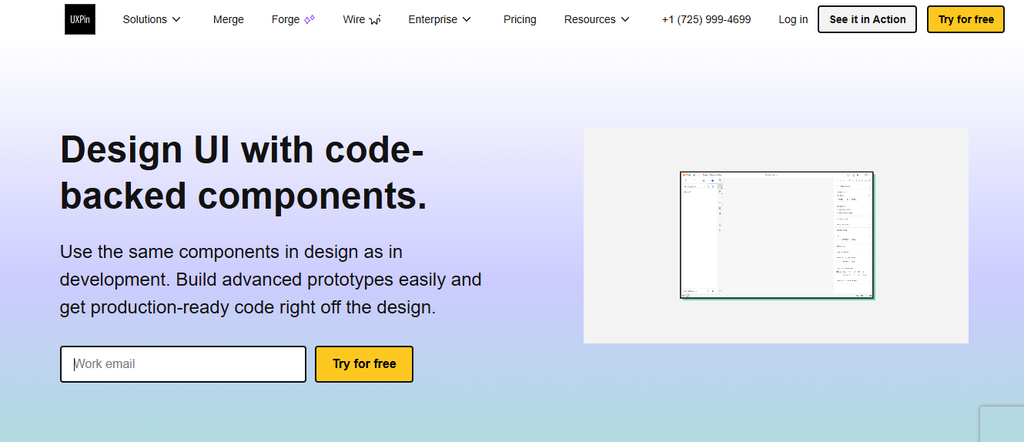
UXPin stands out because it can design with code-backed components instead of relying only on graphical representations.
Traditional design tools often represent interface components visually. UXPin takes a more code-oriented approach, allowing teams to work with components that behave more like the elements used in production. Teams can use built-in libraries or connect production components, then create realistic prototypes with logic and interactions.
This can improve communication between designers and developers. When a component behaves similarly in design and production, teams may spend less time explaining differences between a visual mockup and the final implementation.
UXPin supports variables, conditional logic, states, interactions, and design systems. These capabilities make it useful for teams that need prototypes to demonstrate more than appearance.
UXPin Highlighted Features
- Code-backed UI components.
- Variables and conditional logic.
- Design systems.
- Storybook integration.
- Production-oriented code workflows.
- Interactive states.
- Reusable components.
- Advanced prototyping.
- Developer-focused collaboration.
UXPin Pros
- Strong design-development alignment.
- Advanced prototypes.
- Reusable code components.
- Built-in UI libraries.
- Enterprise integrations.
- Useful for complex product interfaces.
- Helps demonstrate realistic component behavior.
- Supports design systems and reusable patterns.
- Can reduce misunderstandings during handoff.
UXPin Cons
- Higher learning curve.
- Relatively expensive.
- Advanced integrations require higher plans.
- Overkill for simple visual work.
- Requires more planning than lightweight wireframing tools.
- Teams may need technical support to use its full capabilities.
UXPin Pricing Plans
- Free: Limited plan after trial.
- Core: $49/month monthly or $29/month per seat when billed annually.
- Growth: $69/month monthly or $40/month annually.
- Enterprise: Custom pricing.
5. Uizard
Uizard is designed to move quickly from an idea to an editable interface concept.
It is especially useful during the early stages of product development, when teams need to explore ideas before investing in polished design systems. Instead of beginning with a blank canvas, users can describe an idea, sketch a screen, or provide a screenshot.
Its Wireframe Scanner can convert hand-drawn sketches into editable designs. Its Screenshot Scanner can rebuild website or application screenshots as editable mockups. These features can help teams move from rough references to something they can discuss, revise, and test.
Uizard is useful for founders, product managers, researchers, marketers, and designers who need to create concepts quickly. It can also help teams communicate ideas before a professional designer develops the final interface.
The ease of use appeals to founders, product managers, and non-designers. Advanced interface professionals may find the level of granular control less comprehensive than a mature Figma workflow.
Uizard Highlighted Features
- AI wireframe generation.
- Wireframe Scanner.
- Screenshot Scanner.
- Editable UI components.
- Collaborative design workflows.
- Prompt-based interface creation.
- Rapid mockup development.
- Early-stage product visualization.
Uizard Pros
- Beginner-friendly.
- Fast concept generation.
- Useful screenshot conversion.
- Good for early prototypes.
- Reduces blank-canvas work.
- Helps non-designers participate.
- Useful for workshops and brainstorming.
- Makes early ideas easier to communicate.
- Supports quick iteration.
Uizard Cons
- Less granular than advanced UI tools.
- Creator seats drive paid costs.
- Business is annual-only.
- Complex design systems may require another platform.
- Generated designs may need substantial refinement.
- Not ideal for highly detailed production-ready interfaces.
Uizard Pricing Plans
- Free: $0.
- Pro: $19 per creator/month, or $12 per creator/month with annual billing.
- Business: $39 per creator/month, billed annually.
6. ProtoPie
ProtoPie is built for prototypes that need to behave convincingly.
Many design tools can create clickable prototypes, but ProtoPie focuses on more advanced interaction logic. It supports triggers, responses, variables, formulas, conditional flows, sensors, voice interactions, and multi-device experiences.
This makes it useful when a prototype needs to demonstrate how an interface responds to real-world input. For example, a team may need to test a mobile interaction involving device movement, a voice command, a sensor, a conditional state, or a multi-screen flow.
ProtoPie can help teams test ideas before development. A realistic prototype may reveal usability problems that are difficult to identify in static screens. It can also help stakeholders understand how a product should behave rather than simply how it should look.
That makes it powerful but specialized. Teams needing static design systems, everyday marketing graphics, or simple wireframes may not gain enough from its advanced interaction model.
ProtoPie Highlighted Features
- Interaction logic.
- Variables and formulas.
- Native device sensors.
- Cross-device interactions.
- High-fidelity testing and handoff.
- Conditional flows.
- Voice interactions.
- Advanced triggers and responses.
- Realistic behavioral prototypes.
ProtoPie Pros
- Exceptionally realistic prototypes.
- No-code interaction logic.
- Useful for user testing.
- Supports complex states.
- Strong device testing.
- Helps demonstrate behavior before development.
- Useful for hardware and mobile experiences.
- Supports advanced interaction scenarios.
- Can reveal usability issues earlier.
ProtoPie Cons
- More complex than basic prototyping tools.
- Paid plans become costly for teams.
- Free plan limits prototypes.
- Not intended as a broad graphic-design suite.
- Requires time to learn interaction logic.
- May be unnecessary for simple click-through demonstrations.
ProtoPie Pricing Plans
- Free: $0.
- Basic: $25/month for one seat.
- Pro: $47 per editor/month.
- Enterprise: Custom pricing with a minimum of three seats.
7. MockFlow
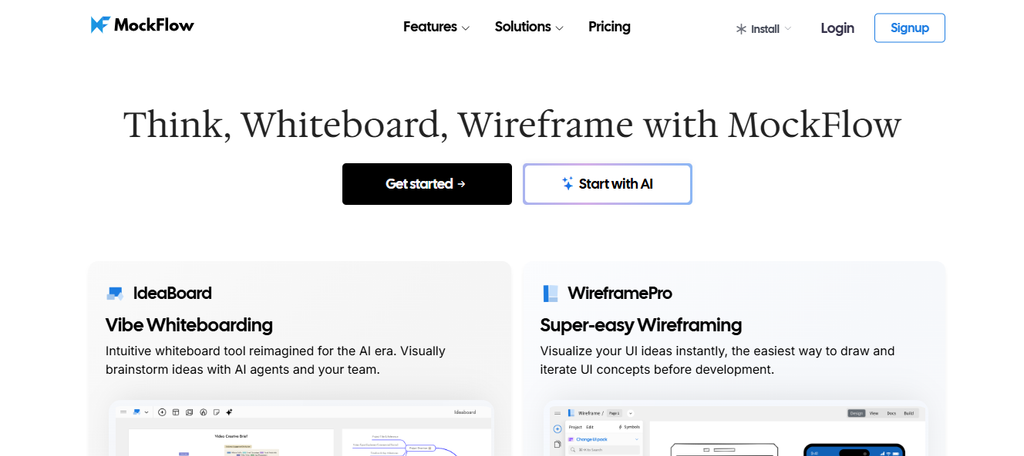
MockFlow concentrates on wireframing, ideation, site maps, and early-stage visual planning.
It is designed for teams that need to organize product ideas before investing in polished interface design. WireframePro can generate wireframes from prompts or screenshots, produce site maps, export designs, and support collaborative review.
MockFlow can be useful during discovery, planning, and early product definition. A team can map the structure of a website, outline the relationship between pages, create rough screens, and discuss user flows before moving into detailed visual design.
Its focused workflow can be an advantage. Users do not need to manage the full complexity of a high-fidelity design system when they are still deciding what the product should contain.
Its biggest limitation is scope. Teams that require highly polished final UI systems may eventually move their concepts into another platform.
MockFlow Highlighted Features
- WireframePro.
- AI-generated wireframes.
- IdeaBoard.
- Sitemap generation.
- Code and Figma export options.
- Prompt-based concept creation.
- Screenshot-based wireframing.
- Collaborative review.
- Early-stage product planning.
MockFlow Pros
- Focused wireframing workflow.
- Strong early-stage ideation.
- AI-assisted concepts.
- Collaboration tools.
- Offline desktop options on eligible plans.
- Helps teams organize product structure.
- Useful for non-designers.
- Supports rapid iteration.
- Can reduce time spent creating basic wireframes.
MockFlow Cons
- Not a complete high-fidelity UI platform.
- Paid pricing varies dynamically by configuration.
- Advanced functionality is split across products.
- Free projects have significant limits.
- Teams may need another tool for final interface design.
- Less suitable for detailed visual systems.
MockFlow Pricing Plans
MockFlow offers product-specific and configuration-dependent pricing. Because the final cost varies by selected products, seats, and features, teams should review the current pricing page before purchasing.
8. Miro

Miro began as a collaborative visual workspace, but its product-development capabilities now extend into prototyping.
Its infinite canvas supports workshops, brainstorming, journey mapping, diagrams, research synthesis, planning, and cross-functional collaboration. Teams can place documents, notes, diagrams, images, tables, and other materials in one shared environment.
Business users can generate single- or multi-screen interfaces from prompts, screenshots, and existing board context, then preview interactive flows. This makes Miro useful during the earliest stages of product development, when teams are still exploring ideas and aligning around a direction.
Miro is particularly valuable when design is part of a broader collaborative process. A team can move from research findings to user journeys, from user journeys to flows, and from flows to early interface concepts without leaving the same workspace.
The limitation is fidelity. Miro positions Prototypes around the earliest stages of product development rather than as a full replacement for advanced interface production.
Miro Highlighted Features
- Infinite collaborative canvas.
- AI prototypes.
- Diagramming.
- Docs, tables, slides, and Kanban.
- Extensive integrations.
- Workshop templates.
- User-flow mapping.
- Research organization.
- Collaborative planning.
Miro Pros
- Excellent team ideation.
- Strong workshop workflows.
- Broad template library.
- Useful early prototypes.
- Connects planning and design.
- Supports many types of visual collaboration.
- Helpful for distributed teams.
- Makes research and design work visible in one place.
- Integrates with other business tools.
Miro Cons
- Advanced prototyping requires Business or Enterprise access.
- Not a complete high-fidelity design replacement.
- Per-member pricing scales with teams.
- Free plan keeps only three boards editable.
- Large boards can become difficult to organize.
- Detailed interface production may require another platform.
Miro Pricing Plans
- Free: $0.
- Starter: $8 per member/month billed yearly.
- Business: $20 per member/month billed yearly.
- Enterprise: Custom pricing.
How to Choose a Figma Alternative Without Disrupting Your Workflow
Switching design platforms can affect more than the design team. It may influence developers, marketers, researchers, project managers, clients, and external partners.
A careful evaluation reduces the risk of choosing a tool that looks impressive but creates new problems.
Define Your Real Use Case First
Write down the three tasks that consume most of your design time.
For example, your list might include:
- Turning research reports into infographics.
- Creating social-media graphics.
- Preparing presentations for clients.
If that is your actual workload, you may not need a complete Figma replacement. You may need a visual communication platform.
Another team might list:
- Creating responsive product interfaces.
- Maintaining a shared component library.
- Testing complex interactions with developers.
That team needs a more advanced product-design or prototyping platform.
You may discover that your actual requirement is:
- Infographic creation
- Early wireframing
- Website publishing
- Behavioral prototyping
- Collaborative planning
- Presentation design
- Social-media production
- Code-backed components
This distinction prevents you from buying unnecessary complexity. It also makes free trials easier to evaluate because you can test real projects instead of casually exploring features.
In 2026, 76% of the product builders surveyed in Figma’s AI study said at least half of their work happens on a visual canvas. Six in ten said the majority of their work happens there. The important question is not whether your team uses visual tools. It is what kind of visual work your team performs.
Separate Must-Have Features From Nice-to-Have Features
Create two lists before comparing products.
Your must-have list might include:
- Editable templates
- SVG export
- PDF export
- Responsive layouts
- Real-time collaboration
- Design-system support
- Interactive prototypes
- CMS integration
- Offline access
- Brand controls
- Developer handoff
- AI generation
- Data visualization
Your nice-to-have list might include:
- Animation
- Stock photography
- Social publishing
- Localization
- Advanced analytics
- Presentation mode
- Custom integrations
- API access
This exercise helps prevent feature overload. A platform may offer an impressive number of capabilities, but if it lacks one essential requirement, it may not be suitable.
Run One Real Project Before Migrating
Choose an existing project and recreate it in your shortlisted platform.
Test:
- Importing assets
- Editing text
- Reusing components
- Creating variations
- Collaborating with teammates
- Adding comments
- Exporting files
- Sharing links
- Reviewing permissions
- Handing work to developers
- Maintaining brand consistency
- Managing revisions
- Working with large files
- Using the platform on your actual devices
Do not judge the tool from a polished demo. A real project exposes missing features, awkward workflows, export problems, and training requirements much faster.
If you are evaluating an infographic platform, use a real report or campaign brief. If you are evaluating a prototyping tool, recreate a difficult interaction rather than a simple screen. If you are evaluating a website builder, publish a test page and check the complete process.
Must-know tip: Your migration test should include the worst part of your current workflow, not only the easiest screen. If the alternative cannot improve that bottleneck, switching delivers little operational value.
Test Collaboration With Real Team Members
A tool may feel easy when used alone but become difficult when several people work together.
Invite the people who will actually use the platform. This may include:
- Designers
- Developers
- Marketers
- Product managers
- Researchers
- Clients
- Editors
- Project managers
Ask each person to complete a realistic task. A marketer might edit a template. A developer might inspect a component. A manager might review a prototype. A client might leave feedback.
Pay attention to:
- Permission settings
- Commenting
- Version history
- Notifications
- File organization
- Guest access
- Sharing links
- Approval workflows
- Role-based access
- Real-time editing
- Review speed
Collaboration is not simply the ability to invite another person. It is the ability to help that person contribute without confusion.
Calculate the Full Team Cost
Compare annual costs rather than promotional monthly figures.
Include:
- Editor seats
- Viewer or collaborator seats
- AI credits
- Storage
- Add-ons
- Premium templates
- Stock assets
- Enterprise security
- API access
- Additional tools
- Training
- Migration time
- Support requirements
Pricing structures vary dramatically. UXPin, for example, currently discounts annual Core pricing from $49 to $29 per seat/month, while Miro’s annual Starter price is $8 per member/month and Snappa’s annual Pro equivalent is $10/month.
The cheapest subscription is not always the cheapest workflow. Count time, training, and additional software before deciding.
A low-cost tool may require another application for:
- Advanced prototyping
- Website publishing
- Data visualization
- Developer handoff
- Brand management
- File conversion
- Presentation creation
If you need three additional tools to replace one existing workflow, the apparent savings may disappear.
Must-know tip: Dustin Tanner, Design Systems Lead at Cash App, has said of Figma, “that centralization is critical.” If you replace one platform with four disconnected tools, your apparent savings may disappear.
Review Export and Handoff Requirements
Export quality can determine whether a tool works for your organization.
Check whether the platform supports the formats your team needs, such as:
- PNG
- JPG
- SVG
- GIF
- MP4
- HTML
- CSS
- Code
- Presentation files
Also check whether exports preserve:
- Fonts
- Transparency
- Vector quality
- Image resolution
- Color accuracy
- Interactive elements
- Responsive behavior
- Accessibility information
A tool may be excellent for creating a design but unsuitable for delivering it to a client, developer, printer, publisher, or content-management system.
Consider Migration and File Ownership
Before leaving Figma, determine what happens to your existing files.
Ask:
- Can you export original files?
- Can you import them into the new platform?
- Will components remain editable?
- Will text remain editable?
- Will images retain their quality?
- Can you preserve version history?
- Can you maintain ownership after cancellation?
- Can you access files if the subscription ends?
- Can you export team libraries?
- Can you archive completed projects?
Some teams do not need to migrate everything. They may keep old projects in Figma while creating new work in another platform. Others may need to move an entire design system.
The right approach depends on the importance of historical files and the cost of rebuilding them.
Check Security and Compliance Requirements
Enterprise teams should evaluate security before adopting any design platform.
Review:
- Data storage locations
- Access controls
- Single sign-on
- Two-factor authentication
- Audit logs
- User provisioning
- Data retention
- Backup policies
- Compliance certifications
- Guest permissions
- Ownership of uploaded content
A tool may be excellent for a small marketing team but unsuitable for a company handling confidential customer information or regulated data.
Evaluate AI Carefully
AI can accelerate design work, but it should not be evaluated only by how quickly it creates a first draft.
Ask:
- Is the output editable?
- Can you regenerate one section without changing everything?
- Can you control the visual style?
- Can you provide brand guidelines?
- Can you verify the source of generated content?
- Does the tool use your data to train models?
- Are AI credits limited?
- Can you export AI-generated work?
- Does the AI understand structured data?
- Can it preserve factual accuracy?
The best AI workflow is usually collaborative. AI can help organize, suggest, summarize, and generate. Human users still need to review hierarchy, accuracy, accessibility, tone, and visual clarity.
Common Mistakes When Replacing Figma
Choosing the Most Similar Tool Instead of the Most Useful Tool
Many teams search for a tool that looks exactly like Figma. That approach can limit the evaluation.
If your main goal is to create websites, a website platform may be more useful than a Figma clone. If your goal is to create infographics, a visual storytelling platform may be more efficient. If your goal is to test complex interactions, a specialized prototyping tool may be the better choice.
Similarity is not the same as suitability.
Ignoring Non-Designer Users
A tool may be powerful for professional designers but difficult for everyone else.
If marketers, developers, executives, clients, or researchers need to participate, test the platform with those users. A tool that reduces the learning curve may improve collaboration more than one that offers deeper technical control.
Comparing Only Subscription Prices
Subscription price is only one part of the total cost.
Also consider:
- Training time
- Migration effort
- Lost productivity
- Additional software
- Export limitations
- Support costs
- Integration work
- File conversion
- Seat minimums
A slightly more expensive platform may still be cheaper if it eliminates several manual steps.
Moving the Entire Team Too Quickly
Do not migrate every project immediately.
Start with a pilot group or one project. Define success criteria before the test begins. For example:
- Reduce infographic production time by 30%.
- Publish a website without developer support.
- Create a realistic prototype in one day.
- Allow non-designers to create approved campaign assets.
- Reduce the number of tools used for a specific workflow.
After the pilot, collect feedback and compare the results with your current process.
Conclusion
Choosing a Figma alternative starts with understanding what you actually want to improve.
A product designer, marketing team, founder, developer, and data storyteller can all reach different conclusions because their outputs are different. One team may need code-backed components. Another may need AI-generated wireframes. A third may need a faster way to create branded infographics. A fourth may need to publish a website without a separate development workflow.
Some alternatives prioritize prototypes. Others focus on wireframes, websites, diagrams, presentations, or business graphics. Tools that combine AI content structuring, editable visuals, charts, brand controls, resizing, and flexible exports can be particularly useful when your work revolves around transforming information into visual communication.
The best choice is not necessarily the platform with the most features. It is the platform that helps your team complete important work with fewer unnecessary steps.
Compare workflow fit, pricing, collaboration, export requirements, security, AI capabilities, and migration effort together. Test a real project before committing. If the alternative improves a repeated bottleneck without creating larger problems elsewhere, it may be a worthwhile replacement or companion to Figma.
Frequently Asked Questions
What is the best Figma alternative?
There is no universal winner. Infographicmakerai suits information-rich visual content, Framer suits published websites, UXPin suits code-backed product design, and ProtoPie excels at sophisticated interactive prototypes.
The best option depends on your primary output. A marketing team may prefer Visme or Snappa, while a product team may prefer UXPin, Uizard, or ProtoPie.
Is there a free Figma alternative?
Yes. Several tools in this list offer free tiers, including Infographicmakerai, Visme, Framer, UXPin, Uizard, ProtoPie, MockFlow, Miro, Whimsical, and Snappa.
Free plans usually include limitations involving exports, storage, AI credits, collaboration, watermarks, editable projects, or advanced features. Test the free plan with a realistic project before assuming it will support your complete workflow.
Which Figma alternative is best for infographics?
Infographicmakerai and Visme are the most directly aligned with infographic creation in this list. Both provide visual storytelling and data-visualization capabilities.
Infographicmakerai is particularly useful when you want to begin with a report, prompt, notes, or structured information. Visme is useful when you want a broad library of templates and business-communication assets.
Which Figma alternative is best for beginners?
Uizard, Whimsical, Snappa, and Infographicmakerai reduce the amount of manual design work required to get started.
Their workflows emphasize templates, AI generation, guided editing, or simple visual structures. Beginners should still review generated content carefully and learn basic principles of hierarchy, contrast, spacing, typography, and accessibility.
What is the best Figma alternative for developers?
UXPin is particularly relevant because it supports code-backed components, coded libraries, Storybook integration on eligible plans, and advanced design-to-development workflows.
It is most useful when developers need to participate in design or when the design team wants prototypes that behave more like production components.
What is the best Figma alternative for prototyping?
ProtoPie is a strong option when interaction realism matters. It supports variables, formulas, triggers, sensors, multi-device interactions, and sophisticated logic.
Uizard and MockFlow may be better for early concepts, while UXPin may be better for code-backed product interfaces.
Is Framer better than Figma?
Framer can be better when the final deliverable is a published website. It combines visual design with hosting, CMS features, SEO, localization, and publishing.
Figma remains broader for interface design, design systems, and cross-functional product-development work. The better choice depends on whether you are designing a website or building a broader digital product.
Can Miro replace Figma?
Miro can replace parts of a Figma workflow involving ideation, early prototypes, diagrams, workshops, and planning.
It is not positioned as a full replacement for detailed high-fidelity interface design. Many teams may use Miro for discovery and collaboration while using another platform for final UI production.
Can I use Whimsical instead of Figma?
Yes, if your work mainly involves low-fidelity wireframes, user flows, mind maps, diagrams, and early product thinking.
Advanced UI design will normally require a more specialized platform. Whimsical is strongest when speed, clarity, and collaboration matter more than visual polish.
What should I check before leaving Figma?
Check file migration, component compatibility, exports, collaboration, developer handoff, integrations, permissions, pricing, training requirements, and design-system migration before moving a full team.
You should also test whether the new platform supports your existing fonts, assets, templates, file formats, and approval processes.
Are AI design tools replacing Figma?
AI is changing how teams start and iterate on designs rather than making visual design platforms irrelevant.
Figma’s 2026 research found that 41% of respondents already believe AI meaningfully changes how their teams collaborate, showing that the workflow itself is evolving. AI can reduce repetitive work, but teams still need human judgment for strategy, accuracy, accessibility, usability, and final quality.
Which alternative is best for marketing teams?
For campaigns, reports, infographics, social assets, and branded information, Infographicmakerai, Visme, and Snappa are more directly focused on marketing-style visual output than traditional UI platforms.
Framer may be the better choice when the marketing team also needs to publish and manage a website.
Which Figma alternative is best for websites?
Framer is one of the strongest options in this list for teams that want to design and publish websites in one environment.
It combines visual design with hosting, CMS features, SEO tools, localization, analytics, and publishing workflows.
Which Figma alternative is best for wireframing?
Uizard, MockFlow, and Whimsical are strong choices for wireframing.
Uizard is useful for AI-generated concepts and screenshot conversion. MockFlow is focused on wireframes and site maps. Whimsical is useful for simple wireframes, flows, diagrams, and collaborative planning.
Should a startup switch away from Figma?
A startup should switch when a more focused product lowers cost or removes repeated workflow friction.
For example, a startup building a marketing website may benefit from Framer. A startup validating an app idea may prefer Uizard. A startup creating investor presentations and visual reports may prefer Visme or Infographicmakerai.
Test a real project first so you can measure the benefits before migrating your entire design system.
Can I use more than one Figma alternative?
Yes. Many teams use different tools for different stages of work.
For example, a team might use Miro for workshops, Uizard for early concepts, UXPin for detailed product prototypes, and Framer for the public website. The key is to avoid creating unnecessary fragmentation. Use multiple tools only when each one provides a clear benefit.
What is the most important factor when choosing a Figma alternative?
The most important factor is workflow fit.
Ask whether the tool helps your team complete its most frequent and valuable tasks more efficiently. Consider the final deliverable, the people who need to participate, the level of control required, the cost of migration, and the platform’s ability to grow with your organization.

Comments
0 responsesNo comments yet. Be the first to share your thoughts.