

Click any AI tool above to instantly get a summary of this article. Perfect for quick insights when you're short on time.
You know the feeling. You open Illustrator to make one graphic, logo, infographic, or vector asset, then realize the software, subscription, and workflow may be more than the job actually needs. That is why finding the right Adobe Illustrator alternative has become less about replacing every Illustrator feature and more about finding a tool that fits how you really design.
Adobe currently lists Illustrator at $22.99 per month on an annual, billed-monthly individual plan in the United States, with a seven-day trial. Meanwhile, competing tools now range from completely free professional suites to AI-first editors and lightweight browser software.
Below, you will find 10 alternatives compared by features, limitations, pricing, usability, and the type of work each handles best.
Why Are Designers Looking for Adobe Illustrator Alternatives in 2026?
Illustrator remains one of the strongest professional vector applications available. The problem is that not every designer, marketer, business owner, student, or content team needs that level of functionality.
Subscription Costs Add Up
Paying for professional software makes sense when you use its advanced capabilities every day. The calculation changes when you mainly create occasional logos, simple SVG graphics, social visuals, infographics, or marketing assets.
Adobe’s current U.S. individual Illustrator plan costs $22.99 per month when purchased on an annual, billed-monthly basis. That makes cost one practical reason people search for an Illustrator subscription alternative.
Free tools have also become much more capable. Affinity, for example, changed dramatically in October 2025 when Canva announced that the redesigned Affinity application would become completely free.
You therefore have more room to ask a simple question: are you paying for features your workflow actually needs?
Different Workflows Need Different Tools
A logo designer needs precise nodes, paths, curves, gradients, typography, and scalable exports. A marketing team may care more about templates, brand assets, AI generation, reusable graphics, and fast publishing.
That difference matters. Choosing software only because it has the longest feature list can leave you with another complicated workspace that does not solve your actual problem.
An infographic creator, for example, may gain more from text-to-visual generation and built-in data visualization than from hundreds of manual vector controls. A product designer may value components, prototyping, collaboration, and developer handoff instead.
The best replacement therefore depends on the work you need to finish.
AI Is Changing the Creative Workflow
Vector software is no longer judged only by pen tools, anchor points, and brushes. AI-assisted image generation, vectorization, background removal, layout creation, and content generation are becoming part of everyday creative workflows.
Brand designer Gizem Akdağ described AI as a “creative partner” that helps speed up ideation and visual generation.
That does not make traditional vector editing irrelevant. It means newer tools can remove repetitive steps before you reach the detailed editing stage.
Must-know Tip: Don’t choose an Illustrator replacement just because it advertises AI. Choose it when the AI reduces a real bottleneck in your workflow while still giving you enough editing control afterward.
Simpler Tools Can Reduce Learning Time
A professional application can be powerful and still be excessive for a straightforward task. Learning dozens of panels, effects, shortcuts, and workflows costs time.
Some alternatives deliberately narrow their focus. Boxy SVG concentrates heavily on SVG. Sketch emphasizes product design. Infographicmaker focuses more closely on visual communication and AI-assisted infographic creation.
That specialization can speed up your daily workflow because fewer unrelated controls compete for your attention.
The goal is not always to find another Illustrator. Sometimes it is to find a better tool for the specific work you used Illustrator to do.
How to Switch From Adobe Illustrator Without Losing Your Existing Work
Moving away from Illustrator is easier when you treat migration as a file-compatibility project instead of simply installing another editor.
Audit Your Existing File Formats: Know what must remain editable before moving anything.
Start by checking the files you use most often. Separate AI master files from SVG, EPS, PDF, PNG, JPG, and other delivery formats.
Do not assume that opening an AI file means every effect will remain perfectly editable. Complex blends, fonts, masks, appearances, linked assets, color profiles, and Illustrator-specific effects may translate differently.
Affinity currently lists high-fidelity import support for formats including AI, PSD, PDF, SVG, and IDML. Inkscape also supports several common formats, including AI, EPS, PDF, PS, PNG, and SVG.
Test Your Most Complex Projects First: A successful simple logo import does not prove full compatibility.
Open projects that contain the features you depend on most. Check text, gradients, transparency, clipping masks, spot colors, artboards, symbols, effects, linked images, and typography.
Export the same test file from the replacement application and reopen it. Then compare visual appearance and editability.
A five-minute test with your hardest real file can reveal more than an hour of reading feature lists.
Must-know Tip: Keep your original AI files untouched during migration. Work from duplicate copies until you know exactly how the new editor interprets your assets.
Convert Critical Assets Into Portable Formats: Reduce dependence on one application’s proprietary structure.
SVG works well for many scalable web graphics. PDF and EPS can remain useful for print and interchange, depending on your production workflow.
Keep raster previews as well. A PNG or JPG reference gives you a quick visual benchmark if an imported vector file changes unexpectedly.
Fonts deserve special attention. Install the same licensed fonts on the destination machine before judging whether a migrated design is broken.
Run a Real Production Test: Do not switch based solely on feature checklists.
Take one genuine project from start to delivery. Edit it, export it, send it through your normal review process, and test the output where customers will actually see it.
For print work, examine CMYK, bleed, spot colors, PDF output, and printer requirements. For digital work, check SVG cleanliness, image quality, file weight, dimensions, and browser rendering.
Only then should you move your broader library.
10 Best Adobe Illustrator Alternative Tools to Consider in 2026
The following 10 Adobe illustrator alternative options cover very different creative needs. Some focus on professional vector editing, while others prioritize AI generation, infographics, SVG production, UI design, collaboration, or simplicity.
The smartest choice is therefore not automatically the application that most closely copies Illustrator. It is the one that removes the most friction from the work you complete repeatedly.
1. Infographicmaker
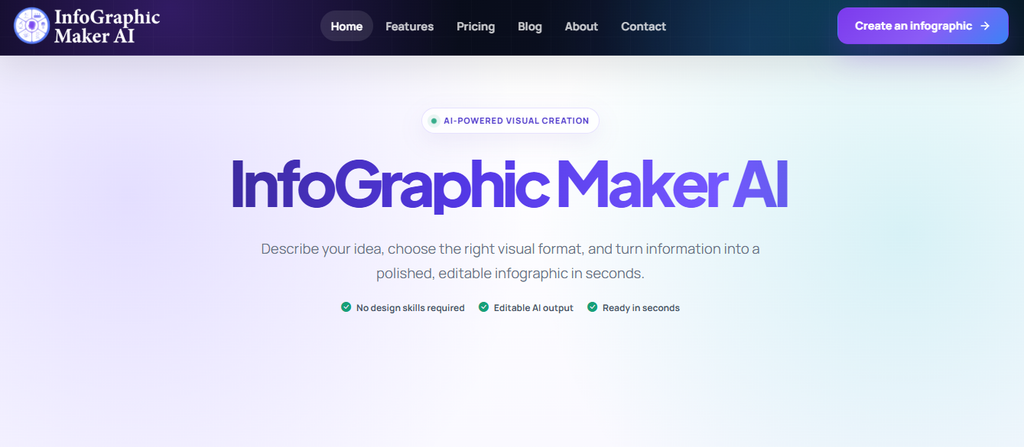
Infographicmaker takes a different route from a traditional vector editor. Instead of expecting you to construct every visual manually, it combines AI-assisted infographic creation, image generation, templates, data visualization, asset discovery, branding tools, and multiple export options.
That approach is particularly useful when your final goal is an infographic, presentation visual, chart-driven asset, branded information graphic, or marketing visual rather than intricate freehand vector illustration. The platform’s current pricing page lists AI infographic generation, image and icon generation, Brand Kit support, animations, text effects, asset search, and exports including PNG, JPEG, WEBP, PDF, GIF, and PowerPoint on relevant paid tiers.
You can begin with information instead of an empty canvas. That matters when your challenge is communicating data or explaining a process clearly rather than manually drawing every element.
Its AI-credit structure also makes the workflow measurable. The current Free plan provides 30 one-time AI credits, while the Starter, Pro, and Business tiers provide progressively larger monthly allowances.
Infographicmaker Highlighted Features
- AI infographic generation: Converts text or supplied information into a visual starting point, reducing the time spent arranging every section manually.
- AI visual generation: Creates supporting images, logos, and icons that can help you fill visual gaps without starting every asset from scratch.
- Data visualization tools: Turns information into charts and visual formats, which helps make reports, statistics, and comparisons easier to understand.
- Brand Kit: Lets you maintain reusable brand elements so recurring content can follow a more consistent visual identity.
- Template library: Gives you editable starting points when you need a polished layout without building the structure from a blank canvas.
- Multi-format exporting: Paid plans support formats such as PNG, JPEG, WEBP, PDF, GIF, and PowerPoint, giving you flexibility across publishing channels.
Infographicmaker Pros
- AI can reduce the amount of manual layout work required for information-heavy visuals.
- The workflow is easier to approach when infographics are your primary output.
- Built-in visual generation reduces the need to source every supporting image separately.
- Brand Kit functionality helps maintain visual consistency across repeated projects.
- Data visualization capabilities fit reports, marketing statistics, educational material, and presentations.
- Multiple export formats make the same project easier to reuse across different channels.
- A Free plan lets you test the core workflow before moving to a paid tier.
Infographicmaker Cons
- The Free plan has a limited one-time AI-credit allowance, so frequent generation requires an upgrade.
- It is more specialized around visual communication and infographic workflows than a full traditional vector-production environment.
Infographicmaker Pricing Plans
Free: $0, with 30 one-time AI credits and a five-download one-time limit.
Starter: $9.90/month, with 650 AI credits per month.
Pro: $19.90/month, with 1,400 AI credits per month.
Business: $49.90/month, with 5,000 AI credits per month.
Why Pick Infographicmaker?
Choose Infographicmaker when the end result matters more than recreating Illustrator’s exact editing environment. If your recurring work includes infographics, business visuals, charts, explanatory graphics, presentations, and branded content, its AI-first workflow can remove several preparation steps.
You can generate a visual foundation, refine it, apply reusable branding, add supporting assets, and export the finished design without building every component manually. That combination makes it especially relevant to marketers, educators, content teams, founders, and businesses that need information transformed into visuals quickly.
2. Affinity
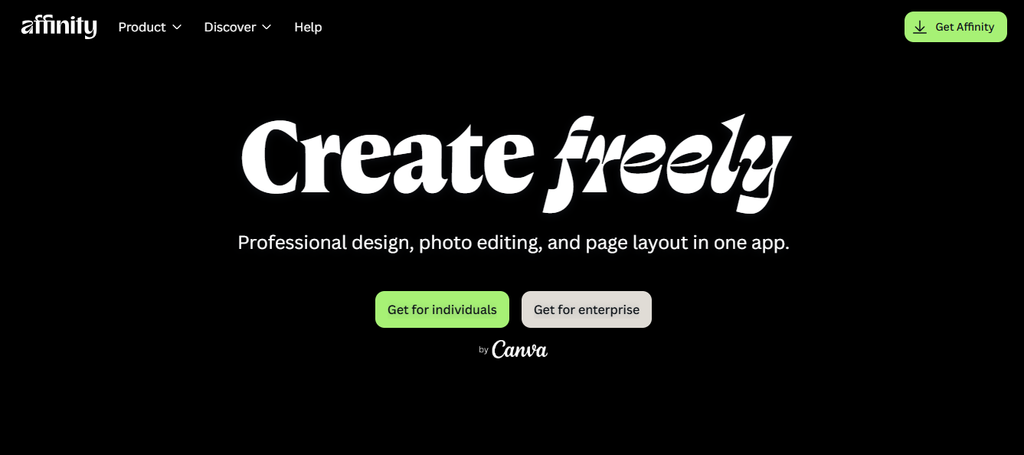
Affinity is one of the most significant changes in the Illustrator-alternative market. Canva launched the all-new Affinity on October 29, 2025, combining professional vector design, photo editing, and page layout in one application and making the complete software free.
Its vector environment includes pen, node, and pencil tools, live shape editing, booleans, shape building, gradients, image tracing, and scalable design controls. It also supports professional print functions such as CMYK, spot colors, bleed, and preflight.
The concern is workflow depth. Affinity is a professional application, so users seeking a very simple editor may still encounter more tools and controls than they need.
Affinity Highlighted Features
- Professional vector tools: Pen, node, pencil, shape-building, and Boolean controls support precise editable artwork.
- Combined vector and pixel workflow: Lets you work with raster and vector content inside the same creative environment.
- Professional print support: CMYK, spot colors, bleed, and preflight capabilities make the software relevant to print production.
- Broad file importing: Supports formats including AI, PSD, PDF, SVG, and IDML for easier migration.
- Non-destructive editing: Layers, adjustments, filters, and other editing tools preserve flexibility during revisions.
Affinity Pros
- Full professional application is now free.
- Strong vector and raster integration.
- Suitable for both digital and professional print work.
- Broad import compatibility assists Adobe users migrating existing assets.
- Page-layout tools expand its usefulness beyond pure illustration.
Affinity Cons
- Its professional interface still requires learning.
- Not every Illustrator-specific effect or AI file will necessarily transfer with perfect editability.
- Teams built deeply around Adobe integrations may face migration work.
- Users needing only quick template graphics may find the software excessive.
Affinity Pricing Plans
Affinity: $0. Canva states the all-new professional Affinity application is free for everyone.
Why Choose Affinity?
Affinity makes sense when you want serious vector control without a recurring application fee. You also gain photo editing and page-layout capabilities, which can reduce the need to move among separate creative applications.
Its trade-off is complexity. This is still professional software rather than a simplified template tool, and migration from heavily customized Illustrator workflows should be tested carefully. For designers who value manual precision, print support, and broad creative control, however, Affinity deserves close consideration.
3. Inkscape
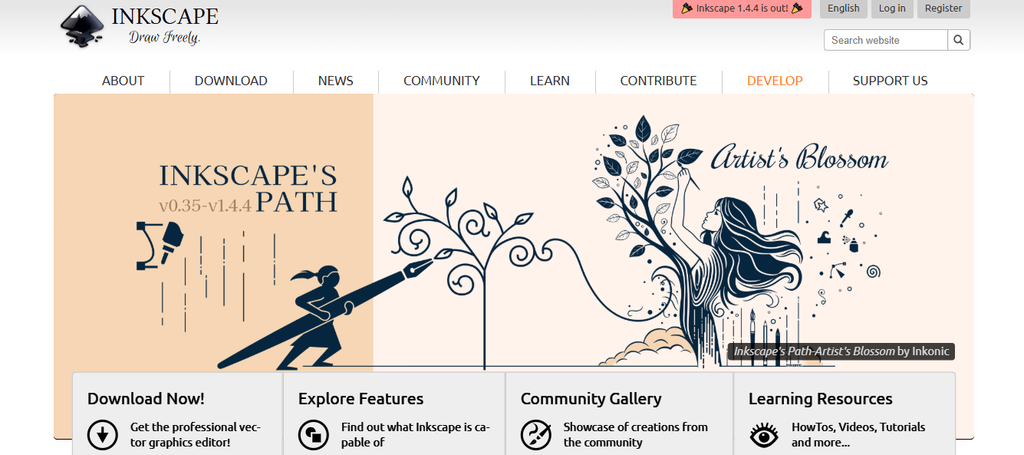
Inkscape remains one of the best-known open-source vector editors. It runs on Windows, macOS, and GNU/Linux and uses SVG as its primary native format.
Its official feature overview lists support for artistic and technical illustration, logos, typography, diagrams, flowcharts, and multiple import/export formats including SVG, AI, EPS, PDF, PS, and PNG.
The project also continues to receive active development. Inkscape 1.4.2, released in May 2025, included more than 70 bug and crash fixes along with improved file-format support.
The main compromise is polish. Inkscape can be powerful, but the interface and workflows may feel less refined to users accustomed to commercial design applications.
Inkscape Highlighted Features
- Native SVG workflow: Makes it particularly useful for scalable web graphics and standards-based vector work.
- Path editing: Provides node and path controls for creating and refining custom vector shapes.
- Format support: Handles SVG alongside formats such as AI, EPS, PDF, PS, and PNG.
- Extensions: Lets users expand functionality with community-developed add-ons.
- Cross-platform availability: Works across Windows, macOS, and Linux.
Inkscape Pros
- Completely free and open source.
- Strong SVG support.
- Works on major desktop operating systems.
- Useful for logos, diagrams, illustrations, and technical graphics.
- Large community and extensible ecosystem.
Inkscape Cons
- Interface polish can feel behind premium commercial applications.
- Some workflows differ significantly from Illustrator.
- Complex imported AI projects may not remain perfectly editable.
- Collaboration is not its primary strength.
Inkscape Pricing Plans
Inkscape: $0. It is free and open-source software licensed under the GPL.
Why Choose Inkscape?
Inkscape is compelling when cost, open standards, SVG, or Linux compatibility matter most. You can create serious vector work without a subscription or proprietary licensing model.
The downside is that you may need time to adapt to its interface and terminology. Creative teams needing polished cloud collaboration may also prefer another option. For independent designers, students, developers, makers, and open-source users, its combination of zero cost and substantial vector functionality remains hard to ignore.
4. Sketch
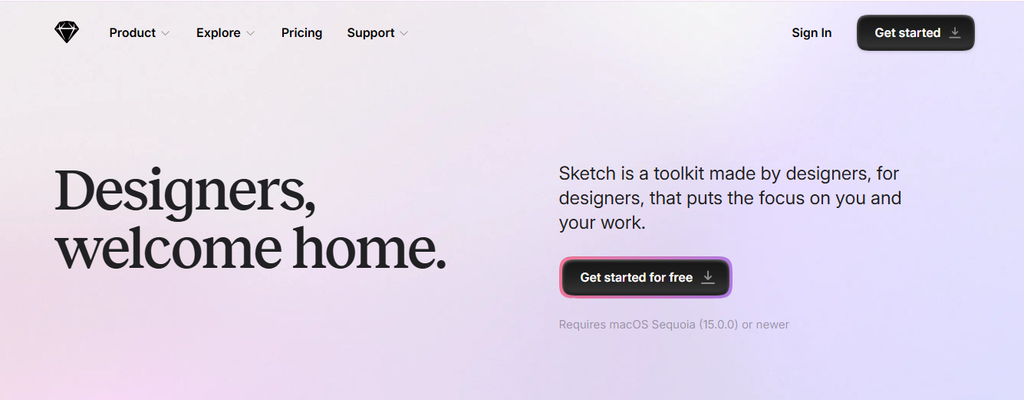
Sketch is less of a traditional illustration application and more of a complete product-design environment. Its current documentation describes a workflow covering interface design, reusable components, design systems, prototyping, collaboration, and developer handoff.
The Mac application still includes real vector editing. You can create and manipulate Bézier curves, edit vector points, join paths, use different point types, and control snapping.
The major limitation is platform focus. Design creation centers on the native Mac application, so Windows and Linux designers looking for a direct Illustrator replacement should consider that carefully.
Sketch Highlighted Features
- Vector editing: Supports paths, Bézier curves, points, shapes, and detailed vector adjustments.
- Symbols and reusable components: Helps maintain consistency across large product interfaces.
- Libraries: Lets teams reuse shared styles, components, variables, and design-system assets.
- Prototyping: Supports overlays, triggers, scrolling areas, links, and interactive flows.
- Developer handoff: Developers can inspect measurements and design properties through a browser.
Sketch Pros
- Strong product and interface-design workflow.
- Mature reusable-component system.
- Excellent collaboration between designers and developers.
- Native offline Mac design environment.
- Useful prototyping and design-system capabilities.
Sketch Cons
- Primary design application is Mac-only.
- Less focused on complex illustration than Illustrator.
- Subscription pricing can grow with larger editor teams.
- Print-focused designers may find dedicated illustration software more suitable.
Sketch Pricing Plans
Standard: $12 per editor/month when billed yearly.
Professional: $24 per editor/month when billed yearly.
Enterprise: $44 per editor/month when billed yearly.
Private Cloud: Custom pricing.
Mac-only license: $120 per seat, including one year of updates.
Why Choose Sketch?
Sketch is a strong choice when “Illustrator alternative” really means “a better environment for digital product design.” Reusable Symbols, Libraries, prototypes, browser-based inspection, and developer handoff can remove friction from UI workflows.
It is less convincing for illustrators who need advanced drawing, print-production depth, or cross-platform desktop editing. If you work mainly on Mac and build interfaces, systems, app screens, or web products, its specialized workflow can be more relevant than a general-purpose illustration package.
5. Linearity Curve
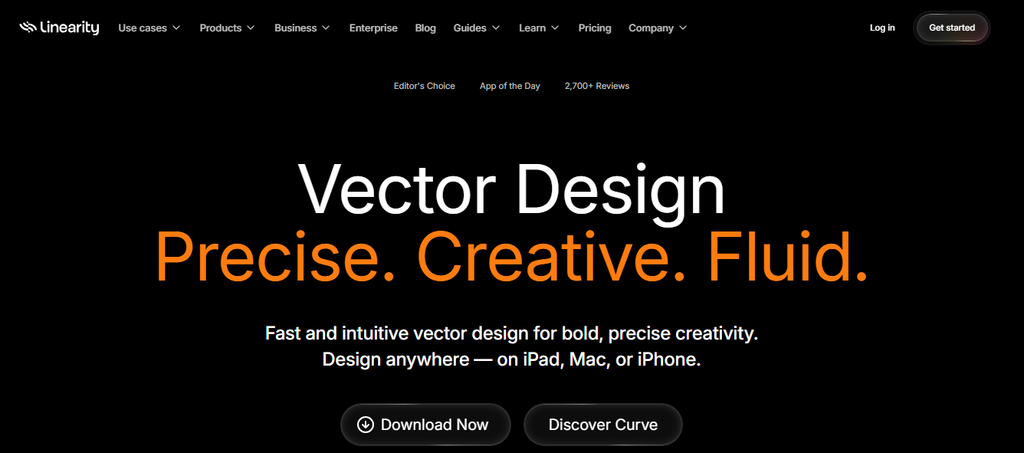
Linearity Curve combines traditional vector tools with AI-assisted editing. Its current feature set includes pen and node tools, custom vector brushes, advanced gradients, shape building, Auto Trace, AI Grab, Magic Eraser, and background removal.
It is particularly attractive to Apple users because Curve is available across Mac, iPad, and iPhone. That gives illustrators a flexible path between desktop and touch-based creative work.
Linearity currently promotes more than one million royalty-free images, more than 4,000 design templates, and more than 80,000 royalty-free icons.
Its biggest drawback is also clear: the current Curve experience is focused on Apple devices, which excludes Windows and Linux users.
Linearity Curve Highlighted Features
- Auto Trace: Converts raster artwork, logos, photos, or sketches into editable vector paths.
- Vector brushes: Supports pressure-sensitive vector drawing for expressive illustration.
- AI Grab: Isolates subjects while keeping the original background available for editing.
- Shape Builder: Combines, subtracts, and intersects shapes visually.
- Background Removal: Uses AI to isolate image subjects quickly.
Linearity Curve Pros
- Good balance between manual vector tools and AI assistance.
- Strong iPad and Apple Pencil workflow.
- Auto Trace speeds up raster-to-vector conversion.
- Large integrated visual-asset collection.
- Curve and Linearity Move can support static and motion workflows.
Linearity Curve Cons
- Apple-focused device support limits accessibility.
- Users moving from Illustrator may need to adapt to a different interface.
- Some advanced production workflows remain better suited to traditional desktop suites.
- Team-oriented enterprise requirements can move you toward custom pricing.
Linearity Curve Pricing Plans
Free: $0.
Pro: $119.90/year, equivalent to about $10 per month when billed yearly.
Org: Custom pricing.
Why Choose Linearity Curve?
Linearity Curve works well when you want precise vector creation but also appreciate automation. Auto Trace, AI Grab, background removal, brushes, typography controls, and traditional node editing allow you to move between manual and assisted creation.
The obvious concern is platform availability. If your team depends on Windows or Linux, Curve is not the natural fit. Apple-focused designers, especially those drawing on iPad, may find its combination of touch interaction and vector editing more comfortable.
6. VectorStyler
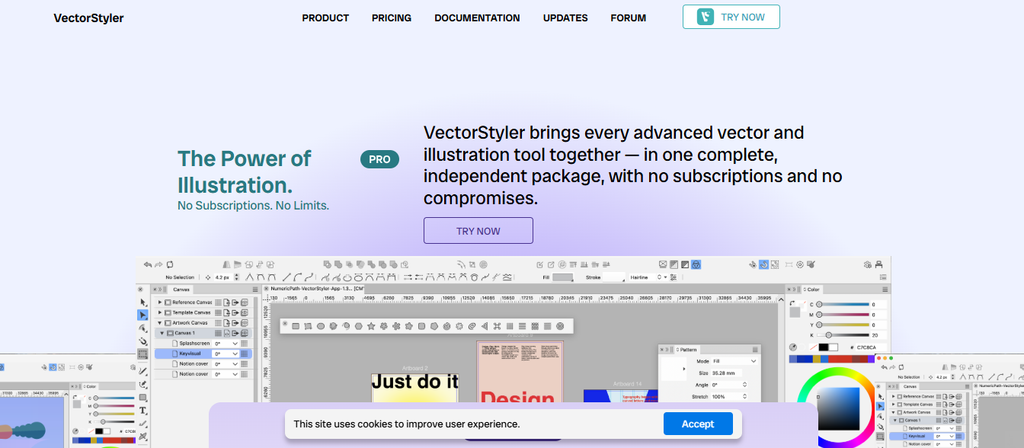
VectorStyler targets users who want deep professional vector controls without committing to a recurring subscription. Its feature list includes automatic tracing, variable fonts, vector brushes, offset paths, live effects, tiling patterns, font management, warping, multiple artboards, advanced snapping, and many detailed path operations.
That depth is both its strength and its weakness. Designers who like fine control may appreciate how much the software exposes, while beginners can face a substantial learning curve.
VectorStyler currently offers a 42-day fully enabled trial. Its commercial license is sold as a one-time purchase.
VectorStyler Highlighted Features
- Automatic tracing: Converts raster content into editable vector artwork.
- Real vector brushes: Provides expressive scalable brush-based illustration.
- Advanced path tools: Includes offset, extend, trimming, joining, knife, erasing, and shape operations.
- Variable-font support: Gives typographic designers more control over modern font technologies.
- Advanced snapping: Includes geometry, collision, tangential, and guide-based precision controls.
VectorStyler Pros
- Deep vector-editing feature set.
- One-time commercial license.
- Long 42-day full-feature trial.
- Extensive typography and path controls.
- Available for Windows and macOS.
VectorStyler Cons
- Large feature set can feel intimidating.
- Smaller ecosystem than Adobe Illustrator.
- Collaboration is not its core strength.
- Designers relying heavily on cloud workflows may prefer another tool.
VectorStyler Pricing Plans
Commercial license: $95 one-time payment.
Educational license: $0 for qualifying schools, universities, teachers, professors, seminars, and workshops.
Why Choose VectorStyler?
VectorStyler deserves attention when you want Illustrator-like depth but dislike ongoing subscription costs. Its tracing, brushes, typography, paths, effects, artboards, snapping, and customization tools give experienced designers plenty to explore.
That sophistication can work against beginners. You may spend more time learning unfamiliar controls than you would in a simplified editor. If your priority is detailed vector craftsmanship and ownership of a perpetual commercial license, however, the $95 one-time model stands out.
7. Kittl
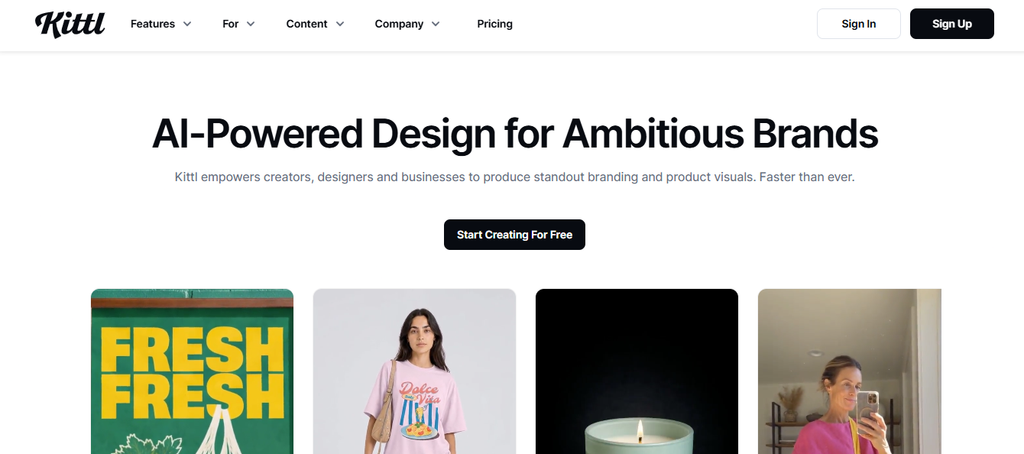
Kittl blends browser-based design, vector editing, typography, templates, mockups, brand tools, AI image generation, AI vector generation, background removal, upscaling, and collaborative workflows.
The platform says it is trusted by more than 10 million creatives and offers more than 10,000 premium templates and mockups. Higher plans also provide access to a very large curated-asset ecosystem.
Kittl is particularly well suited to merchandise, marketing graphics, logos, typography-led design, and fast creative production. The trade-off is that advanced output, commercial licensing, premium assets, and larger AI allowances are tied to paid plans.
Kittl Highlighted Features
- Vector editing: Gives you browser-based tools for creating and modifying scalable artwork.
- AI vector generation: Generates editable vector-style assets from prompts.
- Advanced text effects: Helps create decorative and typography-led designs quickly.
- Mockup generation: Lets you preview designs on products and presentation contexts.
- Templates and brand tools: Speeds up repeat marketing, merchandise, and branded-content creation.
Kittl Pros
- Easy browser access.
- Strong typography and merchandise workflow.
- Large template and asset ecosystem.
- Useful combination of AI generation and editable design tools.
- Commercial licensing is available on paid plans.
Kittl Cons
- Free usage is primarily intended for personal, non-commercial work.
- Vector export and higher-resolution capabilities require paid access.
- AI usage is token-based.
- Complex precision illustration may still favor a dedicated desktop vector application.
Kittl Pricing Plans
Free: $0.
Pro: $19/month, or $14/month when billed annually at $168.
Expert: $49/month, or $39/month when billed annually at $468.
Kittl also offers a Max tier, but a dependable fixed public dollar amount was not exposed in the current pricing material I could verify, so no figure is stated here.
Why Choose Kittl?
Kittl makes sense when your design workflow combines creativity with production speed. Templates, text effects, vector tools, mockups, AI generation, and brand resources can help you move from an idea to a usable marketing or merchandise asset quickly.
Its limitations become more visible when you need deep technical vector work or unrestricted free commercial production. Paid tiers also control several valuable export and licensing capabilities. For sellers, marketers, and creators producing repeat visual assets, however, its integrated workflow is attractive.
8. Boxy SVG
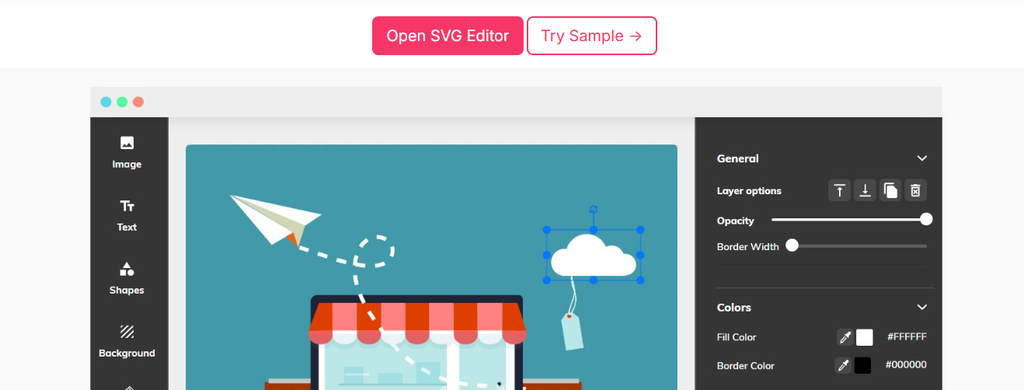
Boxy SVG narrows its focus around the SVG format. Its goal is to provide an approachable scalable-vector editor for both designers and developers.
The tool supports on-canvas geometry editing, paths, transformations, paint controls, guides, grids, Boolean path operations, Google Fonts, library integrations, and export to formats such as PNG, JPEG, WebP, PDF, HTML, SVG, and SVGZ.
For web developers, its SVG and CSS inspection features are especially interesting because Boxy SVG is designed to preserve IDs, classes, titles, and other SVG metadata. It also lists configurable shortcuts for more than 100 commands.
The trade-off is specialization. It is an SVG editor first, not a complete replacement for every Illustrator workflow.
Boxy SVG Highlighted Features
- SVG-first editing: Keeps the workflow centered on scalable web-standard graphics.
- Path operations: Supports unite, intersect, subtract, exclude, reverse, and related vector operations.
- Code inspection: Gives web developers direct visibility into SVG and CSS structure.
- Clean SVG output: Preserves useful IDs, classes, titles, and metadata.
- Broad exporting: Supports formats including PNG, JPEG, WebP, PDF, HTML, SVG, and SVGZ.
Boxy SVG Pros
- Excellent fit for SVG-focused work.
- Useful bridge between design and front-end development.
- Browser-oriented workflow is convenient across devices.
- Clean output can help developers maintain structured SVG assets.
- Interface draws inspiration from familiar professional design applications.
Boxy SVG Cons
- Less suitable for complex multi-medium illustration workflows.
- Does not provide the same breadth as Illustrator.
- Pricing information is not as straightforwardly exposed as several competitors.
- Teams needing broader image editing, layout, or advanced print tools may need additional software.
Why Choose Boxy SVG?
Choose Boxy SVG when SVG is the center of your workflow. Its combination of visual editing and code-aware controls is especially useful for icons, interface assets, web illustrations, logos, and graphics that eventually live inside websites or applications.
The specialization can also be a limitation. If your workload extends deeply into print, advanced illustration, page layout, or raster editing, you may quickly outgrow it. For focused SVG creation, however, fewer unrelated features can make the environment more direct.
9. Vectr
Vectr has evolved into a cloud-based AI vector editor and logo maker. Its current toolset includes raster-to-vector conversion, JPG and PNG to SVG conversion, AI-assisted logo creation, background removal, text-to-image capabilities, SVG editing, and real-time collaboration.
The interface emphasizes accessibility, making it more approachable for beginners than many professional illustration suites. You can also collaborate simply by sharing a URL and working on a design live.
Its cloud-first nature brings a concern. Vectr’s own troubleshooting information tells users to check connectivity when designs fail to save, so a stable internet connection matters more than it does with a fully local desktop application.
Vectr Highlighted Features
- Image-to-vector conversion: Converts raster artwork into scalable vector graphics.
- PNG and JPG to SVG: Simplifies common format-conversion workflows.
- AI tools: Supports text-to-image, vector generation, logo creation, and background removal.
- Real-time collaboration: Lets multiple users work together through a shared URL.
- Multiple format support: Supports files including SVG, PNG, JPG, EPS, AI, PDF, and SVGZ, although some formats consume credits.
Vectr Pros
- Beginner-friendly interface.
- Convenient browser access.
- Built-in AI and vector-conversion tools.
- Real-time collaboration.
- Useful for lightweight web graphics and logos.
Vectr Cons
- Cloud-based workflow depends more heavily on connectivity.
- Some file types require credits to open.
- Less suitable for intricate professional illustration than high-end desktop software.
- Advanced print-production users may need deeper color and prepress controls.
Why Choose Vectr?
Vectr works well when simplicity matters more than exhaustive professional controls. You can convert images, generate vector assets, create logos, edit SVGs, and collaborate without building a complex desktop setup.
Its biggest weakness is depth. Experienced illustrators may quickly encounter limitations compared with applications designed for intricate vector production. Cloud dependence is another consideration. For beginners, small teams, quick web graphics, and straightforward logo or vector tasks, though, Vectr provides an accessible route into scalable design.
10. Lunacy
Lunacy is a cross-platform design application from Icons8 that combines vector and UI design with built-in visual assets, AI-assisted tools, components, prototyping, collaboration, and offline support.
Its integrated asset library is substantial. The current feature page lists more than 1.18 million icons, 71,000 illustrations, and 140,000 photos, while the application supports 25 interface languages.
Lunacy also runs natively on Windows, macOS, and Linux. It can work offline with local documents, while cloud functionality supports collaboration and sharing.
Its focus leans heavily toward UI and digital design, so professional illustrators focused on advanced drawing or print production may prefer a more illustration-specific application.
Lunacy Highlighted Features
- Built-in design assets: Gives you direct access to large collections of icons, illustrations, and photos.
- Components and color variables: Supports reusable interface systems and repeatable design structures.
- Real-time collaboration: Lets team members co-edit files and communicate through comments and voice messages.
- Prototyping: Supports interactive product and interface concepts.
- Offline desktop workflow: Native Windows, macOS, and Linux applications can work with local documents without constant connectivity.
Lunacy Pros
- Cross-platform native desktop support.
- Generous Free plan.
- Large integrated visual-asset library.
- Offline and online working modes.
- Useful collaboration and UI-design features.
Lunacy Cons
- More UI/UX focused than traditional illustration focused.
- Premium high-resolution and editable Icons8 assets require paid access.
- Advanced print-production needs may require another application.
- Designers migrating complex Illustrator work should test compatibility before switching.
Lunacy Pricing Plans
Free: $0.
Pro: $11.99 per user/month when billed yearly.
Enterprise: Custom pricing.
Why Choose Lunacy?
Lunacy is worth considering when you want a cross-platform digital-design application with assets built directly into the workspace. Offline access also distinguishes it from tools that depend entirely on a browser connection.
Its strongest workflows involve UI design, reusable components, collaboration, prototypes, and general digital graphics. That means it may not satisfy illustrators who depend on Illustrator’s deeper drawing or print controls. For Windows, Mac, and Linux teams that want one accessible UI-focused editor, however, Lunacy offers a practical combination.
How to Choose an Adobe Illustrator Alternative: A Practical Decision Checklist
A long feature list does not tell you whether a design application will improve your workflow. Start with the work you produce repeatedly.
Match the Software to Your Main Output: Choose for what you create most often.
If you primarily create infographics, reports, data visuals, and explanatory marketing content, prioritize AI generation, templates, charts, brand controls, and flexible exports. Infographicmaker fits that type of workflow.
If detailed vector drawing is central, look more closely at Affinity, Inkscape, VectorStyler, or Linearity Curve. SVG-focused web work makes Boxy SVG or Vectr more relevant.
Product-design teams should evaluate Sketch or Lunacy based on components, prototyping, design systems, and developer collaboration.
Check File Compatibility Before Price: Cheap software becomes expensive when it breaks your archive.
Take several representative Illustrator files and open them in the alternative before moving your production environment.
Check fonts, clipping, gradients, effects, layers, artboards, linked assets, masks, and color modes. Then export the file again.
Do not judge compatibility using only a simple logo. Complex projects expose translation problems much faster.
Evaluate How Much Manual Work the Tool Removes: Faster creation can matter more than feature count.
Traditional vector editors give you enormous control. AI-first and template-driven tools may instead reduce the number of steps needed to reach a useful first draft.
Graphic designer Anton Burmistrov has argued that leading advertisers are celebrated for “breaking rules, not following them.” New creative tools can support experimentation, but they should not take control away from you.
Must-know Tip: The best automation creates a strong editable starting point. Avoid workflows where AI produces something impressive-looking but difficult to revise, resize, brand, or export properly.
Calculate the Real Cost: Include subscriptions, assets, team seats, and time.
A $0 tool can be expensive if your team spends hours working around missing features. A paid application can be inexpensive if it saves enough production time every week.
Also examine team pricing. Sketch, for example, prices several plans per editor, while VectorStyler uses a one-time commercial license and Affinity is now free.
Consider template costs, stock assets, AI tokens, export restrictions, commercial-use rights, and storage limits as part of the same calculation.
Decide Whether You Need Desktop, Browser, or Both: Your working environment changes the experience.
Desktop software is useful when you need local files, offline work, heavy documents, or deeper system integration. Browser editors are convenient when sharing and accessibility matter more.
Some tools bridge both models. Lunacy offers native desktop apps plus cloud collaboration, while Sketch combines its Mac design app with browser-based viewing and handoff.
Linearity Curve works across Apple devices, giving iPad-focused illustrators another type of flexibility.
Must-know Tip: Test the tool in your real environment for several days. A feature that sounds minor, such as offline access, can become critical when your connection fails during client work.
Conclusion
Choosing an Adobe illustrator alternative in 2026 is no longer about finding a perfect clone. The market now includes free professional suites, open-source editors, AI-powered visual tools, browser-based SVG software, product-design platforms, and specialized creative applications.
Your best option depends on the work you produce. Precision vector illustrators need different capabilities from marketers, UI teams, infographic creators, print designers, or developers.
Tools that combine AI-assisted creation, editable output, reusable branding, flexible exports, and data visualization can reduce significant manual work for visual-content teams. Traditional vector applications remain valuable when precise paths, typography, color control, and production-level editing matter most.
Test your real files, measure the workflow, and choose the tool that removes the most friction without sacrificing the control you actually need.
Frequently Asked Questions
What is the best Adobe Illustrator alternative?
There is no single best alternative for everyone. Affinity and VectorStyler are closer to professional vector-production software, Inkscape is strong for free open-source vector editing, and Infographicmaker is more suitable when you want AI-assisted infographics and data-driven visual content.
Your best choice depends on whether you prioritize detailed illustration, SVG work, marketing design, print, UI design, collaboration, or automation.
Is there a completely free alternative to Adobe Illustrator?
Yes. Inkscape is free and open source, while Canva announced in October 2025 that the all-new Affinity application is also free.
Several other products offer free tiers, although their paid features, exports, commercial licensing, AI allowances, or storage may differ.
Is Affinity really free now?
Yes. Canva announced on October 29, 2025 that the all-new Affinity would be completely free. The application combines vector design, photo editing, and page-layout capabilities.
This is a significant change from older articles that still describe Affinity Designer as a one-time paid application.
Can Inkscape replace Illustrator?
Inkscape can replace Illustrator for many SVG, logo, diagram, illustration, and general vector tasks. It supports several common formats and runs on Windows, macOS, and Linux.
However, professional workflows that depend on Adobe-specific effects, integrations, advanced collaboration, or particular print-production processes should be tested before switching completely.
Which Illustrator alternative is best for infographics?
Infographicmaker is particularly relevant when you want AI-assisted infographic creation, templates, visual generation, data visualization, branding controls, and multiple export formats in one workflow.
Traditional vector applications can also create infographics, but you will usually construct more of the layout manually.
Which Illustrator alternative is best for SVG files?
Inkscape and Boxy SVG are both strong candidates. Inkscape uses SVG as its primary native format, while Boxy SVG is built specifically around SVG editing and developer-friendly output.
Vectr also offers SVG editing and conversion tools.
Which Illustrator alternative is easiest for beginners?
Vectr is designed around an easy-to-learn interface, while Kittl and Infographicmaker reduce blank-canvas friction through templates and assisted creation.
The easiest option depends on the task. A beginner creating social or information graphics may prefer a template-driven tool, while someone learning true vector illustration may gain more from Inkscape or Affinity.
Can Illustrator alternatives open AI files?
Some can. Affinity lists AI among its supported import formats, Inkscape can import AI files, and Vectr lists AI among supported formats, although Vectr says credits are needed to open certain formats including AI.
Compatibility does not guarantee that every Illustrator-specific effect will remain fully editable.
What is the best Illustrator alternative for Mac?
Mac users have many options. Affinity, Inkscape, VectorStyler, Sketch, Linearity Curve, and Lunacy all support Mac-based workflows in different ways.
Sketch is strongly focused on UI and product design. Linearity Curve is particularly attractive to users who want to move between Mac and iPad.
What is the best Illustrator alternative for Windows?
Affinity, Inkscape, VectorStyler, Lunacy, Vectr, and browser-based alternatives can work well for Windows users.
Your choice should depend on the type of work. VectorStyler and Affinity offer deeper professional editing, while Lunacy emphasizes UI design and Vectr focuses on accessible cloud-based vector workflows.
What is the best Illustrator alternative for Linux?
Inkscape is one of the strongest options for Linux because it is open source and officially supports GNU/Linux. Lunacy also provides a native Linux application.
Browser-based tools can provide additional options without requiring a Linux-specific desktop build.
Are free Illustrator alternatives good enough for professional work?
They can be. The answer depends on what your professional workflow requires.
A free application may handle vector illustration perfectly while missing a specific collaboration, prepress, automation, or file-compatibility feature your business needs. Test your real production files and delivery requirements rather than assuming either free or paid software is automatically better.
Which alternative is best for UI and UX design?
Sketch and Lunacy are stronger choices when your work centers on interfaces, reusable components, prototypes, and collaboration.
Sketch offers extensive product-design and developer-handoff workflows, while Lunacy combines UI tools with cross-platform desktop support and built-in visual assets.
Which Illustrator alternative has a one-time payment?
VectorStyler currently offers a $95 one-time commercial license.
This can appeal to designers who prefer owning a software license rather than maintaining another recurring subscription.
Should you cancel Illustrator immediately after choosing an alternative?
No. Run both tools in parallel until you have tested your files, exports, client workflows, fonts, plugins, print requirements, and collaboration process.
Keep original Illustrator files backed up. Once you know the replacement handles the work you depend on, you can make the decision with far less risk.

Comments
0 responsesNo comments yet. Be the first to share your thoughts.