

Click any AI tool above to instantly get a summary of this article. Perfect for quick insights when you're short on time.
Finding the right Adobe InDesign alternative can feel surprisingly difficult. You may want professional layouts without another subscription, faster visual creation without a steep learning curve, or simply a tool that fits the way you actually work instead of forcing you into a complex publishing workflow.
That search is becoming more important as visual content grows. Adobe reported $17.65 billion in Digital Media revenue for fiscal 2025, while a 2025 Adobe survey of more than 16,000 creators found that 86% were already using creative generative AI.
Here are 10 alternatives covering AI-powered visual creation, desktop publishing, automated catalogs, infographics, print layouts, marketing graphics, and browser-based design.
Why Are Designers Looking for Adobe InDesign Alternatives?
InDesign remains one of the most capable tools for professional page layout. The question is no longer whether it works. The question is whether every designer, marketer, small business, student, publisher, or occasional creator still needs the same level of complexity.
Adobe currently lists standalone InDesign at $22.99 per month on an annual plan billed monthly. That price can make sense when page layout is central to your daily work, but occasional users may struggle to justify a recurring cost for projects they create only a few times each year.
Subscription Costs Can Add Up
Imagine you run a small consulting company and prepare four client reports, two brochures, and one annual industry guide each year. Your projects need to look polished, but you do not spend every working day laying out magazines or books.
Paying continuously for publishing software may feel excessive when your real need is to produce professional visual documents a few times a year. A free, lower-cost, or task-specific alternative can make the economics easier to justify.
Adobe’s fiscal 2025 Digital Media annualized recurring revenue reached $19.20 billion, up 11.5% year over year. That growth demonstrates how firmly subscriptions remain embedded in professional creative software, but it also explains why some users actively compare subscription-based and non-subscription alternatives.
The Learning Curve Is Not Right for Everyone
InDesign provides precise control with sophisticated tools for typography, styles, grids, master pages, long documents, preflight, and professional output. That depth also means new users have plenty to learn.
If you mainly need infographics, posters, reports, presentations, brochures, or social graphics, a simpler visual editor can remove many technical steps. You can spend more time shaping your message and less time understanding publishing terminology you rarely use.
Creative Work Is Becoming Faster and More Automated
Creative teams are under pressure to produce more content in less time. Adobe’s 2025 research found that 76% of marketers said production timelines had shortened, while 68% reported production-time reductions of at least 20%.
The same research found that 48% of creative teams still struggled to keep up with content demand. That helps explain the growing interest in AI-assisted editors, reusable templates, automated document generation, collaborative browser tools, and faster alternatives to traditional desktop publishing workflows.
Must-know Tip: Adobe executive Mike Polner summarized the shift well: “Creators today aren’t passively using creative generative AI, they’re intentionally curating the tools they trust.”
Different Jobs Need Different Tools
You may need InDesign-level controls for a 400-page textbook, but not for a six-section infographic. A marketer creating campaign visuals has different requirements from a prepress specialist preparing files for commercial printing.
Choosing an alternative therefore starts with your actual output. The smartest replacement is not automatically the software with the most features. It is the tool that handles your repeated tasks with the least unnecessary friction.
What Should You Look for in an InDesign Alternative?
Before choosing an alternative, separate essential capabilities from features that merely sound impressive. Your requirements should follow the documents you create, the people you collaborate with, and the way the finished work will be delivered.
Page Layout and Long-Document Controls
Master pages, reusable styles, automatic page numbering, text flows, columns, tables of contents, and consistent headers matter when you create multi-page publications. Without them, maintaining a long book, magazine, catalog, or report quickly becomes repetitive.
If your work involves only posters or single-page visuals, these advanced controls may matter much less. A faster drag-and-drop editor could serve you better.
Typography and Brand Control
Look at font handling, paragraph styles, character controls, spacing, alignment, custom fonts, and brand kits. Strong typography controls help you create professional layouts, while reusable brand assets reduce inconsistencies when several people create content.
Canva’s 2025 Visual Communication Report found that 89% of business leaders considered visual fluency a must-have skill. Consistent visual presentation is therefore not merely a design concern. It increasingly affects everyday business communication.
Professional Print Output
Commercial printing requires more than a PDF download button. Depending on your printer, you may need CMYK handling, bleed, crop marks, color profiles, PDF/X output, spot colors, preflight tools, and precise page dimensions.
A browser-based graphic editor can be excellent for digital communication while still falling short of specialist prepress requirements. Verify your printer’s specifications before changing your production software.
File Compatibility
If years of work already exist in InDesign, investigate IDML, PDF, image, font, and linked-file support carefully. Opening a file is not the same as reproducing it perfectly.
Complex typography, effects, text frames, missing fonts, and master-page structures can change during migration. Always test representative projects before moving your entire archive.
Collaboration and Automation
Modern design work often involves comments, approval cycles, shared assets, live editing, data imports, or automated generation. These capabilities can save more time than adding another manual design control.
This is especially important for teams creating recurring reports, catalogs, branded graphics, and data visualizations.
10 Best Adobe InDesign Alternative Tools to Consider in 2026
The best Adobe InDesign alternative depends on what you are replacing. Some tools below are serious desktop-publishing applications, while others focus on infographics, automated documents, visual communication, or fast browser-based design.
That distinction matters. If you need CMYK commercial printing and complex books, concentrate on true DTP software. If your priority is turning ideas or data into professional graphics quickly, an AI-powered visual platform may remove far more work from your process.
1. Infographicmaker
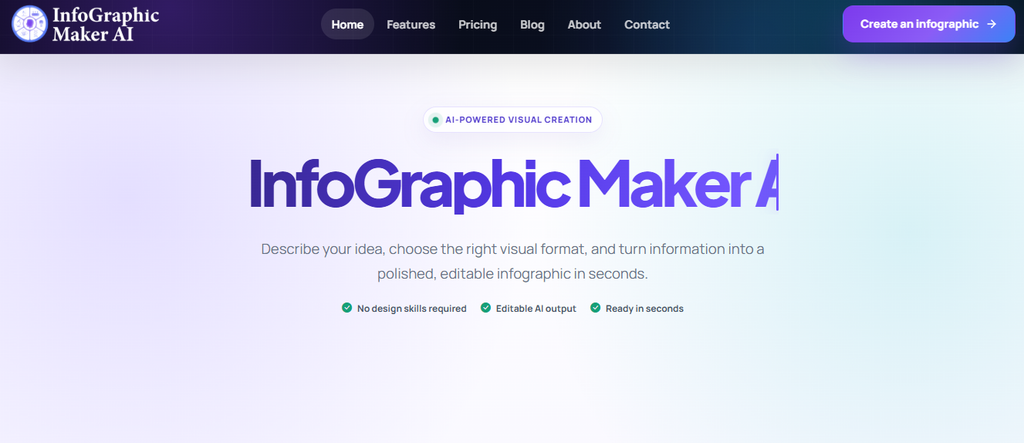
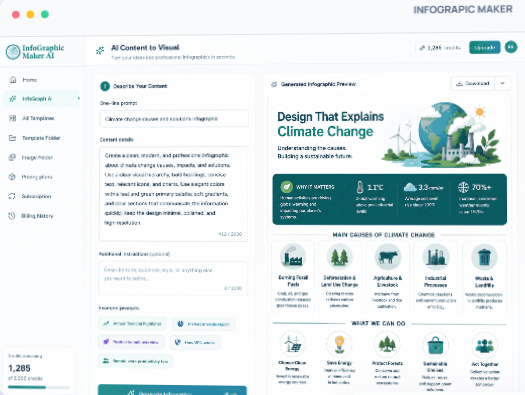
Infographicmaker takes a different approach from conventional desktop publishing. Instead of asking you to build every visual element manually, it combines AI-assisted infographic creation, visual generation, data visualization, templates, editing tools, and multiple export formats in one browser-based workspace.
You can begin with text or data and generate a structured visual, then continue editing instead of accepting a fixed AI result. That makes the platform useful when you want speed without giving up the ability to refine your layout.
Its chart and analytics tools are another practical advantage. The platform supports more than 20 chart types and can work with data sources such as CSV files, Google Sheets, APIs, and databases, allowing you to turn raw information into visual content without rebuilding every chart manually.
Brand Kit functionality lets you store logos, colors, and fonts so recurring visuals can stay consistent. Real-time collaboration adds multi-user editing, comments, task assignments, and change history, which can reduce the back-and-forth that often happens when visual content passes between designers, marketers, and reviewers.
Infographicmaker Highlighted Features
- AI-powered infographic generation: Turns text or data into an editable visual starting point, helping you move from an idea to a designed asset faster.
- Charts and analytics: Supports more than 20 chart types and data connections so you can communicate statistics and trends visually.
- Brand Kit: Stores logos, brand colors, and fonts so recurring projects can maintain a recognizable visual identity.
- Real-time collaboration: Lets team members edit, comment, assign tasks, and review changes within the same project.
- Multiple export formats: Supports formats including PNG, JPEG, PDF, GIF, WEBP, and PowerPoint on applicable plans.
- Visual asset generation: AI-assisted image, logo, and icon generation helps you create supporting assets without constantly switching tools.
Infographicmaker Pros
- You can generate visual concepts from text instead of starting from a blank canvas.
- Data visualization tools make it useful for reports, research, marketing, and educational content.
- Brand controls reduce repetitive formatting work across recurring projects.
- Collaboration tools support team review without repeatedly exporting drafts.
- The editor remains customizable after AI generation.
- Multiple export options support both presentation and document workflows.
- The free tier gives you a way to test the workflow before paying.
Infographicmaker Cons
- The free plan has limited AI credits and downloads, so frequent creators will eventually need a paid plan.
- It is focused on visual communication rather than replacing every specialist prepress and long-document feature available in a traditional DTP application.
Infographicmaker Pricing Plans
Free costs $0 and currently includes 30 one-time AI credits and five one-time downloads.
Starter costs $9.90 per month and includes 650 monthly AI credits.
Pro costs $19.90 per month and includes 1,400 monthly AI credits.
Business costs $49.90 per month and includes 5,000 monthly AI credits.
Why Pick Infographicmaker?
Infographicmaker makes sense when your publishing needs center on visual communication rather than traditional typesetting alone. You can generate an infographic from content, turn datasets into charts, maintain brand consistency, and collaborate on the resulting design without assembling several separate tools.
Its strongest value appears when speed and visual storytelling matter equally. Rather than replacing every high-end InDesign publishing feature, it addresses a growing category of work involving infographics, presentations, data visuals, marketing assets, and visual reports.
That distinction is useful. You get AI-assisted creation without losing manual customization, while integrated charts, assets, branding, and export options keep more of your workflow in one workspace.
2. Scribus

Scribus is one of the closest options on this list to a traditional desktop-publishing replacement. It is free and open source, with tools designed around page layout, print production, text frames, images, color management, and professional PDF output.
The trade-off is usability. Scribus does not offer the same polished interface or ecosystem integration you may expect from commercial design suites, and new users can face a noticeable learning curve.
Scribus Highlighted Features
- Professional PDF output: Supports print-oriented PDF workflows, including PDF/X options for appropriate production requirements.
- Color management: Handles RGB, CMYK, spot colors, and ICC-based workflows for print-focused projects.
- Page-layout tools: Provides text frames, image frames, guides, layers, and layout controls for multi-page documents.
- Open-source architecture: Gives you access without a recurring license fee and supports an active open-source workflow.
- Cross-platform availability: Works across major desktop platforms, including Linux.
Scribus Pros
- Completely free to use.
- Suitable for serious desktop-publishing projects.
- Stronger print-production controls than most browser design tools.
- Linux support makes it particularly useful where InDesign is unavailable.
- No recurring subscription is required.
Scribus Cons
- The interface feels less polished than many commercial competitors.
- New users may need significant time to understand the workflow.
- Adobe file migration is less seamless than staying inside Adobe’s ecosystem.
- Collaboration and cloud-based review features are more limited than on modern browser platforms.
Scribus Pricing Plans
Scribus costs $0. It is free and open-source software.
Why Choose Scribus?
Scribus deserves consideration when your main reason for leaving InDesign is cost, but you still need genuine desktop publishing. It provides far more production-oriented control than lightweight template editors and supports workflows involving print-ready PDFs, color management, text-heavy layouts, and multi-page publications.
The compromise is convenience. You should expect more setup and learning than with simpler online editors, and teams heavily dependent on Adobe-native workflows may experience friction.
For independent publishers, Linux users, students, nonprofit organizations, and cost-conscious designers willing to learn the software, however, Scribus remains one of the most substantial free alternatives available.
3. QuarkXPress

QuarkXPress is a professional page-layout platform with a publishing history that predates many modern design applications. The 2026 version supports advanced typography, master layouts, digital publishing, print design, variable fonts, synchronized content, image editing, and modern AI-assisted features.
This is not a lightweight alternative. It targets serious publishing work, and its price reflects that professional focus. Users who only need basic flyers or social graphics may find both the software and cost excessive.
QuarkXPress Highlighted Features
- Professional page layout: Handles books, magazines, brochures, newspapers, catalogs, and complex multi-page designs.
- Variable font controls: Lets you adjust supported font characteristics such as weight, width, and slant.
- Cross-media publishing: Supports print, digital, eBook, HTML, and interactive publishing workflows.
- Master layouts and synchronized content: Helps maintain consistency across repeated pages and related content.
- AI-assisted tools: Quarky can assist with text generation, summaries, translation, grammar, and related editing tasks for eligible licenses.
QuarkXPress Pros
- Built specifically for professional publishing.
- Strong typography and layout controls.
- Supports both digital and print production.
- Offers perpetual licensing as well as subscription access.
- Includes modern capabilities without abandoning traditional DTP workflows.
QuarkXPress Cons
- Considerably more expensive than many alternatives on this list.
- Overpowered for basic marketing graphics or occasional layouts.
- Professional features still require a meaningful learning curve.
- Some AI functionality depends on subscription or active maintenance eligibility.
QuarkXPress Pricing Plans
Quark’s June 2026 standard pricing listed the annual subscription at $314 per year.
The perpetual license was listed at $637 as a one-time purchase.
For perpetual-license users who want continuing Maintenance and Support after the included first year, Quark listed renewal at $339 per year.
Why Choose QuarkXPress?
QuarkXPress is best viewed as a professional publishing competitor rather than a simplified design app. If your documents contain sophisticated typography, repeated layouts, long publications, commercial print requirements, or multiple publishing formats, its capabilities align more closely with InDesign than most browser-first tools.
The main concern is cost. Moving away from Adobe does not automatically mean moving to inexpensive software, and QuarkXPress remains a substantial investment.
It becomes more compelling when you value the option of a perpetual license and want a production-focused environment that can handle complex print and digital publishing.
Must-know Tip: Quark’s pricing model shows why you should compare long-term costs, not only monthly rates. A perpetual license can make sense for stable workflows, while subscriptions may fit users who need continual updates.
4. Xara Designer Pro+
Xara Designer Pro+ combines desktop publishing, vector illustration, photo editing, PDF editing, and web design inside one Windows application. Its publishing tools include multi-page documents, text columns, automatic text flow, page numbering, headers, footers, tables of contents, and commercial printing support.
Its biggest restriction is platform availability. Designer Pro+ is a Windows desktop application, which immediately removes it from consideration for Mac-only or Linux-centered workflows.
Xara Designer Pro+ Highlighted Features
- Advanced text flow: Moves text between pages and columns to support longer publications.
- Commercial printing tools: Includes print-oriented controls and PDF/X export capabilities.
- Vector illustration: Lets you create and edit scalable graphics without relying on a separate illustration program.
- PDF editing: Allows you to edit, merge, protect, and export PDF documents.
- Integrated photo editing: Provides non-destructive image editing and built-in photo tools.
Xara Designer Pro+ Pros
- Combines several creative functions in one application.
- Handles genuine multi-page desktop publishing.
- Includes strong vector-design capabilities.
- Supports commercial-print PDF workflows.
- Can reduce the need to switch between layout, vector, photo, and PDF software.
Xara Designer Pro+ Cons
- Windows only.
- Subscription access may not appeal to users specifically trying to escape recurring software costs.
- The broad feature set can be excessive for simple infographic creation.
- Teams needing browser-native real-time collaboration may prefer another workflow.
Xara Designer Pro+ Pricing Plans
Designer Pro+ costs $22 per month when billed monthly.
The annual option costs $16 per month, billed as one payment of $192 per year.
Why Choose Xara Designer Pro+?
Xara is attractive when you dislike moving between separate programs for page layout, vector editing, photo work, and PDF changes. The integrated environment can be especially useful for solo designers and small teams that produce a mixture of print and digital assets.
Its desktop-publishing capabilities are considerably deeper than most template-based online editors. Text flows, columns, multi-page documents, print controls, and PDF/X export make that clear.
The Windows-only limitation matters, though. If your creative workflow uses macOS or Linux, you will need another alternative regardless of its feature depth.
5. iStudio Publisher

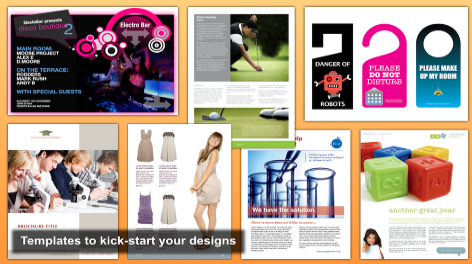
iStudio Publisher is a Mac-focused desktop publishing application designed for people who want traditional page-layout features without the scale of a large professional suite. It supports master pages, automatic page numbers, text columns, text-flow linking, shaped text containers, image placement, text wrapping, bleed, crop marks, and PDF export.
Its simplicity is also a limitation. Advanced users should know that its master-page system is less flexible than InDesign’s, and its OpenType support is more limited.
iStudio Publisher Highlighted Features
- Master pages: Maintains repeating elements such as headers, footers, page numbers, and background content.
- Text-flow linking: Connects text containers across columns and pages.
- Shape-based layouts: Lets shapes hold text, images, fills, borders, and related content.
- Bleed and crop marks: Supports print-oriented document preparation.
- PDF and booklet export: Produces PDFs and rearranged booklet output for printing.
iStudio Publisher Pros
- Very inexpensive compared with major publishing suites.
- Designed specifically for Mac.
- Easier to approach than many professional DTP applications.
- Supports core multi-page publishing functions.
- Offers a fully functional trial before subscription.
iStudio Publisher Cons
- Mac only.
- Master-page options are more limited than advanced professional publishing tools.
- OpenType support is comparatively basic.
- It cannot directly provide every sophisticated long-document capability available in InDesign.
iStudio Publisher Pricing Plans
The U.S. Mac App Store currently lists a monthly subscription at $1.99.
A six-month subscription is listed at $7.99.
The yearly subscription is listed at $12.99.
Why Choose iStudio Publisher?
iStudio Publisher fills an interesting middle ground. You receive genuine page-layout features, including master pages, text flows, bleed, crop marks, columns, and booklet export, without paying professional-suite prices.
That can work well for newsletters, brochures, menus, reports, yearbooks, invitations, and other conventional publications created on a Mac.
You should not assume that low cost means full feature parity with InDesign. Its limitations around advanced master-page flexibility and OpenType handling matter for sophisticated publishing. For smaller Mac-based publishing projects, however, its focused workflow can be easier to manage.
6. Pagination

Pagination is fundamentally different from a normal visual editor. It is designed to automate data-heavy document production by taking structured information from sources such as spreadsheets, XML, PIM systems, DAM platforms, CMS platforms, and e-commerce systems and placing that information into predefined layouts.
This specialization can save enormous amounts of repetitive production work, but it also makes Pagination inappropriate for casual design. Its pricing and workflow target companies producing catalogs, technical documents, product listings, and frequently updated price sheets at scale.
Pagination Highlighted Features
- Automated document generation: Converts structured datasets into completed documents.
- InDesign and PDF output: Higher-level workflows can produce InDesign files as well as print-ready PDFs.
- Data integration: Works with structured business data rather than requiring manual copy-and-paste production.
- Catalog automation: Handles products, images, categories, tables, breaks, and recurring layout logic.
- Enterprise integrations: Advanced plans support APIs, complex data relationships, multilingual workflows, and larger production requirements.
Pagination Pros
- Excellent for recurring data-heavy publications.
- Reduces manual catalog-production work.
- Can generate large numbers of pages automatically.
- Works well with structured product databases.
- Supports enterprise-scale document workflows.
Pagination Cons
- Expensive for individuals or small occasional projects.
- Not intended as a general-purpose creative editor.
- Setup requires structured data and template planning.
- Basic plans impose limits on products, assets, users, and layouts.
Pagination Pricing Plans
Professional costs $120 per month per template and is billed annually.
Business costs $440 per month per template and is billed annually.
Enterprise uses tailored pricing based on requirements.
Why Choose Pagination?
Pagination becomes valuable when your biggest InDesign problem is not design itself but repetitive production. If employees spend hours copying thousands of product names, specifications, images, prices, and descriptions into catalogs, automating that workflow can produce a much larger productivity gain than switching to another manual editor.
Its own materials report document generation at an average of around 40 pages per minute for certain automated price-update workflows.
The downside is specialization and cost. A freelancer designing brochures has little reason to pay for it. A manufacturer, retailer, distributor, or catalog-heavy business may see the equation very differently.
7. Venngage

Venngage focuses on visual communication, infographics, charts, reports, diagrams, presentations, and branded business designs. You can import CSV or XLSX data, create charts and maps, apply Brand Kit assets, collaborate with teammates, and work from customizable templates.
That convenience comes with an important limitation for InDesign users. Venngage is not a traditional high-end DTP environment, so demanding prepress, book-layout, and complex typography workflows are better handled elsewhere.
Venngage Highlighted Features
- Infographic editor: Builds data-rich visual content from templates or custom layouts.
- Data visualization: Supports charts, maps, tables, and spreadsheet data imports.
- Brand Kit: Applies saved logos, colors, and fonts across designs.
- Team collaboration: Lets users edit and organize branded designs together.
- AI-assisted design: Provides AI functionality for faster visual creation on supported plans.
Venngage Pros
- Easier to learn than traditional publishing software.
- Strong infographic and data-visualization workflow.
- Useful branding tools for business teams.
- Browser-based collaboration simplifies reviews.
- Large template library helps accelerate production.
Venngage Cons
- Professional PDF export is restricted to higher plans.
- It does not replace advanced InDesign prepress controls.
- The free plan limits the number of designs.
- Team and business features significantly increase the cost.
Venngage Pricing Plans
Free costs $0.
Premium costs $10 per month when billed annually. The monthly rate is listed at $19.
Business costs $24 per user per month when billed annually. The monthly rate is listed at $49.
Enterprise starts at $499 per month with a minimum team requirement.
Why Choose Venngage?
Venngage works best when you communicate information visually rather than produce traditional books or magazines. Its combination of charts, maps, templates, branding, and collaboration can speed up reports, training materials, business infographics, internal communications, and marketing content.
That use case matters because Canva’s 2025 research found that 84% of surveyed respondents associated poor visual communication with delays and confusion. The same research estimated annual U.S. investment in the visual-content economy at $143 billion.
Venngage’s limitation is depth. For demanding commercial printing and advanced typography, a true DTP tool remains the safer choice.
8. Kittl
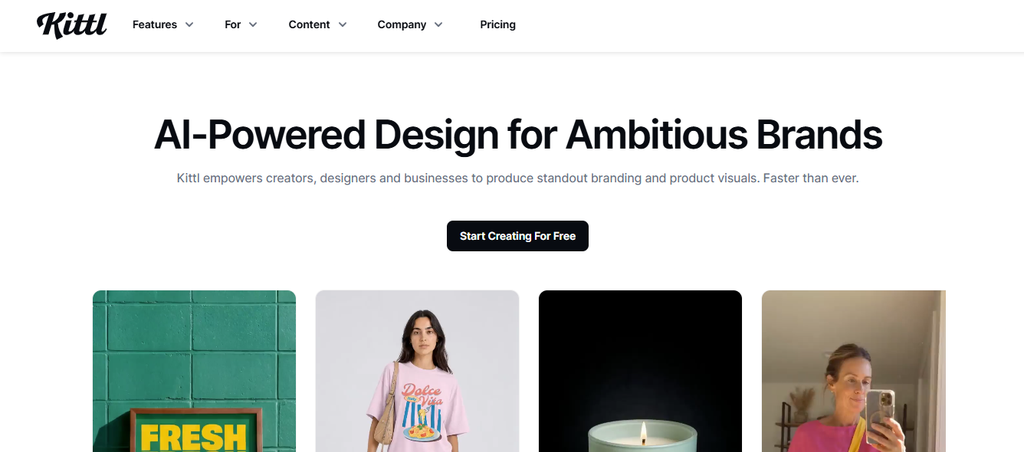
Kittl is a browser-based creative platform built around graphic design, typography, vectors, AI tools, templates, mockups, and collaborative workflows. Its editor includes vector controls, image tools, text transformations, an Infinite Canvas, and a substantial asset library.
Its strength is modern visual creation rather than long-document publishing. If you need book chapters, complex indexes, advanced master pages, or prepress-heavy workflows, Kittl should not be treated as a direct one-for-one InDesign replacement.
Kittl Highlighted Features
- Vector editing: Provides pen, shape-building, anchor-point, and path-editing tools within the browser.
- Advanced typography: Includes more than 1,400 fonts and extensive editable text effects.
- AI creative tools: Supports image generation, vectorization, background removal, image editing, and other assisted workflows.
- Infinite Canvas: Allows multiple artboards and visual concepts inside one workspace.
- Real-time collaboration: Lets teams create, comment, and manage visual work together.
Kittl Pros
- No desktop installation is required.
- Strong typography for a browser-based design platform.
- Integrated vector tools reduce dependence on separate illustration software.
- AI tools can speed up visual ideation and production.
- Useful for merchandise, posters, branding, marketing, and illustration.
Kittl Cons
- It lacks many specialist long-document publishing controls.
- Free-plan commercial-use rights are restricted.
- AI activity depends on token allowances.
- Advanced publishing users may still need separate DTP software.
Kittl Pricing Plans
Free costs $0.
Pro costs $19 per month, or $14 per month when billed annually at $168 per year.
Expert costs $49 per month, or $39 per month when billed annually at $468 per year.
Kittl also offers a Max tier, but a standard public dollar price was not displayed on the pricing information reviewed at the time of writing.
Why Choose Kittl?
Kittl stands out when typography, illustration, merchandise graphics, posters, branding, and fast visual experimentation matter more than conventional editorial publishing. Its combination of editable vectors, fonts, text effects, mockups, and AI tools gives you considerable creative freedom inside a browser.
Kittl currently says it is trusted by more than 10 million creatives, illustrating how quickly browser-based creative workflows have expanded.
The limitation remains document depth. An elaborate book or magazine still requires features that Kittl does not prioritize. For design-led graphics and marketing assets, however, it can remove considerable friction.
9. PosterMyWall
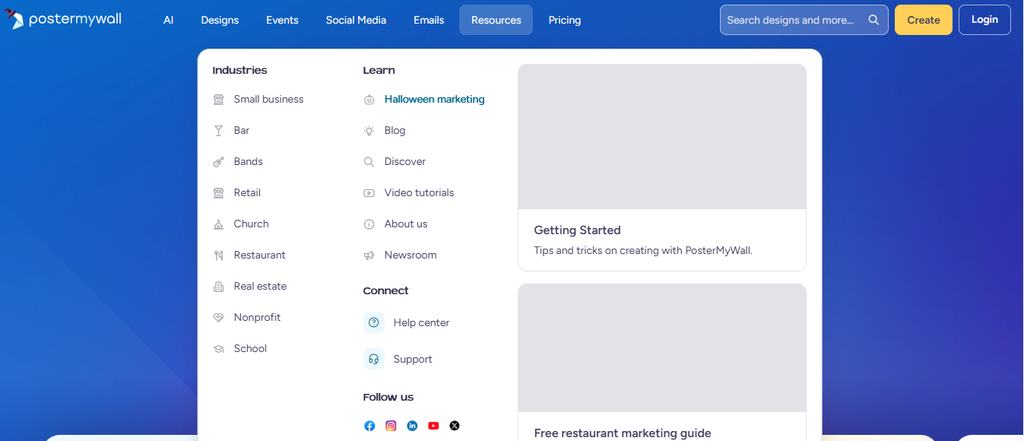
PosterMyWall combines design templates with AI tools, branding, social publishing, email marketing, video, and event-promotion functions. Its library currently advertises more than 3 million design templates, giving non-designers a fast starting point for campaign assets.
The platform is aimed more at marketing production than professional page composition. It can create multi-page visual content and PDFs, but users replacing advanced InDesign workflows should first assess typography, print, and long-document requirements.
PosterMyWall Highlighted Features
- Large template library: Provides millions of starting designs for marketing and promotional content.
- AI design tools: Includes AI image, text, background removal, subtitle, and related creation features.
- Brand Kits: Stores fonts, logos, and brand settings for recurring work.
- Content planning: Helps organize social, email, event, and promotional activity.
- High-resolution downloads: Paid plans include high-resolution watermark-free image and video downloads.
PosterMyWall Pros
- Extremely fast for marketing graphics.
- Useful for both image and video content.
- Large template selection reduces starting time.
- Integrated social and email tools extend beyond design alone.
- Free creation options let you test the platform before subscribing.
PosterMyWall Cons
- It is not a complete professional DTP replacement.
- Some free downloads can contain quality or watermark limitations.
- Advanced marketing features require paid plans.
- Users needing sophisticated prepress control should look elsewhere.
PosterMyWall Pricing Plans
Free costs $0.
Premium costs $13 per month or $109 per year.
Premium Plus costs $30 per month or $319 per year.
Why Choose PosterMyWall?
PosterMyWall suits businesses that see design as one stage in a broader marketing workflow. You can create campaign visuals and then move into scheduling, email, events, brand management, and related promotional tasks without assembling as many separate services.
Premium plans also remove common friction around high-resolution downloads and watermarks.
The drawback is publishing precision. A platform optimized for fast marketing production does not automatically provide everything an experienced InDesign user expects for books, newspapers, sophisticated catalogs, or color-critical print production. Pick it when campaign speed matters more than granular DTP control.
10. DesignCap
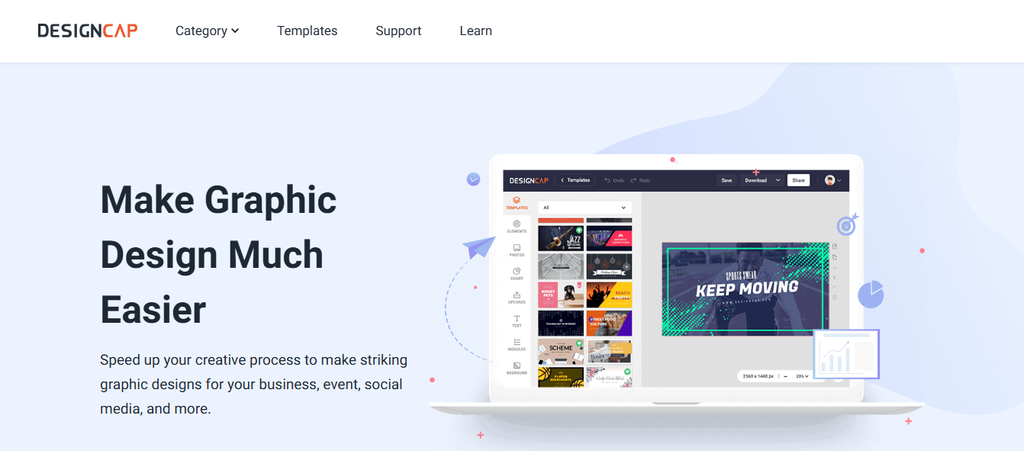
DesignCap is an online graphic-design platform for infographics, presentations, reports, charts, posters, flyers, brochures, social graphics, and related visual content. Its editor combines templates with stock images, icons, text, modules, charts, maps, and uploaded assets.
Its interface is deliberately simpler than professional page-layout software. That makes it accessible to beginners but also means advanced publishers should not expect InDesign-level typography, prepress, automation, or long-document management.
DesignCap Highlighted Features
- Template-based design: Offers templates for infographics, reports, presentations, posters, brochures, and other content.
- Chart creation: Supports bar charts, pie charts, line graphs, maps, flowcharts, tables, and related visualizations.
- Design modules: Combines text, icons, and imagery into reusable visual structures.
- Stock resources: Provides built-in fonts, photos, icons, shapes, and backgrounds.
- Data import: Its chart editor can work with spreadsheet data for faster visualization.
DesignCap Pros
- Beginner-friendly workflow.
- Useful for infographics and business reports.
- Large range of visual formats.
- Affordable annual plans.
- Browser access removes software installation requirements.
DesignCap Cons
- The free plan allows only limited saved designs and exports.
- Advanced print-publishing controls are limited.
- It lacks the long-document depth of dedicated DTP software.
- Collaboration and workflow management are less sophisticated than some team-focused platforms.
DesignCap Pricing Plans
Free costs $0.
Basic costs $8.99 per month when billed monthly. Annual billing reduces the effective rate to $4.99 per month, or $59.88 per year.
Plus costs $12.99 per month when billed monthly. Annual billing reduces the effective rate to $5.99 per month, or $71.88 per year.
Why Choose DesignCap?
DesignCap is useful when you want an uncomplicated browser editor for reports, infographics, presentations, posters, flyers, and business graphics. Charts and prebuilt visual modules are particularly helpful when your content contains data but you do not want to construct every visual element manually.
Its annual pricing is also relatively approachable compared with professional publishing platforms.
The limitation is predictable: simplicity reduces depth. DesignCap will not satisfy every advanced typographic or prepress requirement. It is better considered a fast visual-content tool than a complete replacement for sophisticated editorial publishing.
What Happens to Your Existing InDesign Files When You Switch?
Changing software is easy when you start with a blank document. Migrating years of existing InDesign projects is where the real difficulty begins.
Your files may contain linked photos, custom fonts, paragraph styles, character styles, master pages, effects, anchored elements, tables, cross-references, scripts, plugins, and carefully controlled text frames. A replacement application needs to understand enough of that structure to reproduce the design accurately.
Fonts Can Change Your Entire Layout
Missing fonts do more than change appearance. A replacement font can be slightly wider, narrower, taller, or differently spaced, causing lines to wrap at different points.
That can create overset text, move paragraphs onto new pages, change tables, and alter page counts. Before migrating a publication, verify that you still have valid access to every required font.
Images and Linked Assets Need Attention
InDesign often references external image files rather than embedding everything inside the document. If those assets move or disappear, your migrated project can contain missing or low-quality images.
Package important InDesign projects before leaving your old environment. Keeping fonts, graphics, text, and related assets organized in one archive gives you a much safer migration path.
Master Pages and Styles May Not Translate Perfectly
Alternative applications can support master pages and styles without interpreting Adobe’s implementation identically. Automatic page numbering, repeated headers, text variables, nested styles, and complex style rules deserve close inspection after conversion.
You should never assume a successful import means the document is production-ready. Review every representative page type.
Effects Can Produce Unexpected Results
Transparency, blending modes, clipping, image effects, shadows, and complex vector elements can change during file conversion. Even subtle differences matter when the final document is going to a commercial printer.
Export test PDFs and compare them visually before approving a migrated production file.
Text Overflow Is Easy to Miss
A small typography change can create hidden overset text. That means words may disappear even though most of the page appears correct.
Check page counts, frame endings, headings, tables, captions, indexes, and footnotes after migration. Long documents deserve a formal quality-control pass rather than a quick visual glance.
Must-know Tip: Keep your original InDesign files even after migrating successfully. A converted document should be treated as a new production version, not as permission to delete your source archive.
Do You Actually Need a Full InDesign Replacement?
One of the easiest mistakes is searching for software that matches InDesign feature-for-feature when your daily work uses only a small part of what InDesign offers.
Your real question should be: what are you trying to publish?
Choose Full DTP Software for Complex Print Work
Books, magazines, textbooks, annual reports, newspapers, catalogs, and commercial publications benefit from strong typography, text flow, repeated page structures, precise print output, and long-document controls.
Scribus, QuarkXPress, Xara Designer Pro+, and iStudio Publisher sit closer to this traditional publishing category, although their capabilities and platforms differ considerably.
Choose Visual Platforms for Infographics and Marketing Content
If your projects revolve around infographics, reports, presentations, diagrams, marketing graphics, posters, and data storytelling, a browser-based visual platform may save far more time.
Infographicmaker, Venngage, Kittl, PosterMyWall, and DesignCap fit this broader visual-communication category.
That shift also matches current creative trends. Adobe’s 2025 research found that 99% of surveyed creative professionals were using generative AI in some capacity. Of those professionals, 88% said it helped them create content faster, while 87% believed it improved the quality of their work.
Choose Automation When Repetition Is Your Main Problem
A product catalog containing thousands of records creates a different challenge. You may already know exactly how each page should look. The problem is keeping all those prices, products, images, and descriptions current.
Pagination tackles that issue by connecting structured data with document templates. For the right organization, eliminating repetitive production can matter more than gaining another manual design tool.
Match the Tool to the Finished Output
A visual that will appear in a presentation does not need the same workflow as a magazine heading to an offset printer. A social infographic does not require the same page architecture as a technical manual.
Canva’s 2025 visual-communication research reported 74% faster memory recall for creative assets compared with dull alternatives. Strong visuals clearly matter, but that does not mean every visual needs to be produced inside heavyweight publishing software.
Must-know Tip: Adobe CEO Shantanu Narayen said Adobe’s 2025 results reflected “the rapid adoption of our AI-driven tools.” The larger lesson is not that you need one particular AI platform. It is that creative workflows are changing, so your software choice should account for how you expect to work next, not only how you worked five years ago.
Conclusion
Choosing an Adobe InDesign alternative starts with understanding what you actually produce. Professional publishers may prioritize typography, master pages, color handling, PDF standards, and long-document control, while marketing teams may care more about templates, collaboration, AI assistance, branding, charts, and quick exports.
The tools above solve different versions of that problem. Infographicmaker combines AI visual generation, charts, brand controls, collaboration, and multiple export options, while traditional DTP applications concentrate more heavily on publication structure and print production.
Compare your required output, existing files, collaboration needs, budget, and printing requirements before moving. The best alternative is the one that removes unnecessary work without removing the controls your projects genuinely depend on.
Frequently Asked Questions
What is the best Adobe InDesign alternative?
There is no single best option for every workflow. Scribus and QuarkXPress are closer to traditional desktop publishing, while tools such as Infographicmaker, Venngage, Kittl, PosterMyWall, and DesignCap focus more heavily on visual communication and fast content creation.
Is there a completely free alternative to Adobe InDesign?
Yes. Scribus is free and open source. Several browser-based platforms also offer free plans, although those plans usually limit projects, downloads, AI credits, exports, storage, or premium assets.
Can Scribus replace Adobe InDesign?
Scribus can replace InDesign for many page-layout and print-production tasks, particularly if you need a free solution. However, the interface, Adobe integration, collaboration workflow, and file compatibility differ, so existing InDesign users should test important projects before switching.
Can Infographicmaker replace Adobe InDesign?
Infographicmaker can replace parts of an InDesign workflow when your work centers on infographics, visual reports, charts, presentations, marketing graphics, and other visual content. It is not positioned as a complete substitute for every high-end typesetting and prepress capability inside InDesign.
What is the easiest alternative to InDesign for beginners?
Browser-based tools such as Infographicmaker, Venngage, PosterMyWall, Kittl, and DesignCap generally have shallower learning curves than traditional desktop-publishing applications. The easiest choice depends on the type of content you create.
Which InDesign alternative is best for professional printing?
QuarkXPress, Scribus, and Xara Designer Pro+ provide more traditional print-publishing controls than most template-driven browser tools. Always confirm PDF standards, color requirements, bleed, fonts, and other specifications with your commercial printer before production.
Which Adobe InDesign alternative works on Linux?
Scribus is the strongest option on this list for Linux users. It is open source and designed specifically for desktop publishing.
Which alternative is best for Mac users?
iStudio Publisher is built specifically for Mac. Scribus and QuarkXPress also provide Mac-compatible options, while browser-based alternatives work through supported web browsers.
Can I open an InDesign file in another publishing program?
Compatibility varies. Some applications work with IDML or other interchange formats, but complex layouts may not convert perfectly. Fonts, effects, styles, master pages, and text flow should always be reviewed after migration.
What is IDML?
IDML stands for InDesign Markup Language. It is an interchange format used to represent InDesign document structure in a way that can be more accessible to other software and different InDesign versions than a native INDD file.
What should I check before switching from InDesign?
Check file compatibility, font availability, linked images, master pages, paragraph and character styles, print-output requirements, PDF standards, collaboration workflows, plugins, scripts, and your existing archive. Test a few difficult documents before migrating everything.
Is a browser-based design tool better than desktop publishing software?
Neither category is automatically better. Browser tools often win on accessibility, collaboration, templates, and speed, while desktop-publishing applications tend to offer deeper typography, long-document, print, and prepress controls.
Which InDesign alternative is best for infographics?
Tools designed around data visualization and visual storytelling are usually easier for infographics than conventional DTP software. Infographicmaker and Venngage are particularly focused on this category, while DesignCap also provides charts and infographic templates.
Which alternative is best for automated catalogs?
Pagination is built specifically around data-driven document generation. It can connect structured product information to templates and automate recurring catalogs, price lists, and other data-heavy documents.
Do I need Adobe InDesign for professional design?
No. Professional design can be produced with many tools. What matters is whether your chosen software supports the typography, layout, file compatibility, output quality, collaboration, accessibility, and printing requirements of your specific project.

Comments
0 responsesNo comments yet. Be the first to share your thoughts.