

Click any AI tool above to instantly get a summary of this article. Perfect for quick insights when you're short on time.
Have you ever opened a diagramming tool to explain one simple idea, only to spend more time arranging boxes, fixing spacing, and navigating features than communicating the idea itself? That frustration is pushing more professionals to search for a Lucidchart alternative that fits how they actually work.
The shift is bigger than diagramming. Microsoft’s 2026 Work Trend Index found that 66% of surveyed AI users spend more time on high-value work because of AI, while 58% say they now produce work they could not have created a year earlier.
This guide compares 10 alternatives across AI creation, diagramming, collaboration, pricing, usability, technical capabilities, and practical limitations so you can make a more informed choice.
Why Are Businesses Looking for Lucidchart Alternatives?
Lucidchart remains a capable diagramming platform, but the way teams create and communicate information has changed. A tool that worked well for occasional flowcharts may no longer fit a company that now needs AI-assisted creation, visual storytelling, technical architecture, workshops, offline access, or tighter control over software costs.
Teams Need Faster Ways to Turn Information Into Visuals
Modern teams rarely start with a blank canvas. You may already have reports, marketing briefs, research findings, process notes, spreadsheets, meeting summaries, or technical documentation that needs to become understandable visually.
This is where newer AI-assisted tools become attractive. Instead of manually building every visual element, you can increasingly start with text, data, or a prompt and create a usable first draft.
The trend extends well beyond design software. Microsoft reported in 2024 that 75% of knowledge workers were already using AI at work, while McKinsey found that 65% of organizations were regularly using generative AI in at least one business function.
Must-know Tip: Microsoft CEO Satya Nadella described AI as “democratizing expertise across the workforce.” For visual communication, that means non-designers can increasingly create useful first drafts without mastering every design technique.
Collaboration Has Become a Bigger Part of the Buying Decision
A diagram is rarely finished when one person creates it. Someone needs to review it, someone else needs to correct it, and a stakeholder may want to comment on it before publication.
Atlassian’s 2024 State of Teams research estimated that Fortune 500 companies lose 25 billion work hours each year to ineffective collaboration. The same research found that 55% of knowledge workers struggle to find information even when they know it exists somewhere in their organization.
Visual tools can help when they combine creation, commenting, sharing, version history, and collaborative editing, rather than leaving information scattered across unrelated applications.
Cost and Plan Limits Add Up
Software prices look small when viewed as a single monthly subscription. The calculation changes when you multiply a per-user subscription across a team and then add other design, whiteboarding, presentation, and collaboration products.
Businesses therefore increasingly ask a different question: how much of their real workflow can one platform handle?
The right alternative may be a completely free diagramming application, a dedicated technical modeling platform, an AI visual-content tool, or a collaboration workspace. What matters is whether you are paying for functionality you actually use.
Specialized Work Requires Specialized Tools
A marketing manager creating an infographic does not have the same requirements as a database architect building an entity relationship model. A product team running workshops needs different controls from an engineer creating a network diagram.
This distinction matters because “Lucidchart alternative” describes several different software categories.
Some alternatives prioritize technical diagramming. Others prioritize whiteboarding, AI generation, information design, UML, database modeling, wireframes, or offline drawing. Your use case should determine which category matters most.
How to Choose the Best Lucidchart Alternative
A long feature list can make almost every tool look impressive. A better decision comes from matching features to the work you perform every week.
Start With Your Primary Output
Identify what you create most often. If you mainly build UML diagrams, network architecture, ERDs, and BPMN workflows, technical notation and shape libraries should carry more weight than presentation effects.
If you turn reports, research, statistics, or marketing ideas into polished visuals, AI-assisted content structuring, charts, branding controls, templates, and export options may matter more.
This distinction prevents you from paying for a technically powerful application that complicates simple work or choosing a lightweight visual tool that cannot handle specialist diagrams.
Examine Collaboration Beyond Real-Time Editing
Real-time editing is useful, but it is only one part of teamwork. Check comments, permissions, version history, guest access, password protection, approval workflows, workspace organization, and admin controls.
The need is growing as work becomes more distributed. Microsoft reported in 2025 that highly interrupted knowledge workers can receive an average of 275 meetings, emails, and chats across a full day.
A visual workspace that keeps decisions attached to the actual work can reduce some of that fragmentation.
Test Import, Export, and Migration Before Committing
Your existing files matter. Check whether the alternative imports formats such as Visio, draw.io, SVG, PDF, or other formats your organization already uses.
Then test the export process. A tool can look inexpensive until you discover that the file format you need requires a higher plan.
This is especially important if diagrams become part of documentation, presentations, client deliverables, engineering workflows, or long-term archives.
Think About AI as a Workflow Feature, Not a Checkbox
Microsoft’s 2025 Work Trend Index found that 82% of leaders considered that year pivotal for rethinking strategy and operations, while 81% expected AI agents to become moderately or extensively integrated into their AI strategy within 12 to 18 months.
That does not mean you should choose a product merely because its pricing page says “AI.”
Test what the AI actually does. Useful capabilities may include generating a first visual, reorganizing content, creating charts, converting text to diagrams, building wireframes, suggesting assets, or refining an existing design.
Must-know Tip: Evaluate AI by measuring how many manual steps it removes from your actual workflow. A feature that produces an editable starting point is usually more useful than one that generates an attractive but difficult-to-modify result.
10 Best Lucidchart Alternative Tools to Consider in 2026
The best Lucidchart alternative depends on what you are trying to communicate. Some options below are direct diagramming replacements, while others expand into AI-generated visuals, collaboration, technical modeling, whiteboarding, or professional drawing.
Infographicmaker leads this list when your goal is turning information into polished visual content with AI assistance. Draw.io is compelling for free technical diagramming, Visio remains powerful inside Microsoft environments, and platforms such as Miro and Whimsical emphasize collaborative visual work. The following reviews explain the trade-offs instead of treating every product as interchangeable.
1. Infographicmaker
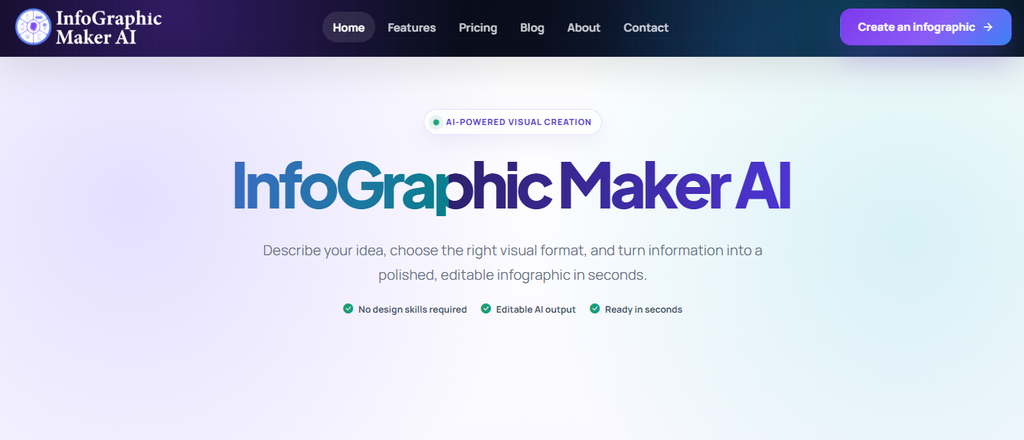
Infographicmaker takes a different approach from traditional diagramming software. Instead of asking you to construct every visual from individual shapes, it can take a prompt, notes, written content, or information and turn that material into a structured visual first draft.
That matters when your real goal is communication rather than diagram construction. You can focus on what the audience needs to understand, then refine the visual structure, charts, icons, typography, images, colors, and other details after generation.
Its AI Content to Visual workflow is particularly useful when you have information but do not know how to organize it visually. Rather than staring at an empty canvas, you get a starting structure that can remain editable, which reduces the distance between an idea and a publishable asset.
The platform also moves beyond one-click generation. Brand Kit controls, animations, advanced text effects, asset search, AI image and icon suggestions, charts, multiple export formats, and collaborative capabilities give you room to turn generated content into something that fits a real marketing, education, reporting, or business workflow.
Infographicmaker Highlighted Features
- AI content-to-visual generation: Turns text, ideas, reports, or structured information into an editable visual starting point, reducing manual layout work.
- Smart visual editor: Gives you control over layout, spacing, alignment, text, imagery, and individual elements after AI generation.
- Charts and data visualization: Helps transform numerical information into visual formats so audiences can understand trends and comparisons faster.
- Brand Kit: Lets you apply brand colors, typography, logos, and related assets more consistently across recurring visual content.
- AI image and icon tools: Helps you generate or discover supporting visual assets without constantly moving between separate creative applications.
- Multi-format export: Paid plans support formats including PNG, JPEG, WEBP, PDF, GIF, and PowerPoint slides for different publishing workflows.
Infographicmaker Pros
- AI can transform existing information into a visual first draft instead of forcing you to design from a blank canvas.
- Generated work remains editable, which gives you control over the final presentation.
- The tool combines infographic creation, visual assets, charts, branding, and editing in one workflow.
- Templates give you a faster starting point when AI generation is unnecessary.
- Brand controls help businesses maintain a more consistent visual identity.
- Multiple professional export formats make content easier to reuse across websites, reports, presentations, and campaigns.
- Its credit-based plans let you choose capacity according to how frequently you rely on AI generation.
Infographicmaker Cons
- The free plan provides a limited one-time AI credit allowance, so regular users will eventually need a paid plan.
- High-volume AI creation consumes credits, which means frequent users should match their plan to expected generation volume.
Infographicmaker Pricing Plans
Free: $0 one time with 30 AI credits and five one-time downloads. Starter: $9.90 per month with 650 monthly credits, including 500 standard and 150 bonus credits. Pro: $19.90 per month with 1,400 credits, including 1,200 standard and 200 bonus credits. Business: $49.90 per month with 5,000 monthly credits, including 4,000 standard and 1,000 bonus credits.
Why Choose Infographicmaker?
Choose Infographicmaker when the problem begins with information rather than shapes. It is especially useful if you regularly transform marketing ideas, educational content, statistics, reports, business information, or written material into visuals and want AI to handle part of the initial structuring.
The advantage is workflow compression. Instead of writing in one tool, sourcing images in another, constructing layouts manually, and then moving the result into presentation software, you can handle more of the visual-production process in one workspace.
Its strongest value appears when you need visual storytelling and editable AI output rather than highly specialized engineering notation.
2. Draw.io (diagrams.net)
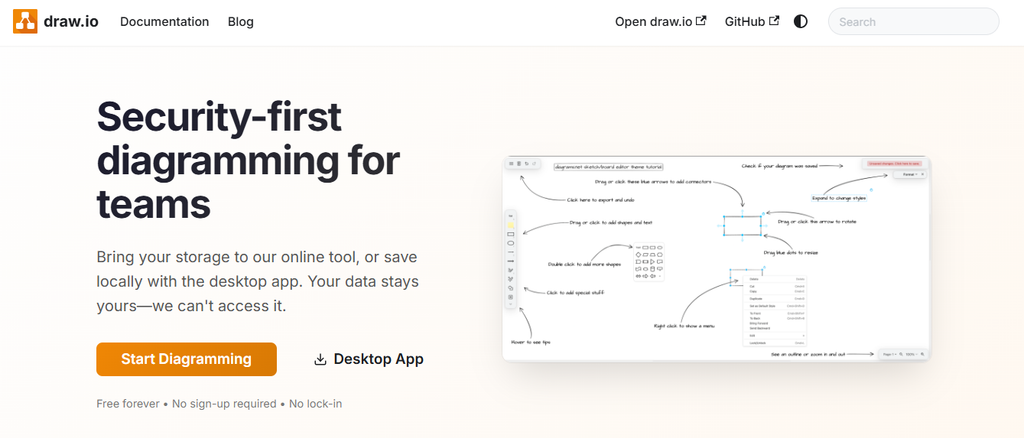
Draw.io, also known as diagrams.net, is one of the most practical alternatives when you want substantial diagramming capability without a core subscription fee. You can build flowcharts, UML diagrams, ERDs, BPMN diagrams, network diagrams, database schemas, circuit diagrams, and other structured visuals.
The main trade-off is presentation and workflow polish. Its interface can feel denser than newer SaaS products, and collaboration depends partly on where you store your files. However, technical users often value the freedom to work without creating an account and to decide where diagram files are stored.
Draw.io Highlighted Features
- Technical diagram libraries: Supports UML, ERD, BPMN, networks, database schemas, flowcharts, and many other structured diagram types.
- Broad import support: Can import Visio, Gliffy, and Lucidchart files, which can simplify migration.
- Offline desktop application: Lets you work on Windows, macOS, and Linux without depending entirely on a browser connection.
- Flexible storage: Allows files to be stored locally or through supported cloud platforms such as Google Drive and OneDrive.
- Text-to-diagram options: Supports approaches including Mermaid, PlantUML, CSV, and SQL for users who prefer generating diagrams from structured text or data.
Draw.io Pros
- The core browser diagramming application is free.
- You can begin without creating a user account.
- It covers many technical diagram types.
- Desktop applications support offline work.
- You retain substantial control over where your files are stored.
Draw.io Cons
- The interface can feel less polished to users accustomed to modern design-focused SaaS products.
- Collaboration quality depends on the storage or integration environment you use.
- Some advanced enterprise integrations and Atlassian deployment options may involve separate costs.
- Building visually refined marketing assets can require more manual styling than an information-design platform.
Draw.io Pricing Plans
The core diagrams.net web application is free. The desktop application is also available for offline diagramming. Commercial integrations and deployment options for platforms such as Atlassian can have separate pricing.
Why Choose Draw.io?
Choose Draw.io if your priority is functional diagramming with minimal software cost. It is particularly strong for technical users who want UML, ERD, network, architecture, flowchart, and process-diagram capabilities without buying another individual SaaS subscription.
Its storage flexibility is another advantage for privacy-conscious workflows. The compromise is that you may need more manual work to create highly branded or presentation-oriented visual content, and teams expecting an all-in-one collaboration suite may find the experience less centralized.
3. Microsoft Visio
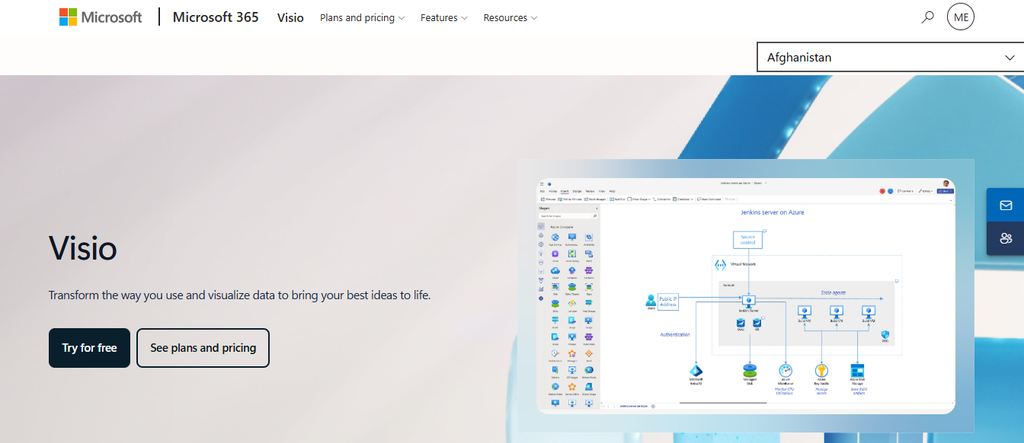
Microsoft Visio remains one of the strongest professional options for detailed diagramming, particularly when your organization already operates inside Microsoft 365. It handles flowcharts, organization charts, network diagrams, UML, ERDs, cloud architecture, engineering drawings, floor plans, and advanced business-process documentation.
Its biggest concern is accessibility across mixed environments. The most capable desktop experience remains closely tied to Windows, and its deeper feature set can be more than casual diagram creators need. Costs can also rise when multiple users require higher-level subscriptions.
Microsoft Visio Highlighted Features
- Professional shape libraries: Visio Plan 2 includes more than 250,000 shapes for detailed professional diagramming.
- Industry-standard diagrams: Supports standards and use cases including BPMN 2.0, UML, ERDs, engineering drawings, electrical diagrams, and P&IDs.
- Microsoft 365 integration: Works closely with applications such as Word, Excel, PowerPoint, Teams, and Power BI.
- Live data connectivity: Higher-level capabilities can connect diagrams to data so visuals reflect underlying information.
- Desktop and offline support: Plan 2 includes the Windows desktop application for local and offline work.
Microsoft Visio Pros
- Excellent for detailed professional and technical diagrams.
- Familiar to organizations already standardized on Microsoft products.
- Extensive specialist shapes and templates.
- Strong data-linking capabilities.
- Offers both subscription and one-time purchase options.
Microsoft Visio Cons
- Full desktop functionality is centered on Windows.
- Advanced capabilities can be unnecessary for simple visual communication.
- Licensing can become expensive for larger teams.
- New users may face a steeper learning curve than with lightweight visual tools.
Microsoft Visio Pricing Plans
Visio in Microsoft 365 is included with eligible Microsoft 365 commercial plans for basic diagramming. Visio Plan 1 costs $5 per user per month when paid yearly. Visio Plan 2 costs $15 per user per month when paid yearly. Visio Standard 2024 costs $309.99 as a one-time purchase for one PC, while Visio Professional 2024 costs $579.99 as a one-time purchase.
Why Choose Microsoft Visio?
Choose Visio when technical precision, Microsoft integration, advanced standards, and deep diagram libraries matter more than simplicity. Engineering teams, IT departments, process specialists, and businesses already invested in Microsoft 365 can find substantial value in keeping diagramming close to their existing ecosystem.
The downside is that it can be excessive for simple visual storytelling or quick collaborative ideation. Teams using macOS heavily should also assess platform requirements carefully before standardizing on the desktop version.
4. Miro

Miro combines diagramming with a much broader visual collaboration canvas. Instead of focusing only on finished diagrams, it supports brainstorming, workshops, roadmaps, documents, tables, timelines, Kanban boards, prototypes, presentations, and collaborative planning.
That breadth is both its advantage and its potential weakness. If all you need is precise technical diagramming, the wider workspace can introduce functionality you rarely use. For product, design, consulting, remote, and cross-functional teams, however, the collaborative environment can replace several separate tools.
Miro Highlighted Features
- Large template ecosystem: The current platform advertises more than 7,000 Miro and community templates.
- AI-assisted visual work: AI can help generate diagrams, tables, summaries, and other workspace content.
- Broad integrations: Miro lists more than 250 integrations across popular business and productivity tools.
- Advanced diagramming libraries: Business plans provide thousands of shapes for UML, AWS, BPMN, Mermaid, technical systems, and related use cases.
- Workshop tools: Voting, timers, activities, comments, sharing, and collaboration controls support facilitated sessions.
Miro Pros
- Excellent real-time visual collaboration.
- Strong for workshops and brainstorming.
- Supports more than traditional flowcharts.
- Extensive integrations fit cross-functional workflows.
- AI features support several stages of planning and ideation.
Miro Cons
- The Free plan keeps only three boards editable.
- Per-seat costs can grow quickly across larger teams.
- Advanced diagramming shapes require higher plans.
- Its broad feature set can feel excessive for users who only need simple diagrams.
Miro Pricing Plans
Free: $0. Starter: $8 per member per month when billed annually or $10 when billed monthly. Business: $20 per member per month when billed annually or $25 when billed monthly. Enterprise: custom pricing for larger organizations.
Why Choose Miro?
Choose Miro when diagramming is one part of a wider collaboration process. Product discovery, brainstorming, workshops, planning sessions, customer journeys, roadmaps, and cross-functional discussions fit naturally into its large canvas.
It becomes less compelling when your needs are narrow and highly technical because you may pay for collaborative capabilities you rarely touch. Its value is strongest when multiple departments use the same visual workspace from early ideas through planning and communication.
5. Gliffy

Gliffy is closely associated with Atlassian environments and is particularly useful when diagrams belong inside Confluence documentation. You can create flowcharts, UML, BPMN, ERDs, network diagrams, architecture diagrams, wireframes, mind maps, and other structured visuals.
The Atlassian focus can also be a limitation. If your company does not use Confluence or Jira heavily, another standalone diagramming platform may provide a more natural workflow. Some imported Visio diagrams can also require adjustment because not every object and formatting behavior transfers perfectly.
Gliffy Highlighted Features
- Native Confluence workflow: Lets teams create and maintain diagrams directly around documentation.
- Technical diagram support: Covers UML, BPMN, ERD, network diagrams, flowcharts, and cloud architecture.
- Import capabilities: Supports formats from Visio and draw.io, while some Gliffy environments can also handle Lucidchart exports.
- Interactive layers: Layers can help users expose different levels of information inside a diagram.
- Custom shape libraries: Lets organizations add specialized assets and visual standards.
Gliffy Pros
- Strong fit for Confluence-heavy organizations.
- Intuitive drag-and-drop editor.
- Good collection of technical diagram types.
- Unlimited diagrams are included in current Confluence offerings.
- Permission management can align with existing Atlassian workflows.
Gliffy Cons
- It is less compelling when you do not use Atlassian products.
- Some Visio formatting may change during import.
- Certain imported Visio objects can lose editability.
- Advanced visual-content creation is less extensive than dedicated design platforms.
Gliffy Pricing Plans
Gliffy Diagrams for Confluence is free for up to 10 users. For 11 to 100 users, current pricing starts at $3.80 per user per month when billed annually. Gliffy Zero Egress is listed from $2.80 per user per month for qualifying configurations, while larger enterprise deployments require appropriate Atlassian licensing or sales discussions.
Why Choose Gliffy?
Choose Gliffy when your diagrams function as living technical documentation inside Confluence. Software teams can place architecture diagrams, UML, BPMN, networks, and process visuals close to the pages people already read.
The case becomes weaker outside the Atlassian ecosystem. Organizations that want broad visual collaboration, sophisticated AI content creation, or highly polished marketing graphics may find the product narrower than other alternatives in this list.
6. Whimsical

Whimsical is designed for fast visual thinking. Its boards combine flowcharts, diagrams, mind maps, sticky notes, wireframes, and related planning tools on an infinite canvas, making it particularly attractive to product teams.
AI has become an increasingly important part of the product. You can generate editable flowcharts, mind maps, wireframes, and other visual structures from prompts. The trade-off is specialization: Whimsical favors clean product and planning workflows rather than the deepest engineering and enterprise diagramming requirements.
Whimsical Highlighted Features
- AI flowchart generation: Converts prompts into editable process and interaction flows.
- AI wireframes: Generates editable web, mobile, tablet, and related low-fidelity interface concepts from natural-language instructions.
- Mind maps: Helps you organize ideas visually and expand concepts before refining them.
- Real-time collaboration: Supports multiplayer editing, comments, shared boards, and team feedback.
- Infinite visual canvas: Combines diagrams, wireframes, sticky notes, and planning content within flexible boards.
Whimsical Pros
- Clean interface with a relatively approachable learning curve.
- Strong combination of flowcharts and wireframes.
- AI output remains editable.
- Useful for product and UX teams.
- Free guests and viewers support easier sharing.
Whimsical Cons
- The Free plan limits monthly board-object creation.
- Free exports carry a watermark.
- Business-level administrative features require the higher plan.
- Highly specialized engineering diagramming is not its primary focus.
Whimsical Pricing Plans
Free: $0. Pro: $10 per editor per month when billed annually. Business: $20 per editor per month when billed annually. Larger organizations can discuss Business deployment and enterprise requirements with the company.
Why Choose Whimsical?
Choose Whimsical if your workflow moves between user flows, simple diagrams, mind maps, brainstorming, and wireframes. Product managers, designers, founders, and UX teams can move from an idea to a structured visual without jumping between several specialized applications.
Its simplicity is also a limitation. Teams requiring extensive industry-specific shapes, complex data linking, or heavyweight enterprise modeling may outgrow it. It performs best when speed and shared understanding matter more than deep technical notation.
7. EdrawMax

EdrawMax takes an all-in-one approach to diagramming. It supports flowcharts, floor plans, UML, software diagrams, electrical engineering visuals, P&IDs, organization charts, project planning, brainstorming, network diagrams, and many additional categories.
That versatility comes with complexity. The platform advertises more than 210 diagram solutions, over 1,500 built-in templates, and more than 26,000 symbols, so the interface naturally contains more options than a lightweight flowchart maker. Users who need only occasional diagrams may not take advantage of the full feature range.
EdrawMax Highlighted Features
- Broad diagram coverage: Supports more than 210 diagram categories across business, technical, engineering, education, and planning workflows.
- Large visual library: Provides thousands of templates and more than 26,000 symbols.
- AI diagramming tools: Can generate and assist with diagrams, imagery, icons, and related visual tasks.
- Visio compatibility: Supports importing and exporting Visio files for migration and mixed-tool environments.
- Cross-platform availability: Works across Windows, macOS, Linux, web, and supported mobile environments.
EdrawMax Pros
- Very broad range of supported diagram types.
- Strong template and symbol library.
- Useful Visio compatibility.
- Available across several operating systems.
- One-time purchase options reduce reliance on permanent subscriptions.
EdrawMax Cons
- The large feature set can feel overwhelming to casual users.
- Some advanced functionality sits behind paid licensing.
- The Free edition applies limitations to pages, templates, exports, and other features.
- AI-related assets and add-ons can introduce additional purchasing decisions.
EdrawMax Pricing Plans
A free trial is available. The current individual annual plan is listed at $99, while the perpetual EdrawMax license is listed at $198. Promotional pricing and additional bundles can change, so displayed checkout pricing may differ during active offers.
Why Choose EdrawMax?
Choose EdrawMax when you need one desktop-friendly application to cover many kinds of diagrams. It is especially useful if your work moves between ordinary business diagrams and more specialized formats such as floor plans, electrical diagrams, technical systems, and engineering visuals.
The main drawback is breadth. A user seeking a very simple visual tool may spend more time navigating features than necessary. For organizations with varied diagramming needs, however, that same breadth becomes its strongest advantage.
8. Cacoo
Cacoo combines online diagramming with real-time collaboration. It supports flowcharts, wireframes, mind maps, process visuals, technical diagrams, charts, tables, whiteboarding, presentations, and project-oriented visual work.
Its collaborative functions go beyond simultaneous editing. Follow mode, comments, in-app chat, video calls, revision history, and presentation capabilities allow a team to discuss and present work without leaving the board. The main concern is that some capabilities and limits change significantly between Free, Pro, Team, and Enterprise plans.
Cacoo Highlighted Features
- Code-to-Graph: Converts structured code or text syntax into graphs and UML-style diagrams that can still be edited.
- Multi-user editing: Lets teammates modify the same visual together in real time.
- Visio import: Allows existing Visio files to be brought into Cacoo for continued editing.
- Charts and tables: Supports data-oriented visuals alongside ordinary diagrams.
- In-app communication: Provides comments, chat, follow mode, and video calling for collaborative sessions.
Cacoo Pros
- Strong collaboration tools.
- Useful for both diagrams and whiteboarding.
- Supports Visio migration.
- Code-to-Graph can speed up technical visualization.
- Team plans support large organizations with up to 1,000 users.
Cacoo Cons
- The Free plan places limits on sheets and exports.
- The Pro plan is designed primarily for an individual user.
- Visio files can be imported, but Cacoo does not currently export directly back to Visio format.
- Enterprise security and administration require higher-level plans.
Cacoo Pricing Plans
Free: $0. Pro: $6 per month for one user. Team: $6 per user per month, supporting teams up to 1,000 users. Enterprise: custom cloud pricing is available for advanced administration, while Cacoo also offers private-server enterprise options under separate licensing.
Why Choose Cacoo?
Choose Cacoo if you want diagramming and teamwork to happen in the same browser-based workspace. Its comments, video communication, follow mode, real-time editing, and presentation features can reduce the need to coordinate visual reviews through separate applications.
The limitations become more noticeable if you need full bidirectional Visio compatibility or advanced features on the free tier. It is strongest for collaborative teams that value communication around the diagram as much as the diagram itself.
9. Visual Paradigm

Visual Paradigm is substantially more technical than many alternatives in this list. It supports UML, SysML, ERDs, BPMN, software architecture, process modeling, database design, business analysis, enterprise architecture, and related professional modeling workflows.
That depth makes it powerful but less approachable for casual users. If you only need quick flowcharts or marketing visuals, Visual Paradigm can feel unnecessarily complex. For software architects, analysts, developers, database professionals, and process specialists, its structured modeling capabilities are much more relevant.
Visual Paradigm Highlighted Features
- UML and SysML modeling: Supports professional software and systems modeling beyond basic drawing.
- ERD and database tools: Helps teams model database structures and related technical relationships.
- BPMN support: Provides structured process-modeling capabilities for business and operational workflows.
- Desktop and online environment: Combines desktop modeling with web-based diagram and collaboration capabilities.
- Broad architecture support: Covers cloud diagrams, enterprise architecture, software modeling, process design, and business analysis.
Visual Paradigm Pros
- Excellent depth for software and systems modeling.
- Strong UML, SysML, BPMN, and ERD capabilities.
- Multiple editions allow users to choose technical depth.
- Offers subscription and perpetual licensing.
- Community Edition is available free for non-commercial use.
Visual Paradigm Cons
- Considerably more complex than lightweight diagramming tools.
- Commercial editions can become expensive.
- Casual visual creators may use only a small portion of its capabilities.
- Enterprise and professional workflows can require additional training.
Visual Paradigm Pricing Plans
Current subscription pricing starts at $6 per month for Modeler and $19 per month for Standard. The current shop also displays discounted subscription rates from $35 per month for Professional and $89 per month for Enterprise under applicable billing terms. Perpetual single-seat pricing is $99 for Modeler, $349 for Standard, $799 for Professional, and $1,999 for Enterprise.
Why Choose Visual Paradigm?
Choose Visual Paradigm when diagrams represent real software, system, database, or business models rather than simply illustrations. It gives technical teams structure, standards, and modeling depth that broad whiteboarding platforms may not provide.
That sophistication has a cost in both money and learning time. A small marketing or operations team needing occasional flowcharts will probably find simpler alternatives easier. Technical organizations that depend on formal modeling can justify the additional complexity more readily.
10. OmniGraffle

OmniGraffle is a professional drawing and diagramming application built primarily for Apple users. It supports flowcharts, wireframes, interface mockups, network diagrams, layouts, visual specifications, and other precision-oriented graphic work.
Its native-app approach gives designers extensive control over canvases, layers, grids, Bézier shapes, document scale, guides, artboards, and visual styling. The obvious concern is platform reach. Windows-focused teams will not find it as convenient as a browser-first alternative.
OmniGraffle Highlighted Features
- Flexible canvas modes: Supports fixed, flexible, and infinite canvas arrangements for different drawing tasks.
- Professional layers and artboards: Helps designers organize complex documents and reusable visual structures.
- Visio support in Pro: Can import several Visio file, template, and stencil formats and offers Visio-related export support.
- Precision drawing tools: Provides Bézier lines and shapes, guides, scaling, point editing, and professional drawing controls.
- SVG workflow: Supports SVG import, while Pro adds SVG export for scalable design workflows.
OmniGraffle Pros
- Strong native experience for Apple users.
- Excellent precision and layout controls.
- Useful for wireframes and professional visual specifications.
- Pro includes advanced layers, automation, and Visio support.
- Works well for designers who want more control than browser-first tools provide.
OmniGraffle Cons
- Mac and iOS licensing is platform-specific.
- It is a poor fit for Windows-centered organizations.
- Advanced Visio support requires Pro.
- Real-time browser collaboration is not its central strength.
OmniGraffle Pricing Plans
Why Choose OmniGraffle?
Choose OmniGraffle if you work primarily on Apple devices and care about precise, native drawing controls. Designers, architects, UX professionals, and technical users who want artboards, layers, flexible canvases, scaling, and detailed vector editing can appreciate its desktop-oriented workflow.
The platform limitation is significant for mixed-device companies. Teams that expect browser-based real-time collaboration across Windows, macOS, and other systems will usually find cloud-first alternatives easier to standardize across the organization.
Lucidchart vs Infographicmaker: Features, Pricing, and Ease of Use Compared
Lucidchart and Infographicmaker overlap in one important goal: both help you explain information visually. The way they reach that goal is different, so your choice should start with the type of output you create.
Visual Content Creation
Infographicmaker is stronger when you begin with written information, statistics, reports, marketing ideas, educational content, or data that you want to transform into a polished visual story. Its AI workflow can structure that information into a first design before you manually refine the result.
Lucidchart takes a diagram-first approach. You generally work with shapes, connectors, diagram libraries, data, and structured canvases to represent processes or systems.
If the final deliverable needs to look like an infographic, visual report, branded campaign asset, presentation visual, or data story, Infographicmaker can remove more of the early design work.
Technical Diagramming
Lucidchart remains the more specialized choice for conventional diagramming use cases such as UML, detailed process maps, technical architectures, ERDs, and data-linked structured diagrams.
Infographicmaker should not be treated as a direct substitute for every one of those technical functions. Its advantage is different: it helps you communicate information visually without requiring you to construct every design manually.
Your decision therefore depends on the output. Choose technical notation when the structure itself is the deliverable. Choose information design when audience understanding and presentation are the priority.
AI Workflow
The difference becomes clearer when you look at how AI is used.
Infographicmaker focuses on transforming content into a designed visual and then letting you edit that output. It can also assist with image generation, icons, charts, layout, and other supporting creative tasks.
Lucid AI can generate and assist with diagrams and boards. Lucid has also expanded AI availability across its plans, making AI increasingly integrated with conventional diagramming.
Microsoft’s 2026 Work Trend Index found that 49% of analyzed Microsoft 365 Copilot conversations supported cognitive work such as analysis, evaluation, problem-solving, and creative thinking. That broader trend matters because the best visual tools increasingly help users think and structure information, not simply draw it.
Must-know Tip: Harvard Business School professor Karim Lakhani has described the opportunity as using AI “to not just work faster, but to work smarter.” When comparing visual software, prioritize the tool that improves the thinking-to-output process you repeat most often.
Pricing
Infographicmaker currently starts with a $0 plan, followed by Starter at $9.90 per month, Pro at $19.90 per month, and Business at $49.90 per month.
Lucidchart also offers a free tier. Its Individual plan is currently advertised from $9 per month, while Lucid also sells Team and Enterprise options with additional collaboration and administration functionality.
Price alone does not settle the comparison because the products solve different problems. Calculate the cost of the complete workflow, including whether you would otherwise need separate infographic, image, presentation, diagramming, or collaboration products.
Ease of Use
Infographicmaker reduces blank-canvas work by giving you an AI-generated starting point. This can make it easier when you know what you want to communicate but do not know how to design it.
Lucidchart has a mature diagramming interface and extensive templates, but detailed diagrams still require an understanding of relationships, shapes, connectors, and the conventions behind the structure you are building.
For non-designers creating information-rich visual content, starting with AI can reduce setup work. For users who already understand formal diagramming, Lucidchart’s structured environment remains familiar and capable.
Free vs Paid Lucidchart Alternatives: Which Should You Choose?
A free tool is not automatically the cheapest option, and a paid tool is not automatically better. The useful question is whether the software removes enough manual work to justify its cost.
Choose Free When Your Requirements Are Stable
Free software works particularly well when you create occasional flowcharts, basic network diagrams, school projects, internal documentation, or straightforward visual maps.
Draw.io is a good example. You can create many common technical diagrams without buying the core application, and offline desktop access reduces dependence on a subscription.
A free plan can also work as an evaluation environment. You can test how your real files, collaborators, and workflows behave before committing to paid software.
Pay When the Tool Removes Repeated Work
A subscription becomes easier to justify when it saves meaningful time every week.
That saving might come from AI generation, brand controls, unlimited projects, premium exports, automatic layouts, technical libraries, enterprise permissions, version history, specialized integrations, or collaboration controls.
Microsoft’s 2026 research found that 58% of surveyed AI users were producing work they said they could not have created one year earlier. That illustrates why capability can matter as much as price. A tool that expands what you can realistically produce may provide more value than a free product that leaves several manual steps untouched.
Calculate the Cost of Your Workflow, Not One License
Compare the entire software stack.
If one $20 product replaces a diagramming tool, basic whiteboard, visual-content application, and another small subscription, it may reduce total spending. If you only create two simple flowcharts per month, paying for a sophisticated AI workspace is harder to justify.
Also examine seat requirements. A $10 per-user product costs $1,200 per year for 10 users before taxes. A $20 product doubles that figure.
Must-know Tip: Start your comparison with three real tasks your team completed last month. Test those exact tasks in each alternative. You will learn more from an hour of realistic testing than from comparing 100 marketing-page checkmarks.
Conclusion
Finding the right Lucidchart alternative is less about identifying one universal winner and more about matching the software to the way you communicate information.
Draw.io provides a strong free route for technical diagramming. Microsoft Visio remains relevant for detailed professional work in Microsoft environments. Miro and Cacoo bring diagramming closer to collaborative work, while Whimsical is appealing for fast product thinking. Visual Paradigm and EdrawMax provide deeper specialist capabilities, and OmniGraffle offers precise visual control for Apple-focused users.
Infographicmaker approaches the problem from information design. Its AI content-to-visual workflow, editable output, charts, visual assets, branding controls, and multi-format exports can help when your primary goal is turning information into understandable, polished visual content.
The best choice is ultimately the tool whose strengths match the output you create most often.
Frequently Asked Questions About Lucidchart Alternatives
What is the best Lucidchart alternative?
The best option depends on your workflow. Draw.io is strong for free technical diagramming, Miro works well for visual collaboration, Visio suits Microsoft-centered professional environments, and Infographicmaker is useful when you need to transform information into AI-assisted visual content.
Before choosing, identify whether your primary need is technical diagramming, visual storytelling, whiteboarding, wireframing, database modeling, or collaboration.
Is there a completely free alternative to Lucidchart?
Yes. Draw.io, also known as diagrams.net, is one of the strongest free alternatives for ordinary and technical diagramming.
Its core web application can be used without a paid subscription, and a desktop application is available for offline work. It supports flowcharts, UML, ERDs, network diagrams, BPMN, database schemas, and several other diagram types.
What is the best Lucidchart alternative for AI-generated visuals?
The answer depends on what you want AI to generate.
Infographicmaker focuses on turning text, information, and data into editable visual content and infographics. Whimsical can create AI-generated flowcharts, mind maps, and wireframes, while Miro includes AI capabilities for diagrams and collaborative workspace content.
Choose based on the type of editable output you need after generation.
Is Draw.io better than Lucidchart?
Draw.io can be better when cost, offline access, storage control, open-source availability, and technical diagramming are priorities.
Lucidchart offers a more polished commercial collaboration environment and extensive premium functionality. Draw.io is especially compelling for individuals and technical teams that need capable diagramming without another recurring core subscription.
Is Miro better than Lucidchart?
Miro is usually more suitable when visual collaboration, brainstorming, workshops, roadmaps, sticky notes, planning, and facilitation are central to your workflow.
Lucidchart is more focused on structured diagramming. If your team primarily builds formal flowcharts, architectures, data-linked diagrams, and technical documentation, Lucidchart may fit more naturally.
The better platform depends on whether collaboration or dedicated diagram structure carries more weight.
What is Microsoft’s equivalent to Lucidchart?
Microsoft Visio is Microsoft’s closest dedicated equivalent.
Visio supports flowcharts, organization charts, network diagrams, UML, ERDs, cloud architecture, engineering diagrams, floor plans, and advanced data visualization. It also integrates closely with Microsoft 365 products.
Companies already standardized on Microsoft software may find Visio particularly convenient.
Which Lucidchart alternative works offline?
Draw.io offers a desktop application for Windows, macOS, and Linux that can be used offline.
Microsoft Visio Plan 2 also includes the Visio desktop application with offline and local-file support. OmniGraffle provides a native desktop experience for Mac users, while EdrawMax offers desktop applications across several platforms.
Check licensing and synchronization requirements before choosing an offline workflow.
Which Lucidchart alternative is best for UML diagrams?
Visual Paradigm is particularly strong for UML when you need formal software modeling rather than simple drawing. Microsoft Visio and Draw.io can also create UML diagrams, while Gliffy and EdrawMax provide UML capabilities alongside other diagram types.
For professional software architecture, compare the depth of modeling features instead of checking only whether “UML” appears on a feature list.
Which Lucidchart alternative is best for small businesses?
Small businesses should first decide whether they need technical diagrams or visual business communication.
Draw.io keeps diagramming costs low. Cacoo can work well for collaborative teams, while Whimsical is useful for product planning and simple visual workflows. Infographicmaker can suit businesses that regularly create branded infographics, marketing visuals, reports, and presentation-ready visual content.
Consider total annual cost after multiplying the subscription by every required seat.
Can I import Lucidchart diagrams into another tool?
Some alternatives support direct or indirect migration.
Draw.io can import Lucidchart files. Certain Gliffy environments can import Lucidchart JSON exports, while other platforms may require you to export from Lucidchart into supported intermediate formats.
Always test several complicated diagrams before migrating an entire organization. Fonts, connectors, layers, formatting, shapes, and interactions may not transfer perfectly between competing applications.
Is there a Lucidchart alternative for Mac users?
Yes. OmniGraffle is one of the most established native diagramming choices for macOS and provides detailed control over canvases, layers, vector shapes, artboards, scales, and professional visual layouts.
Browser-based products including Draw.io, Miro, Whimsical, Cacoo, and Infographicmaker can also be used from a Mac without adopting Mac-only software.
Your choice should depend on whether you prefer a native desktop workflow or cloud collaboration.
What should I check before switching from Lucidchart?
Start with your existing files. Export several simple and complex diagrams and test them in the replacement.
Then check collaboration, permissions, comments, version history, integrations, export formats, offline access, AI functionality, security controls, technical diagram support, and pricing at your real team size.
Finally, calculate migration effort. Saving a few dollars per month is rarely worthwhile if hundreds of business-critical diagrams must be manually rebuilt.
Are AI diagramming tools replacing traditional diagram software?
They are changing the starting point rather than eliminating traditional editing.
AI can generate flowcharts, mind maps, wireframes, infographics, layouts, and first drafts quickly. Human review remains important because structure, accuracy, visual hierarchy, brand requirements, and technical meaning still need judgment.
The strongest modern workflow often combines AI speed with an editor that gives you control over the generated result.

Comments
0 responsesNo comments yet. Be the first to share your thoughts.