


Click any AI tool above to instantly get a summary of this article. Perfect for quick insights when you're short on time.
You know the frustration. You open a diagram to make one quick change, only to spend more time arranging shapes, fixing connectors, managing files, or figuring out whether everyone can work in the same place. That is why choosing the right Microsoft Visio Alternative has become less about replacing one drawing app and more about finding a workflow that actually fits your team.
The shift is significant. Canva’s 2025 research says 84% of business leaders believe poor visual communication causes delays and confusion, while $143 billion is invested annually in the U.S. visual content economy. Another 89% consider visual fluency a must-have business skill.
Here, you will find 10 Visio alternatives compared by real features, limitations, pricing, collaboration, AI capabilities, and practical use cases.
Why Are Businesses Looking for Microsoft Visio Alternatives?
A Real Migration Shows That Price Is Only Part of the Problem
The reason companies leave Visio is rarely as simple as “we want a cheaper tool.” The bigger issue is often how diagramming fits into everyday work.
Radisys provides a useful real-world example. In customer material published by SmartDraw, the company’s North American IT operations manager said the organization moved away from Visio and saved thousands while retaining the diagramming capabilities its team required.
That experience highlights the real buying question. You are not just comparing drawing tools. You are comparing migration effort, access, collaboration, administration, file handling, integrations, and the amount of work required after a diagram is created.
Microsoft has also improved Visio itself. Visio Plan 1 now costs $5 per user monthly when paid yearly, while Plan 2 costs $15 and adds the desktop application, 250,000-plus shapes, engineering diagrams, BPMN, AutoCAD support, and two-way data connectivity.
Modern Teams Want Work to Move Faster
Productivity pressure is changing what businesses expect from visual tools. Microsoft’s 2025 Work Trend Index found that 53% of leaders say productivity needs to increase, while 80% of employees report lacking enough time or energy to meet current demands.
A diagram that remains isolated from the rest of your workflow can therefore create another handoff. Teams increasingly want browser access, live collaboration, AI generation, comments, integrations, version history, and easier sharing.
Collaboration problems are expensive. Atlassian’s 2024 State of Teams study estimated that 25 billion working hours are lost each year to ineffective collaboration within Fortune 500 companies. It also found that 55% of knowledge workers struggle to locate information and 56% say inconsistent planning and tracking methods make collaboration difficult.
You should therefore judge a Microsoft Visio Alternative by more than how many shapes it offers. The right tool should reduce friction in the broader process your diagram supports.
What Are the Benefits of Choosing a Microsoft Visio Alternative?
Faster Visual Communication: Turn Complicated Ideas Into Something People Can Understand
A strong alternative can reduce the time between having an idea and communicating it clearly. AI-assisted tools can generate first drafts, while template-driven products help you avoid building common process diagrams, mind maps, customer journeys, or architecture visuals from scratch.
That speed matters. Canva reported in 2025 that 93% of business leaders believe visual content accelerates decision-making. When stakeholders understand a workflow sooner, you can spend less time explaining the picture and more time acting on it.
Flexible Collaboration: Work With People Instead of Passing Files Around
Many modern diagramming platforms are browser-first. You can invite teammates, collect comments, edit together, restore earlier versions, or share a project without repeatedly emailing new copies.
That flexibility suits hybrid and distributed teams especially well. Atlassian found that half of knowledge workers had discovered another team was working on the same project only after work was already underway, showing what happens when information remains disconnected.
Better Workflow Fit: Pay for Capabilities You Will Actually Use
Visio Plan 2 is powerful, particularly for engineering, BPMN, AutoCAD, programmable shapes, and data-connected diagrams. But those capabilities may be excessive when your actual need is a process map, marketing flow, collaborative whiteboard, product journey, or documentation diagram.
Alternatives let you optimize around your real work. Some focus on AI generation. Others prioritize code-based diagrams, visual collaboration, technical architecture, or information design.
Must-Know Tip: Do not choose software by counting features. Choose it by identifying the five tasks your team performs most frequently and testing how many clicks, handoffs, exports, and corrections each candidate requires.
How to Choose the Right Microsoft Visio Alternative
Match the Tool to the Diagram You Actually Build
Start with the work, not the software.
If you create network architectures, you need connectors, infrastructure symbols, layers, shape data, and perhaps VSDX compatibility. If you create customer journeys or reports, visual storytelling, flexible layouts, icons, charts, and brand controls may matter more.
Developers have another set of priorities. A text-based tool such as Mermaid can fit naturally into Git and Markdown workflows because the diagram itself can live beside documentation and code.
Evaluate Collaboration Before You Commit
Visual collaboration is becoming more important, not less. A 2025 Forrester study commissioned by Miro found that 79% of leaders said visual collaboration tools had increased in their organizations, while 43% described them as critical to workflows.
Do not stop at asking whether multiple people can edit. Test guest access, comments, permissions, version history, sharing, administrator controls, and what happens when an external client needs access.
Check Whether AI Actually Saves Work
AI diagramming can produce a first draft quickly, but you still need to inspect relationships, labels, logic, and technical accuracy. An attractive diagram with the wrong architecture or process sequence creates more risk than value.
The tool also needs to fit the rest of your workflow. In the same 2025 study, 69% of respondents said switching between core work tools and AI products creates friction, while 81% showed interest in AI built around shared canvas-based workspaces.
Calculate the Cost for Your Whole Team
A $10 subscription looks inexpensive until you multiply it by dozens of editors, add premium AI usage, storage, guest requirements, migration, and administration.
Also check whether everyone genuinely needs a paid editor seat. Some platforms provide free viewers or guests, while others charge based on members, seats, or workspace roles.
Must-Know Tip: A cheaper license does not automatically mean a cheaper migration. Include the cost of converting old diagrams, rebuilding custom libraries, training users, changing integrations, and correcting imported files.
10 Best Microsoft Visio Alternative Tools for Different Visual Workflows
No single alternative wins every category. Visio itself remains strong for advanced technical and engineering work, while newer products may be faster for AI generation, collaborative planning, visual storytelling, cloud architecture, or diagrams-as-code.
The following 10 tools cover those different needs. The first option, Infographicmaker, is particularly interesting when your priority is turning information, processes, customer journeys, and structured content into polished visuals without manually designing every element.
1. Infographicmaker
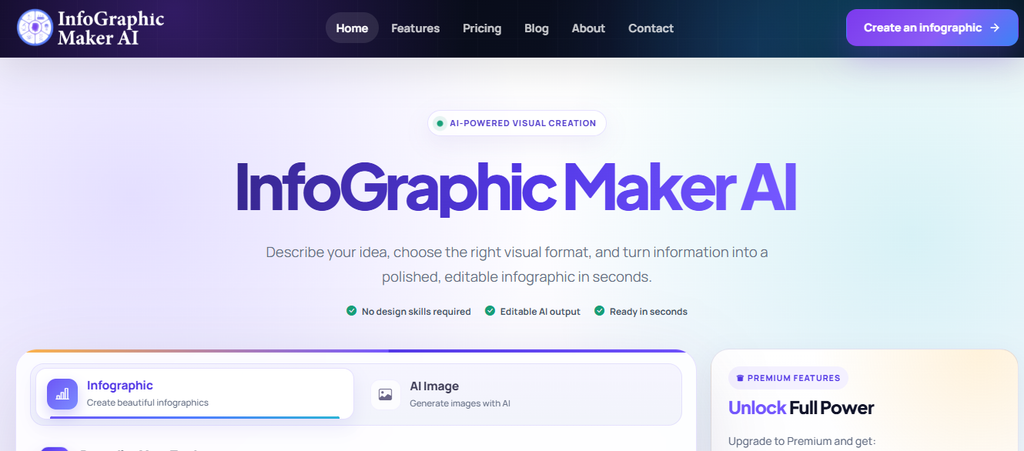
Infographicmaker takes a different approach from traditional diagramming software. Instead of asking you to begin with an empty technical canvas, it can transform prompts, reports, notes, or ideas into an editable visual structure, which is useful when the real challenge is communicating information rather than engineering a highly specialized technical drawing.
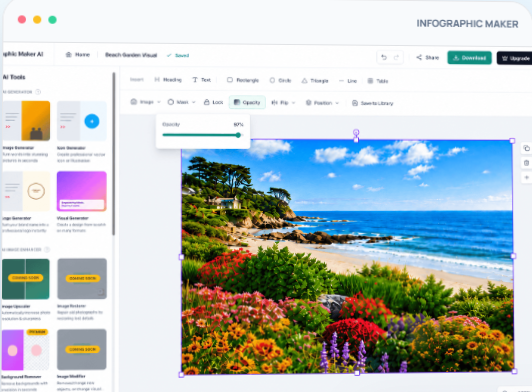
Its current workflow includes AI content structuring, editable visual output, smart flow diagrams, brand controls, multilingual creation, collaboration, resizing, version history, and several export options. You can therefore move from an idea to a presentation-ready visual without assembling every design element manually.
The process is especially useful for marketers, consultants, educators, content teams, small businesses, and professionals who need timelines, processes, comparisons, customer journeys, reports, or information-rich visuals. Its templates include process, comparison, timeline, business, marketing, education, career, and other information-design formats.
It is not trying to replicate every engineering capability in Visio Plan 2. Its advantage is a more focused visual-communication workflow where AI helps structure the information and the editor lets you refine the result.
Infographicmaker Highlighted Features
- AI content-to-visual generation: Converts prompts, notes, briefs, or structured information into an editable visual starting point.
- Smart flow diagrams: Helps you communicate processes, decision paths, and customer journeys through connected visual blocks.
- Brand Kit: Stores brand colors, fonts, logos, and visual assets so repeated designs remain consistent.
- Flexible visual editing: Lets you refine sections, text, typography, imagery, layout, and other elements after generation.
- Multi-format export: Paid plans support formats including PNG, JPEG, WEBP, PDF, GIF, and PowerPoint slides.
- AI visual tools: Provides AI image, logo, and icon generation alongside infographic creation.
Infographicmaker Pros
- Reduces the work required to turn text-heavy information into a structured visual.
- Gives non-designers a useful starting point instead of an empty canvas.
- Combines AI generation with editable output.
- Includes process-focused and information-design layouts.
- Brand controls make it easier to standardize repeated business visuals.
- Multiple export formats support web, documents, presentations, and campaigns.
- AI image and icon tools reduce the need to move between separate creative applications.
Infographicmaker Cons
- Its browser-first visual workflow suits communication graphics better than highly specialized engineering drawings.
Infographicmaker Pricing Plans
Free: $0 with 30 one-time AI credits and five one-time downloads. Starter: $9.90/month with 650 monthly credits. Pro: $19.90/month with 1,400 monthly credits. Business: $49.90/month with 5,000 monthly credits. Paid plans add broader export options, premium templates, Brand Kit functionality, and other advanced tools.
Why Choose Infographicmaker?
Choose Infographicmaker when the hardest part of diagramming is not drawing boxes but turning messy information into something people understand quickly. Its AI-first approach can structure a rough idea, create a visual direction, and leave you with an editable result rather than a static image.
It’s especially useful when one visual needs to work across reports, presentations, websites, marketing content, training materials, and social channels. Brand controls, resizing, templates, AI assets, and flexible exports help keep that workflow in one place.
2. Lucidchart

Lucidchart is one of the closest mainstream cloud-based alternatives to Visio. It supports professional diagrams, shared editing, premium templates, AI-assisted generation, data-oriented workflows, and team collaboration.
Its biggest consideration is cost as your deployment grows. Advanced administrative capabilities and the complete Lucid Visual Collaboration Suite move you toward higher-priced plans, so businesses should compare the exact seats and products they need.
Lucidchart Highlighted Features
- Professional diagramming: Supports flowcharts, org charts, architecture visuals, process maps, and many other structured diagrams.
- Real-time collaboration: Multiple users can work within shared visual documents.
- Lucid AI: Generates diagrams and boards from prompts and can assist with collaborative workflows.
- Premium templates: Paid plans expand access to reusable visual structures.
- Team administration: Higher tiers add broader controls for organizational use.
Lucidchart Pros
- Mature browser-based diagramming environment.
- Strong collaborative workflow.
- Suitable for business and technical diagrams.
- Large ecosystem and established user base.
- Useful integrations for business teams.
Lucidchart Cons
- Paid access becomes more expensive as teams scale.
- Several organizational features require higher tiers.
- Free accounts have stricter editing and storage limits.
- Users who mainly need occasional diagrams may not use enough advanced functionality to justify a paid subscription.
Lucidchart Pricing Plans
Lucidchart currently lists Free at $0, Individual at about $9/month, Team at about $10/user/month, and Enterprise through sales. Lucid also sells broader Suite subscriptions that combine Lucidchart and Lucidspark at higher prices.
Why Choose Lucidchart?
Lucidchart makes sense when you want a mature cloud diagramming platform that can serve different departments without forcing everyone into desktop software. Its collaboration, templates, AI, and business-oriented diagram types make it particularly suitable for distributed teams.
The trade-off is that organizations requiring premium administration or the broader Lucid suite should model total seat costs carefully. A smaller team may find the value easy to justify, while a large deployment deserves a closer licensing comparison.
3. SmartDraw
SmartDraw is designed as a serious Visio replacement rather than only a casual whiteboard. It supports technical diagrams, floor plans, flowcharts, network diagrams, architecture visuals, data-driven drawings, custom shapes, and integrations with business storage systems.
One concern is that the product is positioned heavily toward business and enterprise deployment. If your needs are limited to occasional brainstorming or lightweight diagrams, a simpler free product may be sufficient.
SmartDraw Highlighted Features
- Visio migration: Supports importing existing Visio files and custom stencils.
- 70-plus diagram types: Covers flowcharts, floor plans, networks, engineering-related drawings, organization charts, and more.
- Third-party storage: Works with OneDrive, SharePoint, Google Drive, Dropbox, and Box.
- Real-time co-editing: Teams can collaborate on shared diagrams.
- Data-enabled diagrams: Lets organizations create and enrich diagrams using structured information.
SmartDraw Pros
- Strong option for organizations migrating existing Visio work.
- Supports technical and business diagrams.
- Broad Microsoft and Google integrations.
- Enterprise administration is available.
- Can retain third-party storage workflows.
SmartDraw Cons
- No permanent full-featured free plan for typical professional use.
- A three-user minimum applies to its Team purchase.
- Casual users may find its feature set broader than necessary.
- Enterprise pricing depends on deployment requirements.
SmartDraw Pricing Plans
Individual currently starts at an introductory $7.95/month when billed annually, compared with a displayed regular price of $10.95. Team starts at $6.95 per user/month billed annually with a three-user minimum. Enterprise is quoted separately, with large deployments advertised from $99 per user/year.
Why Choose SmartDraw?
SmartDraw deserves attention when VSDX migration, structured technical diagrams, Microsoft integration, and business storage matter more than whiteboarding trends. Its ability to work with Visio files and existing stencils can reduce migration friction for established organizations.
The main limitation is fit. A solo user who creates only simple brainstorming diagrams may prefer a lighter solution, while businesses replacing a substantial Visio estate are more likely to benefit from SmartDraw’s broader administration and migration capabilities.
Must-Know Tip: Radisys IT manager Ken Tripp described its move in simple terms: “Switching from Visio to SmartDraw was a no-brainer.” The useful lesson is not that one vendor fits everyone, but that migration value must be measured against your existing workflow.
4. Creately

Creately combines diagramming with collaborative workspaces, databases, project planning, and AI diagrams. You can create professional visual structures while keeping supporting information, tasks, or linked data closer to the canvas.
The free tier has notable restrictions, including 45 items per workspace and only two imports. Advanced data synchronization, larger canvases, organizational controls, and extensive project capabilities require paid plans.
Creately Highlighted Features
- AI diagrams: Generates visual starting points using AI.
- Professional diagram types: Paid plans provide around 70 professional diagram categories.
- Real-time collaboration: Supports collaborative editing and shared visual workspaces.
- High-fidelity imports: Supports migration from formats and products including Visio, Lucid, Miro, and Mural.
- Two-way data workflows: Business features include connections with Excel and Google Sheets.
Creately Pros
- Combines diagrams and collaborative planning.
- Useful range of templates and shape libraries.
- Supports Visio migration.
- Business plan allows unlimited users.
- Data features can connect visuals with operational information.
Creately Cons
- Free workspaces have strict item limits.
- Several useful data and project capabilities sit on Business.
- The product contains more workflow functionality than some pure diagram users need.
- Advanced organizational deployments may require Enterprise.
Creately Pricing Plans
Free costs $0. Starter and Team are currently listed at $8/month or $5/month when billed annually. Business is $149/month or $89/month annually and supports unlimited users. Enterprise pricing is available through sales.
Why Choose Creately?
Creately is appealing when diagrams need to remain connected to wider business information. Instead of treating a canvas as an isolated image, you can incorporate structured information, project workflows, data synchronization, and team collaboration.
The main question is whether you need that breadth. Teams that want a diagram-plus-planning environment may gain considerable value, while someone who only needs a fast flowchart might find Creately’s wider workspace model more than necessary.
5. EdrawMax
EdrawMax follows the all-in-one diagramming approach. It includes templates, a large symbol library, technical and business diagram types, Visio importing, cloud features, and AI capabilities across desktop, mobile, and online environments.
That breadth can be both an advantage and a drawback. If you need many diagram categories, it gives you room to grow. If you want a minimal collaborative canvas with very few controls, the broader interface can require more familiarization.
EdrawMax Highlighted Features
- Visio import: Paid plans support Visio file importing without the trial restrictions found in free access.
- Large visual library: Edraw advertises more than 10,000 templates and 26,000 symbols.
- Cross-device access: Supports desktop, mobile, and online usage.
- AI capabilities: AI functions assist with creation and related productivity tasks.
- Broad export and diagram support: Covers business, engineering, organizational, planning, and other visual categories.
EdrawMax Pros
- Broad range of diagram types.
- Strong template and symbol selection.
- Perpetual licensing is available.
- Visio importing supports migration.
- Suitable for users who create several kinds of diagrams.
EdrawMax Cons
- Interface breadth may feel excessive for simple use cases.
- Some cloud functionality has different access periods under perpetual licensing.
- Free access is more of a trial than a complete professional plan.
- AI asset subscriptions and add-ons can complicate purchasing.
EdrawMax Pricing Plans
The current purchase page shows a Free Trial, a Semi-Annual Plan around $69, an Annual Plan around $99, a promoted Perpetual Plan at $198, and a Perpetual Bundle Plan around $245. Promotional figures can change, so buyers should check the checkout price before purchase.
Why Choose EdrawMax?
EdrawMax is worth considering when you want one application for many kinds of visual work and prefer the possibility of a perpetual license over relying entirely on subscriptions. Its templates, symbols, Visio import, and cross-device access make it adaptable.
Its weakness is the same breadth that makes it powerful. Users who only create simple process diagrams may not need such a large feature set, while technical users who enjoy exploring many diagram formats can get considerably more value from it.
6. Mermaid
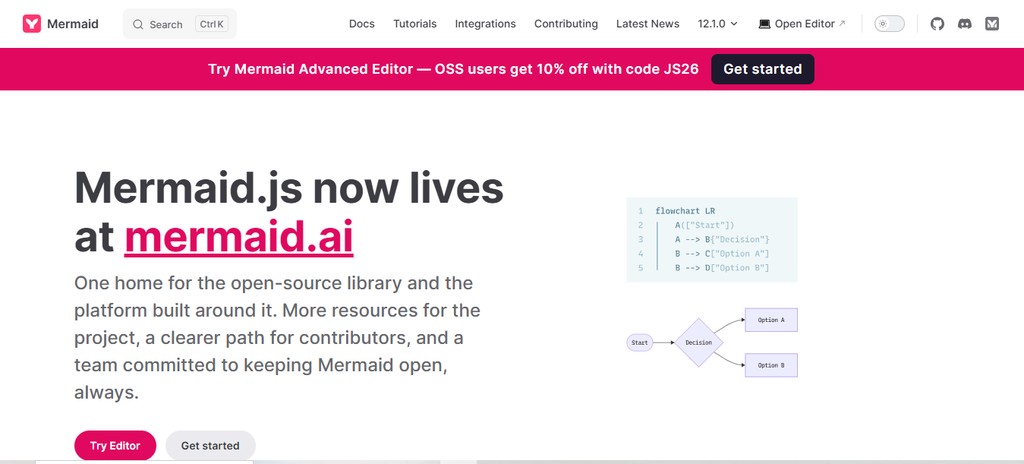
Mermaid is fundamentally different from a traditional visual editor. You describe a diagram using text syntax, and Mermaid renders the visual, making it especially attractive to software developers, documentation teams, and people who already work in Markdown and Git-based environments.
The trade-off is obvious. If you prefer dragging shapes around a canvas with a mouse, Mermaid adds a syntax-based learning curve and offers less free-form design control than a conventional visual editor.
Mermaid Highlighted Features
- 20-plus diagram types: Includes flowcharts, sequence diagrams, class diagrams, ER diagrams, Gantt charts, mind maps, timelines, Sankey diagrams, and more.
- Text-based syntax: Stores diagram structure as readable text.
- Version-control compatibility: Diagram changes can be reviewed through normal code diffs.
- Native GitHub rendering: Mermaid blocks can render within supported GitHub Markdown.
- Open-source foundation: Mermaid remains open source under the MIT license.
Mermaid Pros
- Free open-source core library.
- Excellent fit for developer documentation.
- Works well with version control.
- Diagrams remain easy to modify from text.
- No proprietary visual file format is required for the core workflow.
Mermaid Cons
- Syntax takes time to learn.
- Less intuitive for drag-and-drop users.
- Free-form visual positioning is limited compared with canvas editors.
- Business users may prefer the separate Mermaid Chart interface for collaboration.
Mermaid Pricing Plans
The Mermaid.js open-source library itself costs $0. For teams wanting the hosted Mermaid Chart platform, Basic is free, Plus is $10/user/month billed annually, Premium is $20/user/month billed annually, and Enterprise uses custom pricing.
Why Choose Mermaid?
Choose Mermaid if the diagram belongs with the documentation or code rather than inside a separate proprietary design file. Software teams can review diagram changes through familiar version-control workflows and keep architecture documentation close to implementation.
It is much less suitable when stakeholders expect a fully visual drag-and-drop editing experience. That limitation is important: Mermaid can be a superb Visio replacement for documentation-oriented developers while being the wrong choice for a non-technical operations team.
7. Whimsical

Whimsical combines flowcharts, wireframes, mind maps, documents, and collaborative visual planning in a clean interface. Its strength is speed: teams can capture an idea and make it understandable without dealing with the complexity of a traditional engineering diagram application.
The limitation is specialization. It works well for product thinking, user flows, brainstorming, and business diagrams, but teams needing detailed engineering notation or advanced Visio-style technical controls should test carefully.
Whimsical Highlighted Features
- Flowcharts: Provides quick visual process mapping.
- Mind maps: Supports idea exploration and structured brainstorming.
- Wireframes: Helps product teams sketch interface concepts.
- Collaborative documents: Keeps written context alongside visual work.
- AI assistance: Includes AI credits for supported generation workflows.
Whimsical Pros
- Clean interface with a relatively gentle learning curve.
- Strong product and planning workflows.
- Unlimited guests are supported.
- Combines documents and visuals.
- Free plan lets users evaluate the workflow.
Whimsical Cons
- Free accounts are limited to 50 new board objects monthly.
- Free exports contain a watermark.
- Not designed as a deep engineering CAD replacement.
- Business security capabilities require the higher tier.
Whimsical Pricing Plans
Free costs $0. Pro costs $10 per editor/month when billed annually or $12 monthly. Business costs $20 per editor/month with annual billing and adds private teams, SAML SSO, SCIM, and broader administrative controls.
Why Choose Whimsical?
Whimsical is attractive when you want diagrams to feel lightweight and fast. Product managers, UX teams, strategists, and cross-functional groups can move from brainstorming to a readable workflow without first learning a complex technical diagram application.
Its simplicity comes with limits. If your organization needs sophisticated engineering shapes, deep data connectivity, or exact Visio feature parity, evaluate Whimsical as a collaboration-first alternative rather than a complete Plan 2 replacement.
8. FigJam
FigJam is Figma’s collaborative whiteboard and works particularly well for brainstorming, workshops, user journeys, simple diagrams, planning sessions, and product-team collaboration. It gives multiple participants a shared visual space without requiring everyone to become a professional designer.
However, FigJam is not a direct substitute for every Visio workflow. It focuses on collaborative ideation rather than formal engineering diagrams, complex shape data, or advanced BPMN and CAD-related work.
FigJam Highlighted Features
- Collaborative whiteboards: Enables teams to work together in shared visual spaces.
- Diagramming shapes and connectors: Supports lightweight flows and structured visual relationships.
- Widgets and plugins: Extends boards with interactive tools.
- Templates: Speeds up workshops, planning, mapping, and brainstorming.
- Figma ecosystem access: Paid seat structures connect FigJam with other Figma products.
FigJam Pros
- Excellent for collaborative workshops.
- Familiar to teams already using Figma.
- Unlimited collaboration is possible within the free plan’s file limits.
- Large plugin and widget ecosystem.
- Useful for product, UX, and design teams.
FigJam Cons
- Not designed for advanced engineering diagrams.
- Starter teams are limited in shared files.
- Formal UML and BPMN users may need more specialized software.
- Figma’s seat model can require careful administration at scale.
FigJam Pricing Plans
Starter is free. For FigJam-focused collaboration on paid tiers, the Professional Collab seat is $3/month, Organization Collab is $5/month, and Enterprise Collab is $5/month. Higher Full and Dev seats cost more because they include additional Figma products and capabilities.
Why Choose FigJam?
FigJam is a strong choice when your diagram is part of a conversation. Workshops, user journeys, process discussions, product discovery, retrospectives, and planning sessions work well because the board encourages participation instead of treating the diagram as a finished technical artifact.
That focus also defines its weakness. You should not choose FigJam merely because it is easy to use if your team depends on highly structured engineering notation, data-linked shapes, or reliable migration of complex Visio files.
9. Boardmix
Boardmix combines collaborative whiteboarding with diagramming and a growing set of AI creation features. It can generate mind maps, flowcharts, presentations, and other visual structures while also giving teams a shared workspace for editing and discussion.
Its free plan is suitable for testing but contains restrictions. You receive three editable boards, 100 objects per board, 1 GB of storage, and standard-definition exports, so active professional use quickly pushes you toward a paid tier.
Boardmix Highlighted Features
- AI flowcharts: Generates process-oriented diagrams with AI.
- AI mind maps: Converts ideas into structured visual maps.
- Collaborative boards: Supports shared workspaces for team participation.
- Unlimited paid boards: Starter removes the basic board and object limits.
- HD exports: Paid plans support higher-quality, watermark-free output.
Boardmix Pros
- Strong combination of whiteboarding and AI creation.
- Free plan allows meaningful evaluation.
- Paid Starter is competitively priced.
- Unlimited visitors with editing rights are supported on Starter.
- Lifetime licensing options are available.
Boardmix Cons
- Free boards are limited to 100 objects each.
- AI-heavy workflows require separate AI tiers or credit capacity.
- Advanced enterprise controls require Enterprise.
- The number of plan options can make purchasing less straightforward.
Boardmix Pricing Plans
Free is $0. Starter costs $5/member/month annually or $12 monthly. AI Starter is $10 annually or $15.90 monthly. AI Business is $20 annually or $29.90 monthly. Enterprise is custom. Lifetime plans are currently listed at $99, $399, $699, and $999 for 1, 5, 10, and 20 members respectively.
Why Choose Boardmix?
Boardmix works well when you want one collaborative canvas for brainstorming and structured diagrams but also expect AI to handle more of the first draft. The mix of AI flowcharts, mind maps, shared editing, and lifetime options gives it a different purchasing model from many subscription-only competitors.
The free limits are restrictive for complex boards, however, and AI-intensive teams need to evaluate credit allowances rather than looking only at the headline subscription price.
10. Cloudairy

Cloudairy approaches diagramming as part of a broader AI workspace. It supports flowcharts, mind maps, UML, ER diagrams, cloud architecture, documents, projects, recordings, and collaborative planning, so you can move from creating the diagram toward managing the work it represents.
The breadth may be unnecessary if you only need a dedicated diagram editor. Teams that want their diagrams connected with project execution, however, may find that consolidation useful.
Cloudairy Highlighted Features
- AI diagram generation: Creates flowcharts, mind maps, UML, ER, and cloud diagrams using AI.
- VSDX import: Supports importing Microsoft Visio files.
- Cloud architecture library: Includes more than 50,000 icons across major cloud environments.
- Project workflows: Adds Kanban, list, timeline, calendar, and Gantt capabilities depending on plan.
- Enterprise controls: Higher tiers provide SSO, SCIM, audit logs, and related administration.
Cloudairy Pros
- Diagramming and project work can live together.
- Strong cloud-architecture focus.
- Visio import supports migration.
- AI generation covers several technical diagram types.
- Unlimited members are available even on the Free tier.
Cloudairy Cons
- Free accounts allow only three editable items.
- Paid pricing is per member.
- Teams needing only diagrams may not use the wider project and recording suite.
- Promotional welcome prices are temporary rather than permanent list prices.
Cloudairy Pricing Plans
Free costs $0. Starter lists at $8/member/month annually or $10 monthly, with a temporary new-workspace annual offer of $3.20. Business lists at $16 annually or $20 monthly, with a $8 welcome offer. Enterprise is listed at $25/member/month billed annually.
Why Choose Cloudairy?
Cloudairy becomes particularly interesting when the diagram is only the first stage of the work. You can build the visual, turn ideas into tasks, organize projects, create supporting documents, and keep collaboration inside the same broader environment.
That consolidation is useful for teams trying to reduce tool switching. But if your organization already has established project, documentation, and recording systems, buying another all-in-one workspace may introduce more overlap than value.
Can Microsoft Visio Alternatives Open VSDX Files Without Breaking Your Diagrams?
File Import Is Not the Same as Perfect Compatibility
Seeing “VSDX import” on a feature page does not mean every Visio diagram will survive unchanged.
Simple flowcharts usually migrate more easily. Complex diagrams may contain custom stencils, shape data, layers, unusual connectors, themes, hyperlinks, imported assets, specialized engineering symbols, or connections to external data.
The safest method is to build a representative test set. Include simple diagrams, your largest files, diagrams with custom shapes, data-linked diagrams, and any file your business cannot afford to recreate manually.
Check Shapes, Connections, Layers, and Data
After import, inspect connector routing and arrow direction first. A process diagram can look almost correct while one changed connection alters its meaning.
Then verify layers, shape positioning, labels, embedded information, custom libraries, and hyperlinks. For technical drawings, compare measurements, symbols, and page scale as well.
Visio Plan 2 currently includes more than 250,000 shapes, programmable custom shapes, P&ID and electrical diagrams, AutoCAD support, and two-way data connectivity. A lightweight alternative should not be assumed to reproduce all of those capabilities merely because it accepts VSDX files.
Keep Your Originals Until the Migration Is Proven
Do not convert your entire archive on day one. Keep original VSDX files, migrate a controlled sample, and let the people who actually use those diagrams verify the output.
Migration is complete only when your team can edit, share, export, and maintain the converted files reliably. A successful import screenshot is not enough.
Which Microsoft Visio Alternative Is Best for Your Type of Work?
If you primarily communicate information, processes, reports, journeys, comparisons, or educational content, Infographicmaker gives you an AI-first route from raw information to polished visual output.
If close Visio-style enterprise diagramming and file migration matter most, SmartDraw deserves serious consideration. Lucidchart is a strong general-purpose cloud option, while Creately adds data and project context around your diagrams.
Developers should consider Mermaid when they want diagrams to live beside code and documentation. Product and UX teams may prefer Whimsical or FigJam because rapid collaboration matters more than engineering depth.
Boardmix is useful for teams combining AI generation and whiteboarding. Cloudairy suits organizations that want diagrams connected to project execution. EdrawMax makes sense when you need a broad desktop-style toolkit and like the option of perpetual licensing.
The correct choice depends on your files, team, workflow, and the type of diagram you cannot afford to get wrong.
Conclusion
Finding the right Microsoft Visio Alternative starts with understanding what you are actually replacing. A simple flowchart workflow has very different requirements from engineering diagrams, UML documentation, collaborative product planning, or data-linked business processes.
Modern alternatives now compete through AI generation, browser collaboration, diagrams-as-code, project integration, VSDX migration, templates, cloud architecture, and visual storytelling rather than shapes alone.
Tools that combine AI-assisted structuring, editable visuals, reusable branding, flexible exports, and process-oriented layouts can help you move from raw information to something people can understand and act on. The best option is the one that removes friction from the work surrounding your diagram without sacrificing the accuracy your use case requires.
Frequently Asked Questions About Microsoft Visio Alternatives
What is the best Microsoft Visio Alternative?
There is no universal winner. Infographicmaker is useful for AI-powered information visuals and process communication, SmartDraw is strong for Visio migration and structured business diagrams, Lucidchart suits general cloud diagramming, and Mermaid is particularly useful for developer documentation.
What is the best free alternative to Microsoft Visio?
Your best choice depends on the workflow. Mermaid is free and open source for text-based technical diagrams. Several cloud products on this list also offer free plans, including Infographicmaker, Lucidchart, Creately, Whimsical, FigJam, Boardmix, and Cloudairy, although their usage limits differ.
Is there a free version of Microsoft Visio?
A lightweight version of Visio is included with several Microsoft 365 commercial subscriptions. Microsoft also offers 30-day trials for Visio Plan 1 and Plan 2 to eligible first-time work or school users.
How much does Microsoft Visio cost?
Microsoft currently lists Visio Plan 1 at $5 per user/month paid yearly and Plan 2 at $15 per user/month paid yearly. Plan 2 includes the desktop application and advanced technical capabilities.
Can I open a VSDX file without Microsoft Visio?
Yes. Several third-party products can import or work with VSDX files, including SmartDraw, Creately, and Cloudairy. Compatibility varies, so complex files should always be tested before a large migration.
Can Lucidchart replace Microsoft Visio?
For many business teams, yes. Lucidchart covers flowcharts, process diagrams, collaborative visual work, and many common technical diagrams. Specialized Visio Plan 2 workflows involving advanced engineering, AutoCAD, programmable custom shapes, or deep Microsoft-specific data connections require closer comparison.
What is the best Visio alternative for developers?
Mermaid is particularly attractive because diagrams are stored as text and can live in Markdown, Git repositories, documentation, and supported development platforms. Developers who prefer a visual editor may instead consider Lucidchart, Cloudairy, or another UML-capable tool.
What is the best Visio alternative for Mac users?
Browser-based tools such as Infographicmaker, Lucidchart, Creately, Whimsical, FigJam, Boardmix, and Cloudairy avoid traditional Windows-only desktop limitations because you work through a modern web browser.
What is the best Visio alternative for UML diagrams?
Mermaid is useful when you want UML-style diagrams inside developer documentation. Lucidchart, Creately, EdrawMax, SmartDraw, and Cloudairy are better suited when you prefer a graphical interface and broader visual control.
What is the best Microsoft Visio alternative for network diagrams?
SmartDraw is a strong choice for structured network and infrastructure diagrams. Lucidchart and Cloudairy also deserve consideration, particularly if collaboration or cloud-architecture visuals are important.
Are AI diagram generators accurate?
AI can save substantial setup time, but generated diagrams still need human review. Check relationships, labels, data, sequence, technical symbols, and business logic before relying on an AI-generated diagram for engineering, compliance, architecture, or operational decisions.
Is Mermaid better than Visio?
Mermaid can be better for developers because diagrams remain text-based, versionable, and easy to store with documentation. Visio is much stronger for users who prefer direct visual editing, specialized engineering shapes, complex desktop diagrams, and advanced Microsoft data integration.
Can a Visio alternative save money?
Yes, but compare total cost rather than subscription price alone. Include paid seats, AI credits, storage, migration effort, training, administration, integrations, and the time required to rebuild incompatible diagrams.
Should I replace Microsoft Visio if my team already uses Microsoft 365?
Not automatically. Microsoft now includes a lightweight Visio web experience in several commercial Microsoft 365 plans and provides real-time collaboration. If that already covers your needs, switching may create unnecessary migration work. Replace Visio only when another tool gives your workflow a clear advantage.

Comments
0 responsesNo comments yet. Be the first to share your thoughts.